

glm-5.2 and DeepSeek-V4-Flash. For model pricing, see the model catalog.
Configure
The steps below use Cherry Studio v1.9.x as a reference. Newer versions may differ slightly.- Open Settings → Model Provider, then click + Add at the bottom of the provider list.
-
In the add-provider dialog, set the provider Name to
ScitiXand choose the OpenAI type. -
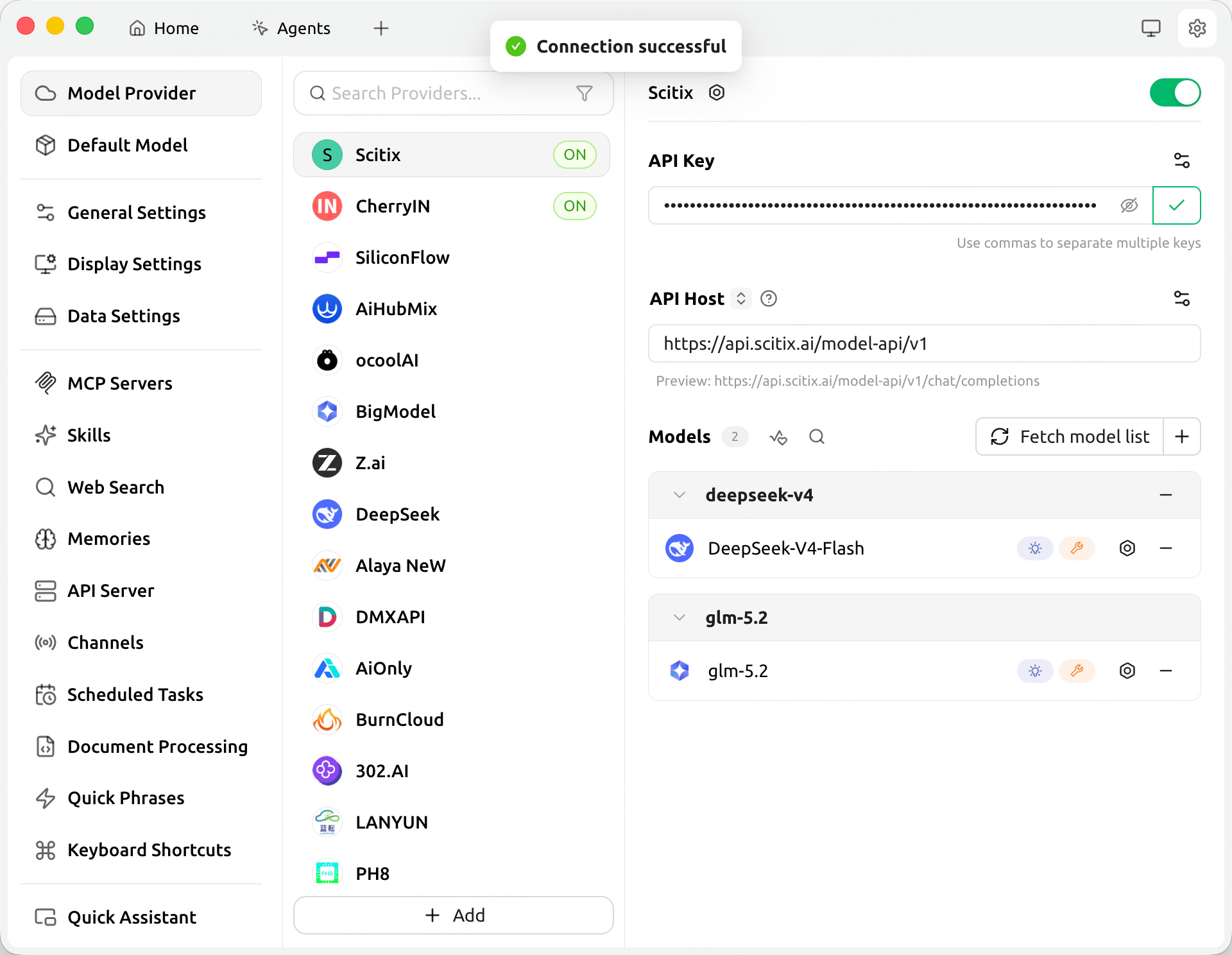
On the ScitiX provider page, fill in the required fields.
Cherry Studio shows a live Preview below the API Host field, such as
https://api.scitix.ai/model-api/v1/chat/completions. This confirms that Cherry Studio appends the remaining path automatically. Do not end the API Host with#. A trailing#forces Cherry Studio to use the address verbatim without appending/chat/completions, which breaks the request. -
Under Models, click + or Fetch model list, then add the model ID
glm-5.2. Custom providers do not auto-populate models. Add each model ID you want to use. - Click the ✓ button next to the API Key field to test connectivity. A Connection successful toast confirms that the API Key and API Host work.
- Turn on the toggle in the top-right corner of the ScitiX provider page. The provider’s models will not appear in the model selector until this toggle is on.
Verify
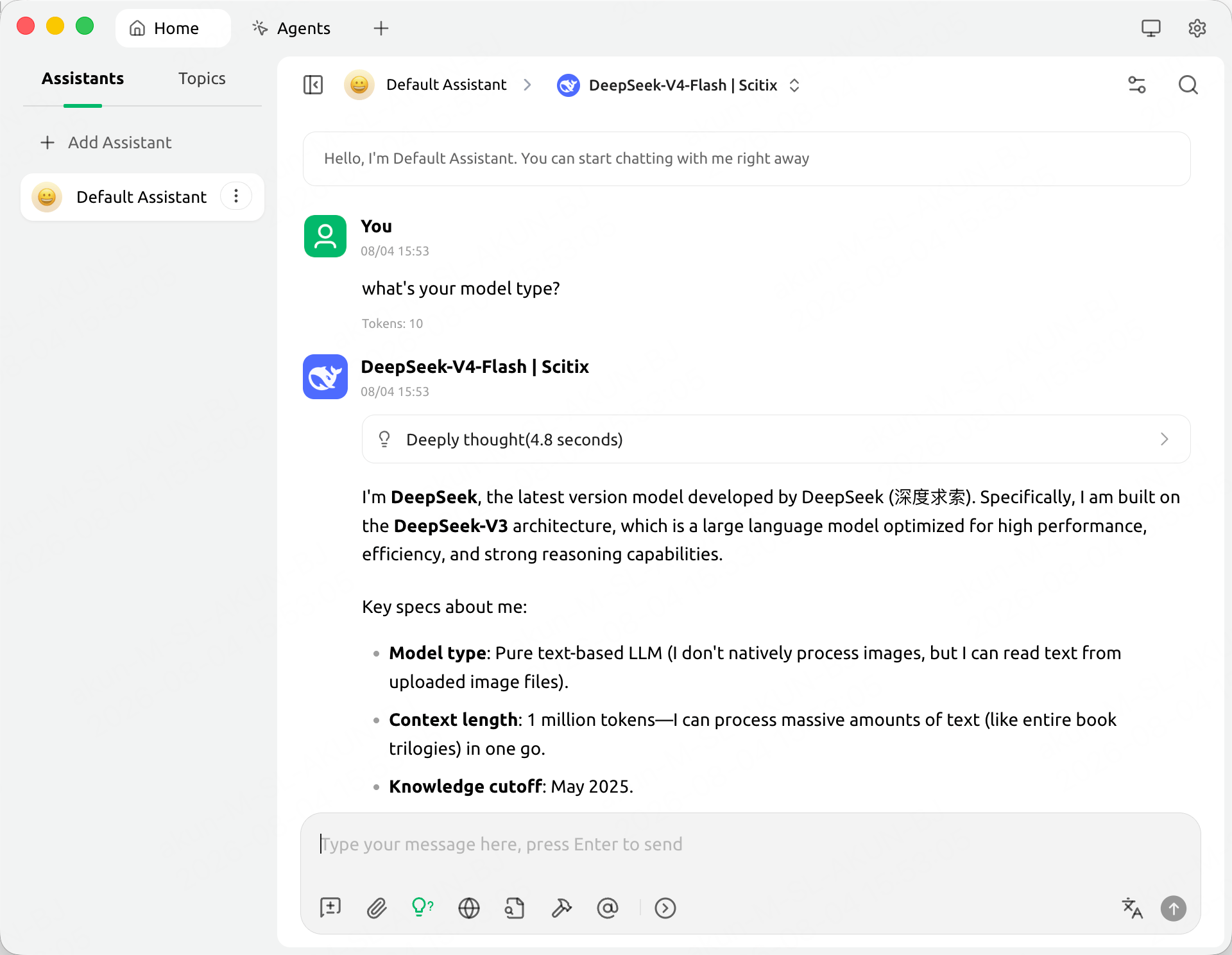
Go back to a conversation, open the model selector at the top, and switch to a ScitiX model shown as<model> | ScitiX. Send a message. A normal reply confirms that the connection works.
FAQ
- Models missing from the selector: confirm that the provider toggle in the top-right corner of the provider page is on.
- 404 on requests: check that the API Host does not end with
#. For normal use, enterhttps://api.scitix.ai/model-api/v1. - Cannot fetch the model list: custom providers require adding model IDs manually. Use + under Models and enter the ID, such as
glm-5.2. - Assistants / translation features: set the corresponding default model to a ScitiX model in Settings → Default Model so those features also use ScitiX.
- Choose a model with native tool calling if you rely on tool/function features.