glm-5.2 and DeepSeek-V4-Flash. For model pricing, see the model catalog.
Configure
The steps below use the Chatbox desktop app as an example. Chatbox Web uses a similar configuration flow.- Open Settings from the gear icon in the bottom-left corner, then go to Model Provider.
-
Select the built-in OpenAI provider and fill in the required fields.
-
In the model section, click Fetch to load the model list, then add the models you want to use, such as
glm-5.2. If Chatbox cannot fetch the model list, check that the API Host and API Key are correct. You can also click + New to add a model ID manually. Clicking Reset clears the model list. -
Click Check and select a model to test the connection.
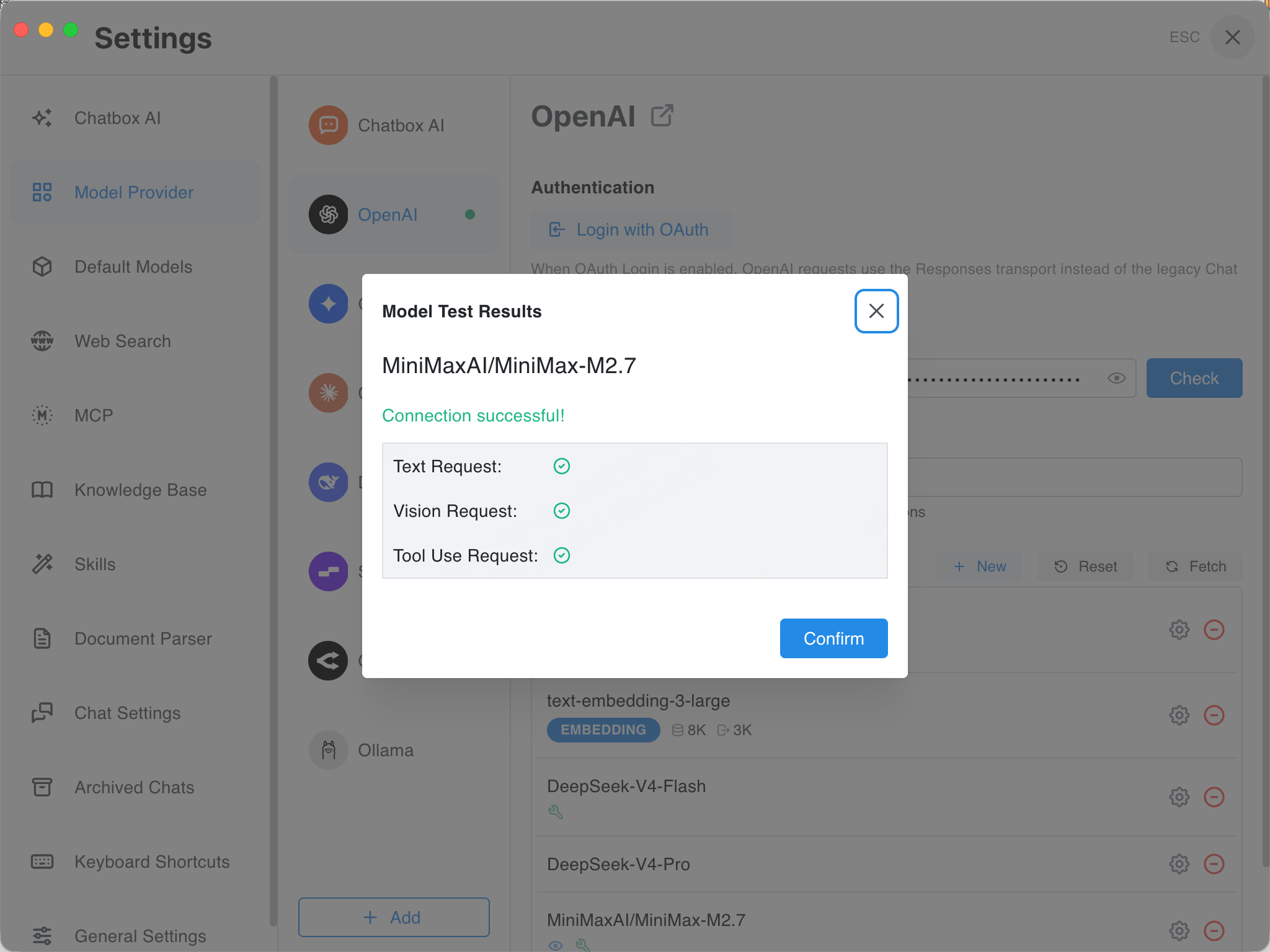
Chatbox displays a Model Test Results dialog and checks capabilities such as Text, Vision, and Tool Use Request. If you see
Connection successful!, the connection is working. Model Test Results reports Vision and Tool Use support by model. A model may pass the Text check but not support Vision. If you rely on tool/function features, choose a model with native tool calling support.
Verify
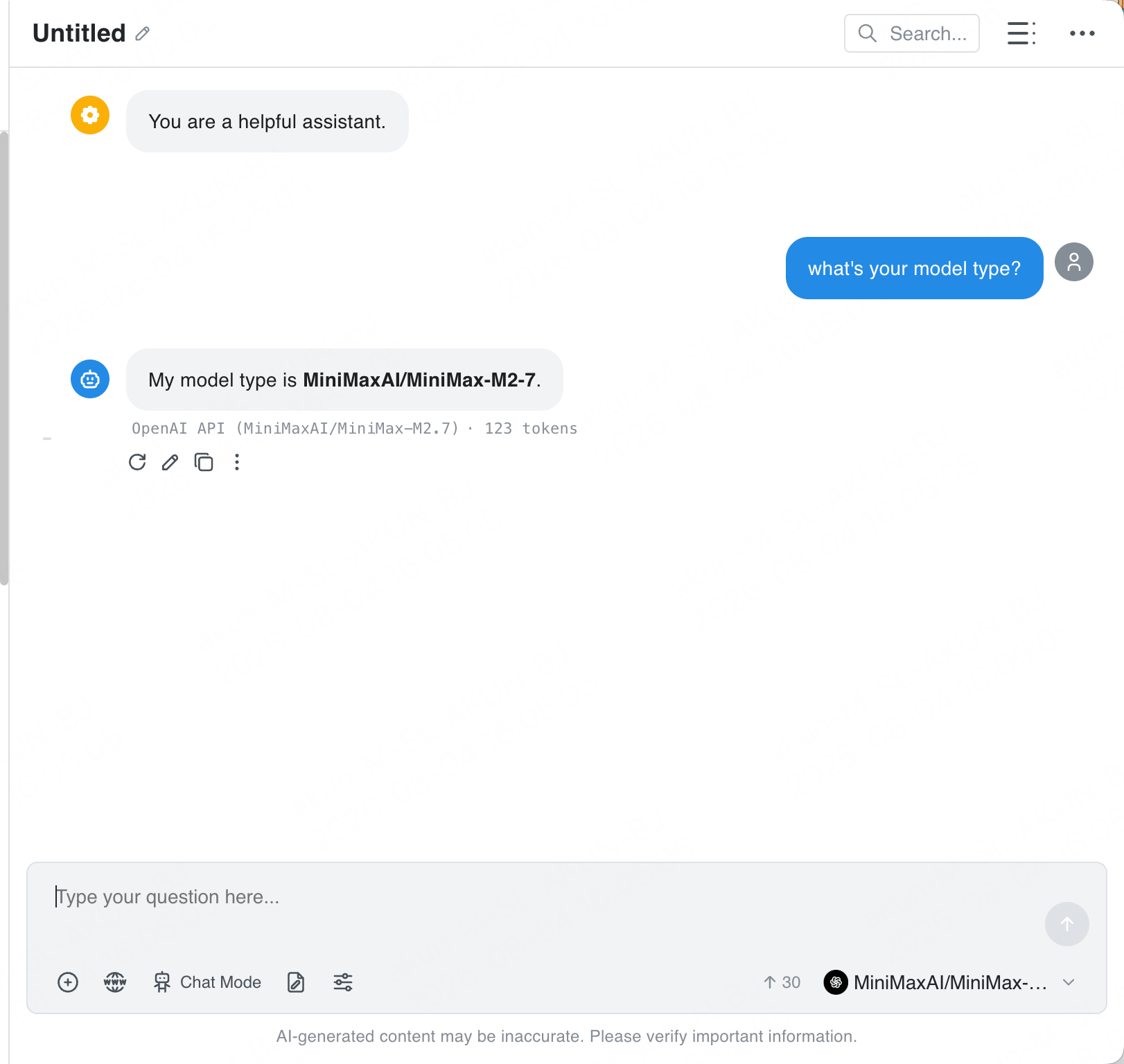
Start a new conversation, select a ScitiX model from the model selector at the bottom, and send a message. A normal reply confirms that the connection works. The message footer showsOpenAI API (<model>).