

glm-5.2).
1. Create the credential
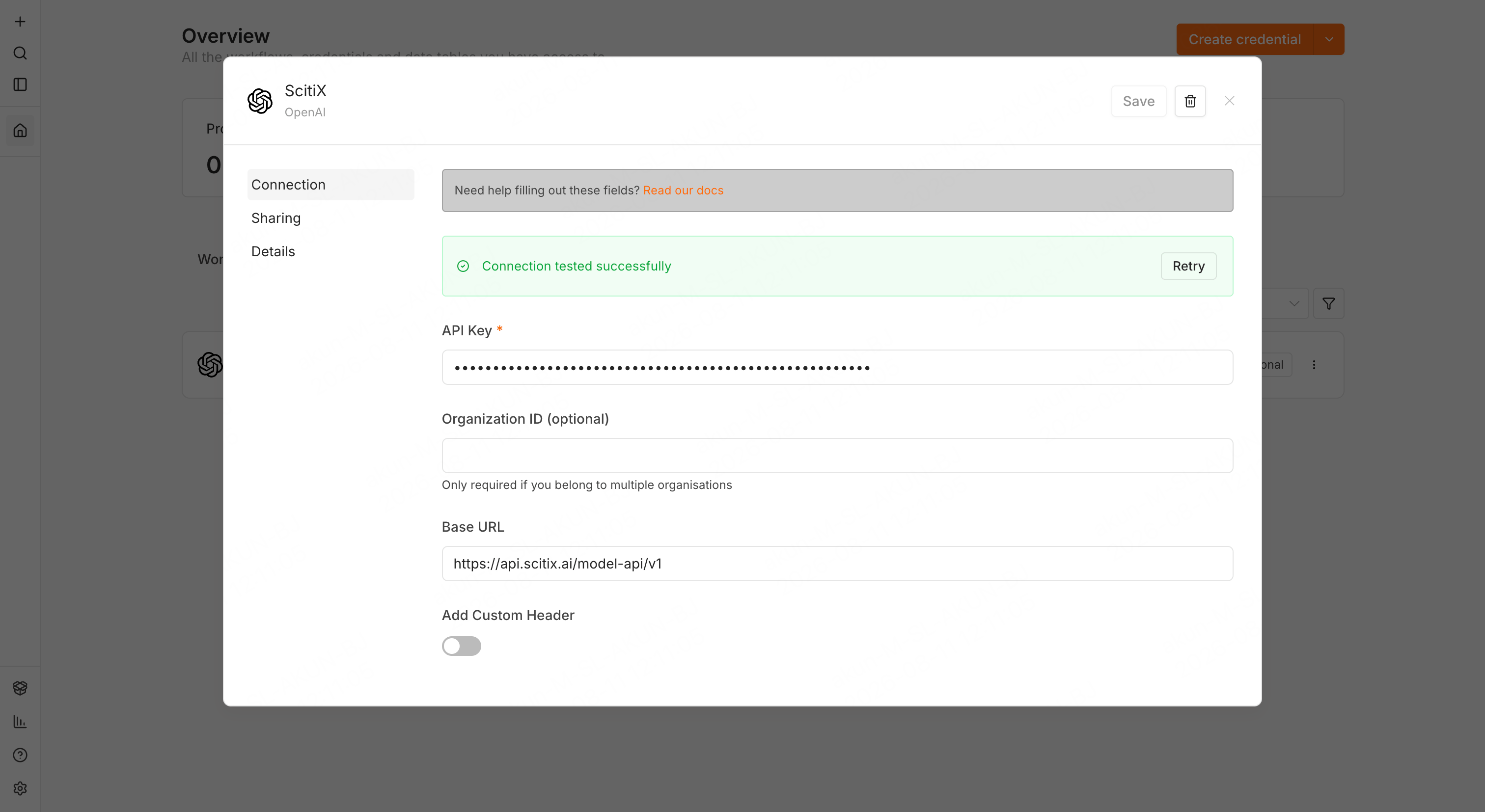
Create an API key on the ScitiX API Keys page. Then in n8n, open the Credentials tab, click Create credential, and pick OpenAI in the app selector. Fill in:
When you save, n8n tests the credential with a
GET /models call against the Base URL — Connection tested successfully means ScitiX is reachable and the key works.
2. Use it in a workflow
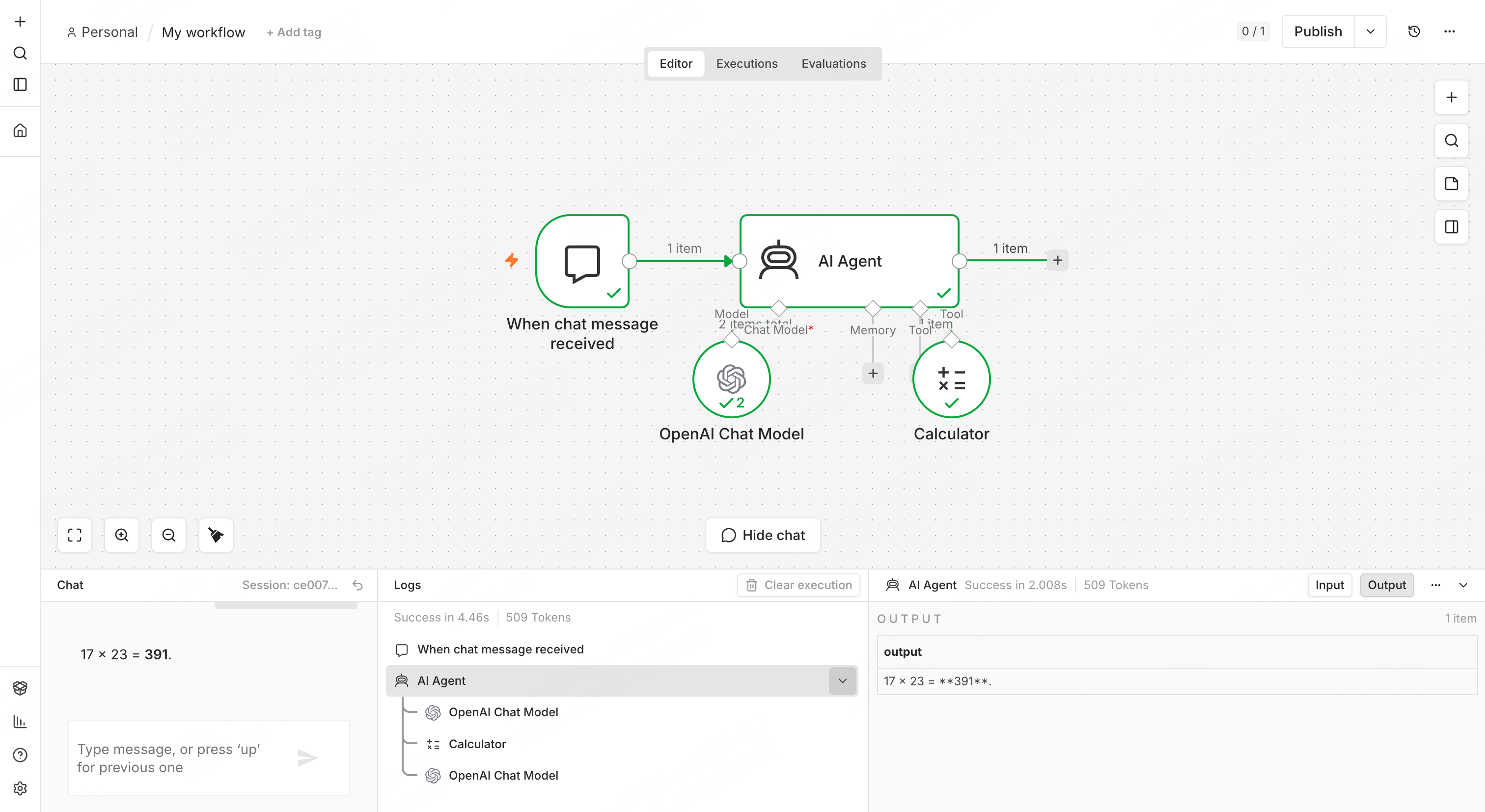
- Create a workflow with a Chat Trigger (“On chat message”) and an AI Agent node.
- Open the AI Agent node, click + Chat Model, and pick OpenAI Chat Model.
- In the OpenAI Chat Model node, select the ScitiX credential (on n8n Cloud, choose My own credential first). The Model dropdown loads live from ScitiX’s
/modelsendpoint — selectglm-5.2. The AI Agent node runs as a Tools Agent since n8n 1.82.0, so the model must support native tool calling;glm-5.2does. Check the platform’s tool-calling list before switching models. - Leave Use Responses API off — that toggle targets OpenAI’s own API.
- Connect at least one tool sub-node to the AI Agent (a documented requirement — e.g. the Calculator tool).
Verify
Open the chat panel and send a message that exercises the tool, for example “what is 17 * 23?”. A streamed answer with a visible tool call and the result391 confirms both the connection and tool calling. For a plain completion test without tools, use a Basic LLM Chain root node with the same OpenAI Chat Model sub-node.
FAQ
- The Model dropdown is empty: The
GET /modelscall failed. Re-check the Base URL (/v1suffix, no trailing slash) and the key. - Which tool should I use for a quick test? Prefer the Calculator tool. If you use a Code tool instead, each parameter must be individually enabled for the AI to fill (click the ✨ on it, or you get
No parameters are set up to be filled by AI), and the Code node runs on a separate task runner that times out at 60s if that runner isn’t enabled. Calculator avoids both.