

cn). Both share the same config.yaml, so the configuration below applies to either.
Configure the CLI
1. Install the CLI
2. Configure the model
Create an API Key on the API Keys page, then edit~/.continue/config.yaml. On a fresh machine, create the directory first with mkdir -p ~/.continue.
3. Create the onboarding marker
As of CLI 1.5.47, interactivecn otherwise shows a first-run login prompt asking for an Anthropic API key and ignores your local config. Headless cn -p is unaffected. See continuedev/continue#12258.
4. Run the CLI
Plaincn opens the interactive chat TUI. Type / to see slash commands. cn -p "<prompt>" answers once and exits.
--auto to auto-approve tool calls, or stay in interactive mode to approve each one. Finer-grained flags also exist: --readonly for plan mode with read-only tools, and repeatable --allow <tool> / --exclude <tool>.
Configure the VS Code / JetBrains Extension
- Install the extension from the VS Code or JetBrains marketplace by searching for Continue.
- Open the chat sidebar. In VS Code, use
Cmd/Ctrl+L; in JetBrains, useCmd/Ctrl+J. - Click the config selector above the input, then the gear icon next to Local Config.
- Add the same
modelsentry shown above to~/.continue/config.yaml, or%USERPROFILE%\.continue\config.yamlon Windows. - Select
glm-5.2from the model dropdown and send a message.
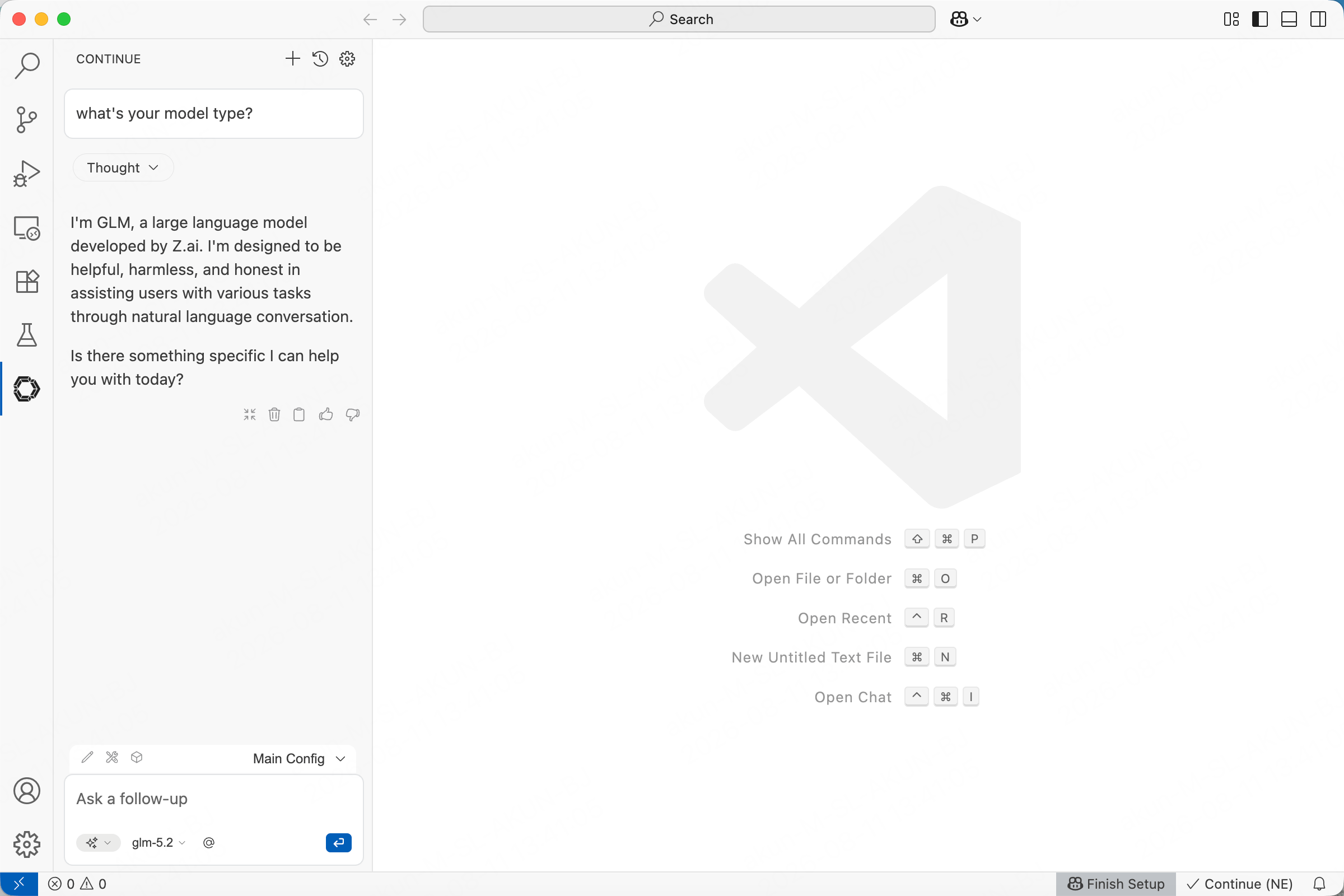
The CLI and extension share
~/.continue/config.yaml. If you are logged into Continue Hub, make sure the active config is the local one.Field Reference
The CLI and the extension shareconfig.yaml, so the same fields apply to both.
FAQ
- The chat TUI shows a Model Capability Warning for
glm-5.2. As of 1.5.47, the CLI checks model IDs against a built-in list and warns on ones it does not recognize, even withcapabilitiesdeclared. It is safe to ignore: chat, edit, and tool calls all work against the ScitiX endpoint.