- Log in to the console and navigate to the Object Storage page.
- To access OSS through methods other than the console, you need to obtain access keys (AK/SK) for authentication. Refer to Step 2: Obtaining Access Keys (AK/SK).
- Use tools such as the console or command line (after downloading the command line tool, you need to configure it as described in Step 3: Command Line Tool Configuration).
- Create a Bucket: A bucket is a container for storing objects in OSS. You need to create a bucket before uploading objects. Refer to Step 4: Creating a Bucket. The operation is similar for parallel file systems and OBS buckets.
- Upload Data: Upload data to OSS. Refer to Step 5: Uploading Objects. The operation is similar for parallel file systems and OBS buckets.
- Download Data: Download data from OSS. Refer to Step 6: Downloading Objects. The operation is similar for parallel file systems and OBS buckets.
Step 1: Login to the Console
Access the ScitiX web page and log in using your account and password. Navigate to the Object Storage page.Step 2: Obtaining Access Keys(AK/SK)
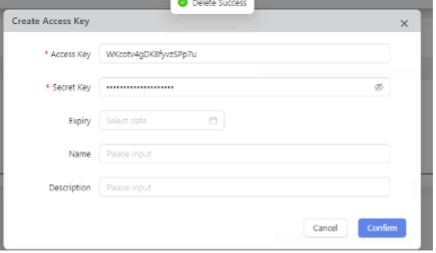
• To access OSS using the command line, click “Create Access Key” on the OSS page.