

Understand priority and preemption
Task priority determines queue order and whether a waiting workload can preempt another workload. Ordinary priorities are P1~P9: a higher number takes precedence. P99 is a special highest priority for administrators handling urgent tasks. Workload types have no inherent precedence. By default, tasks are ordered by descending priority, then by ascending original submission time within each priority. Distinguish three separate decisions:- Queue priority determines a workload’s position in the queue.
- Preemption capability determines whether a waiting workload can preempt eligible lower-priority workloads.
- Preemption eligibility determines whether a running workload can be preempted, based on its priority and the policies for its actual resource pool, instance type, and workload type.
Guaranteed priority is a scheduling category, not a reserved resource purchase or a promise of immediate startup. The previous resource guarantee feature is no longer supported. Queue order determines which tasks are considered first; each task must still meet resource, quota, and other scheduling requirements.
Determine whether a task can be preempted
A pool’s per-workload-type preemption switch controls whether running workloads of that type can become preemption targets. It does not change task priority, queue order, or the ability to preempt other workloads. Priority-based preemption requires all of the following:- The waiting task has priority P7~P9 or P99 and can preempt other workloads.
- The target is a running P1~P6 task.
- The policies for the target’s actual pool, instance type, and workload type permit preemption.
For example, a P1 VSCS task cannot be preempted by P9 or P99 tasks while the pool’s VSCS preemption switch is off. Enabling that switch makes the task eligible. A P8 VSCS task remains protected from priority-based preemption regardless of the switch.
Configure resource pool preemption policies
Administrators with resource pool management permissions can configure preemption when creating or editing a reserved resource pool. Configure each permitted workload type for each instance type. The same workload type can have different policies in different pools.
Defaults apply only to the initial configuration. Check the pool’s current policy. Before changing an existing pool, assess interruptions to running tasks and save required training checkpoints, service data, and development files to persistent storage.
To configure a reserved resource pool:
- Create a pool or open an existing pool for editing from the pool list.
-
In Workload Settings, select the Allowed workload types for each instance type.
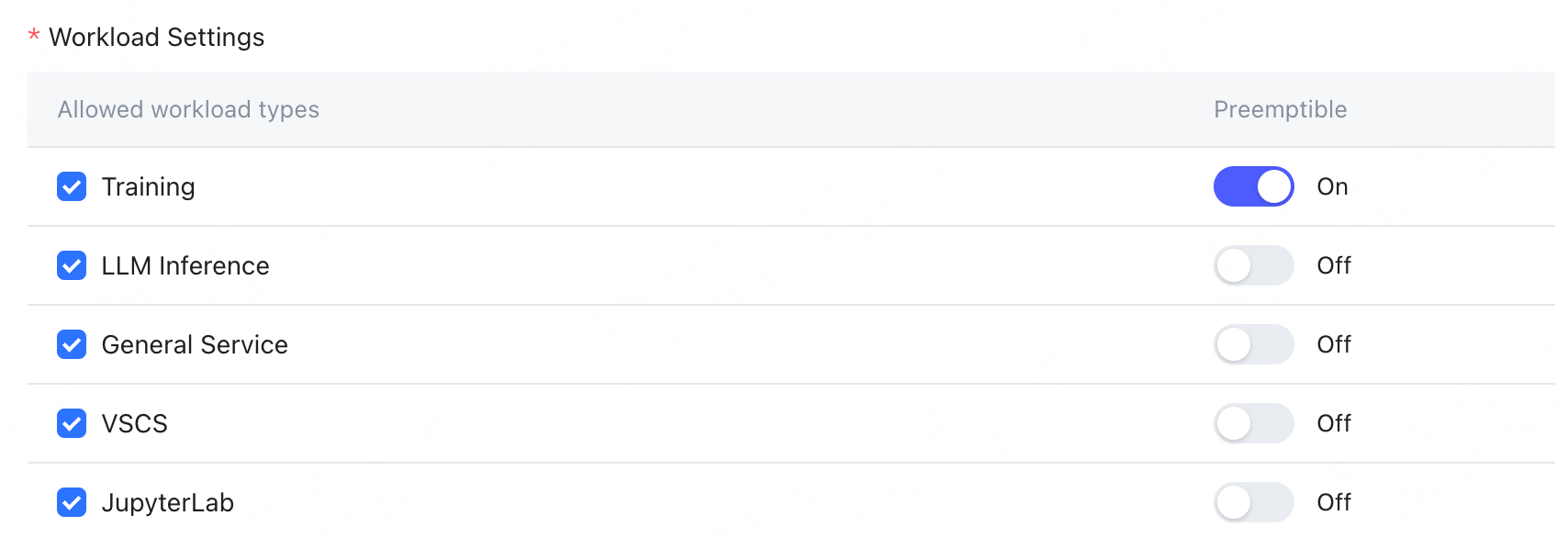
- Set Preemptible for each workload type and save the configuration.
Choose a priority when creating a task
Configure the priority
Administrators assign each user’s priority ceiling separately for each pool. Choose a priority within your authorized range when creating a workload.- Create the workload and select a resource pool and instance specification.
-
Select the task priority.
- Your priority ceiling can differ between pools. Available priorities depend on your authorization in the selected pool.
- Choose a priority that reflects the task’s urgency. For a single-specification task with an authorized ceiling of 8, you can select 1~8, but not 9.
- Before submitting, check resource requirements and the pool’s preemption policy for the workload type.
- Create training tasks
- Create LLM inference services
- Create general services
- Use a VSCS development environment
- Use a JupyterLab development environment
Default priority
When you submit a workload through the API or SDK, the priority field is optional for all workload types. It no longer defaults to your highest authorized priority. If you omit the priority, the task defaults to P3, or to your applicable authorized ceiling if it is below 3. If you explicitly specify a priority within your authorized range, the task uses that value; it is not automatically raised to your authorized ceiling. For example, with a ceiling of 8, an unspecified priority defaults to P3. With a ceiling of 2, it defaults to P2. The default never exceeds your authorized ceiling.Queue across multiple specifications
When queuing across multiple instance specifications, calculate the selectable priority ceiling in this order:- For each specification, find your highest authorized priority among the resource pools available for that specification.
- Take the lowest of those per-specification values as the task’s selectable priority ceiling.
In training tasks and development environments, Resource Priority orders candidate instance specifications. It is separate from the task priority that determines workload queue order. Reordering specifications does not change task priority.
Understand existing tasks
When workloads join the priority system, existing tasks without a priority are assigned P1. Tasks that already have a priority retain their value. The P1 migration rule for existing tasks is separate from the P3 default for new tasks. An existing P1 task’s eligibility still depends on its pool policy. Reserved pools initially disable preemption for LLM inference services, general services, VSCS, and JupyterLab. Do not assume that a task can be preempted solely because its priority is P1.View current eligibility and queue status
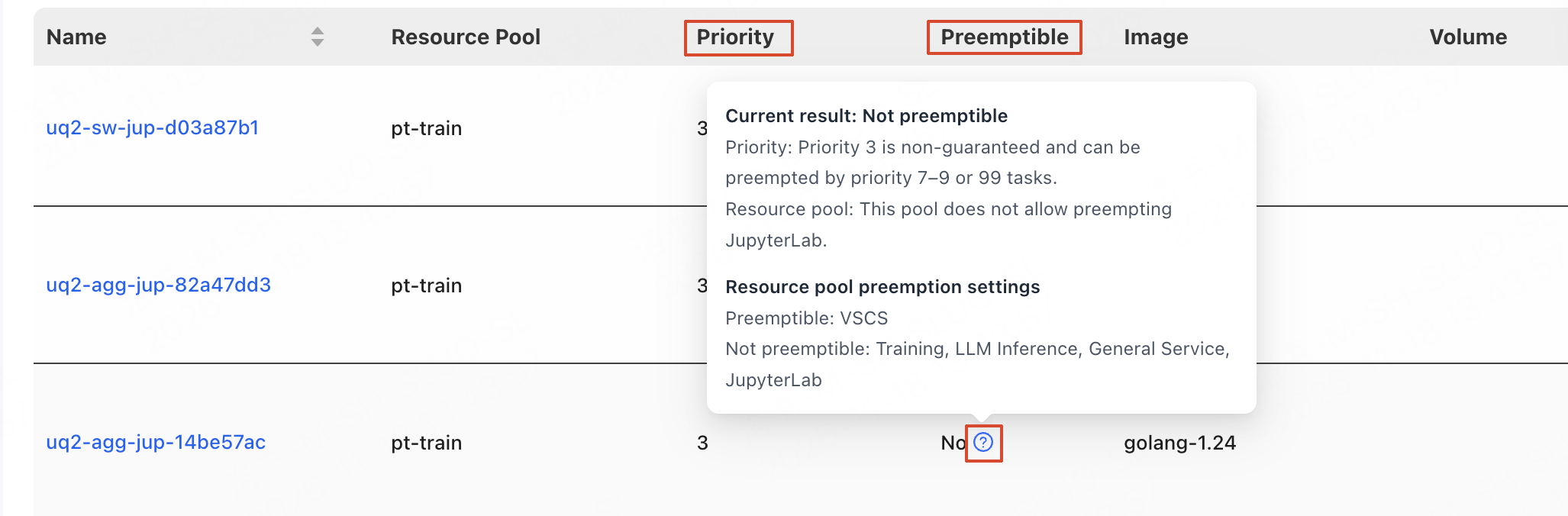
In workload lists, Priority shows the task’s current priority, and Preemptible shows whether the combined priority and pool policy allow preemption:- A positive eligibility result means that the task may be preempted by P7~P9 or P99 workloads after it starts.
- A negative result means that its priority or pool policy does not permit preemption.
Adjust queued priorities and handle urgent tasks
Adjust a queued task’s priority
- Submitters can adjust their own queued workloads within their authorized ceilings. Tasks are reordered using the new priority but retain their original submission time.
- Pool administrators can adjust queued workloads within their management scope from the pool details.
Manage urgent tasks
Only administrators can assign P99 to a queued task. Ordinary users cannot assign this special highest priority. P99 has these limits:- At most one queued P99 task can exist in a pool at a time.
- Assigning P99 to another task in that pool requires confirmation to replace the existing queued P99 task. The previous task is demoted to P9.
- Canceled or replaced P99 tasks retain their P99 marker and precede other P9 workloads.
- Tasks displaced by P99 are placed at the front of the P9 queue in reverse displacement order.
- P99 takes precedence over P1~P9, but can preempt only eligible running P1~P6 workloads. It cannot preempt P7~P9, another P99, or a task protected by pool policy.
- P99 must still wait if resources are occupied by protected workloads. It does not increase capacity or guarantee immediate startup.
- P7~P9 tasks stop leaving the queue. Starting more protected workloads could extend the P99 task’s wait.
- P1~P6 tasks can backfill only if their workload type permits preemption and idle resources meet scheduling requirements. They may then be preempted when the P99 task’s full requirements are met. Protected P1~P6 tasks cannot backfill.
- P7~P9 tasks become eligible for scheduling again once P99 leaves the queue; they do not have to wait for P99 to finish. Their actual start still depends on priority, submission time, and resources.
Confirm whether preemption occurred
If a task or service is interrupted, has unready instances, or returns to waiting for resources, inspect its details, events, and explicit reasons. Priority or queued status alone does not prove preemption.- Check status details and events for an explicit priority-based preemption reason. VSCS status details can show this reason directly. Expand the details if the text does not fit on one line.
- Check the task priority and actual pool, instance type, and workload-type policy at the time of the event. The current configuration may differ.
- Follow the workload’s recovery procedure. For training tasks, see Resume training after an interruption.
For continuous services and long training runs, check preemption policies and recovery procedures in advance. Save checkpoints regularly and verify that training can resume. Keep critical files and progress on persistent storage; do not assume automatic or lossless recovery after preemption.
FAQ
Why can one P1 task be preempted while another cannot?
Why can one P1 task be preempted while another cannot?
Pool, instance type, and workload-type policies can differ. P1 meets the priority condition but must also meet the actual pool policy. Under a reserved pool’s defaults, a P1 training task is preemptible while a P1 VSCS task is not. Check the current decision in the workload list.
Does enabling training-task preemption make P8 training tasks preemptible?
Does enabling training-task preemption make P8 training tasks preemptible?
No. The workload policy must permit preemption and the target priority must be P1~P6. P8 is a guaranteed priority and cannot be preempted by P7~P9 or P99 tasks through priority-based preemption.
Does disabling VSCS preemption let VSCS leave the queue earlier?
Does disabling VSCS preemption let VSCS leave the queue earlier?
No. The switch controls eligibility as a preemption target. Queue order still depends on priority, original submission time, and resource conditions.
Can P5 preempt P1? Can P9 preempt P7?
Can P5 preempt P1? Can P9 preempt P7?
Neither is allowed. P1~P6 cannot preempt other tasks, and P7~P9 cannot preempt each other. A higher priority can improve queue order without granting unrestricted preemption.
Can P99 override a pool's protection from preemption?
Can P99 override a pool's protection from preemption?
No. P99 has the same target scope as P7~P9: running P1~P6 workloads whose actual pool permits preemption of that workload type.
How should I protect workloads that must run continuously?
How should I protect workloads that must run continuously?
Check the pool’s policy for the workload type first.
- To protect all eligible workloads of a type in a pool, ask an administrator to disable that type’s preemption switch.
- To distinguish tasks by business urgency, choose an appropriate priority within your authorized range.
Why is a high-priority task still queued?
Why is a high-priority task still queued?
Priority does not increase capacity. A task may still wait because resources are occupied by protected workloads, or because quota, single-node capacity, distributed placement, or topology requirements are unmet. See Troubleshoot insufficient resources or long queue times.