

Resource Pool Types and Quota Limits
Resource Pool Type
Shared resource pools are organized by the platform according to resource type. Dedicated resource pools and exclusive resource pools support creation, editing, and deletion.Dedicated Resource Pool Whole-Machine Validation
Dedicated resource pools require resources to be aligned by whole nodes:
When creating, scaling out, scaling in, or purchasing an order with a dedicated resource pool specified, whole-machine validation is required. If the requirements are not met, the operation cannot be submitted.
Create Resource Pool
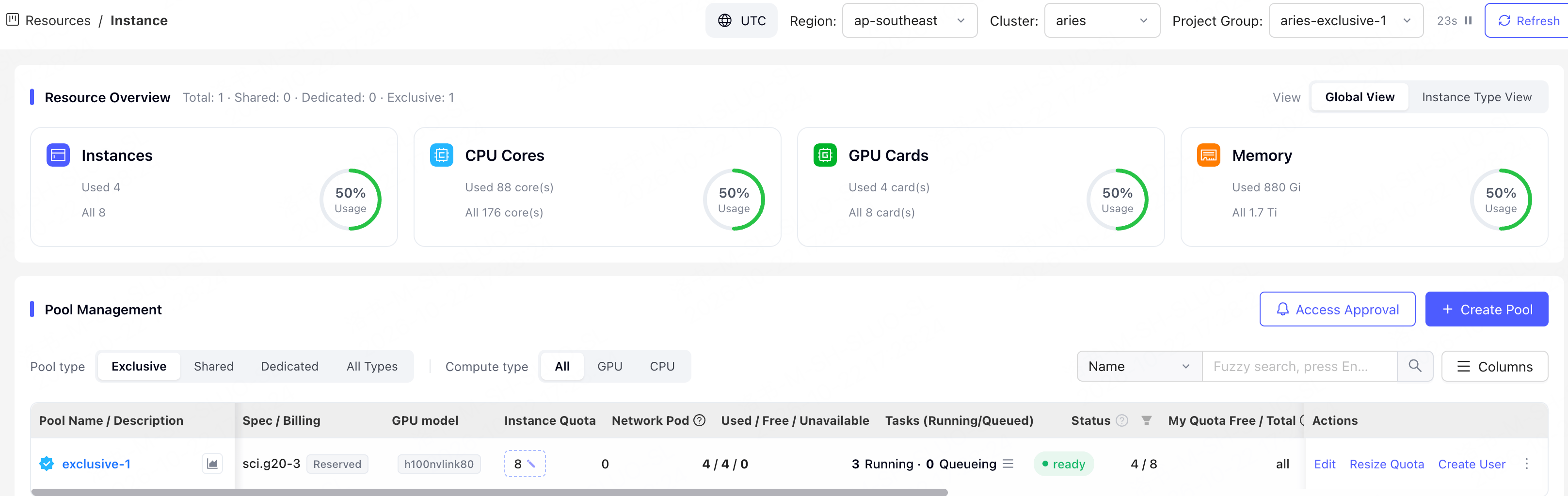
Shared resource pools are typically provided by the platform based on resource type. Dedicated resource pools and exclusive resource pools must be created separately according to team usage, isolation requirements, and quota allocation. Before creating one, ensure that the current account has organization administrator permissions and available instance quota. If you create a dedicated resource pool, the instance quota must also meet the whole-machine validation requirements.- Go to Resources > Instance.
- Click Create Pool.
-
Configure the resource pool.
- Click Create.
View Resource Pool Details
Go to Resources > Instance, then click the name of the target resource pool to open its details page.
Resource pool operations are typically performed asynchronously. After you submit a create, scale, conversion, rename, or delete operation, you can check the resource pool status to determine whether the operation has been completed. You can continue using the resource pool once it is ready. If an operation fails, review the on-screen message to identify the cause and contact the platform administrator if necessary.
Dedicated resource pools also display node health status. When all nodes are functioning properly, the status is
healthy; if any exceptions occur, the page displays details about the affected nodes.
Adjust Resource Pool Configuration
After creating a resource pool, you can continue to adjust its configuration as needed. Only organization administrators or resource administrators of the target resource pool can adjust resource pool configurations. On the resource pool list or resource pool details page, you can perform the following operations. Available operations may vary depending on the resource pool type and account permissions.- Edit: Modify the resource pool name, description, supported workload types, or other resource pool configurations.
- Allow/Disallow Guarantee: Control whether users are allowed to use Guarantee in the resource pool. When disabled, users in this resource pool cannot set tasks to Guarantee, even if they have been granted permission individually.
- Default User Priority: Adjust the default user priority for the resource pool.
- User Default Quota: Adjust the default quota for newly authorized users or users who follow the default configuration in the resource pool.
- Adjust Project Group: Modify the Project Group to which the resource pool belongs.
- Delete: Delete resource pools that are no longer in use. Before deletion, ensure that the resource pool contains no quotas, user configurations, or workloads that still need to be retained or are in use.
Manage Authorized Users and Personal Quotas
Resource pools support user-based authorization management and configuration of individual quotas, priorities, and resource guarantees. Quotas in a shared resource pool are still consumed collectively by users within the tenant; user-level settings control each user’s available quota and scheduling policy in that resource pool.View and manage authorized users
Only organization administrators or resource administrators of the target resource pool can manage authorized users and personal quotas. On the resource pool details page, open the User Info tab.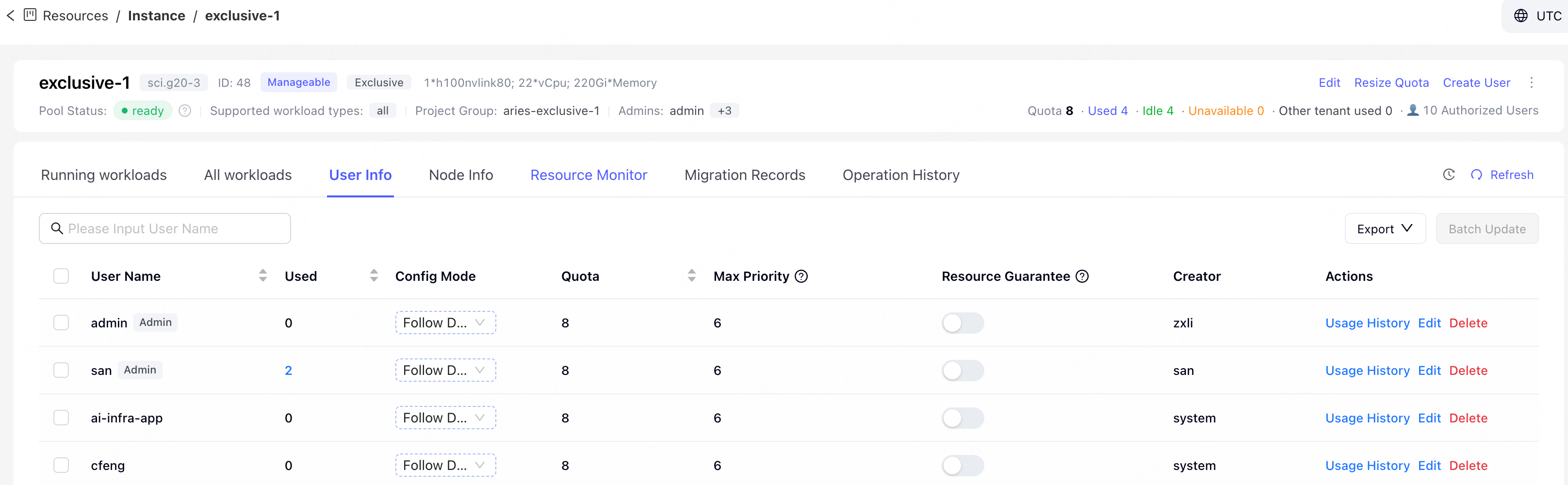
Add Resource Pool Authorized Users
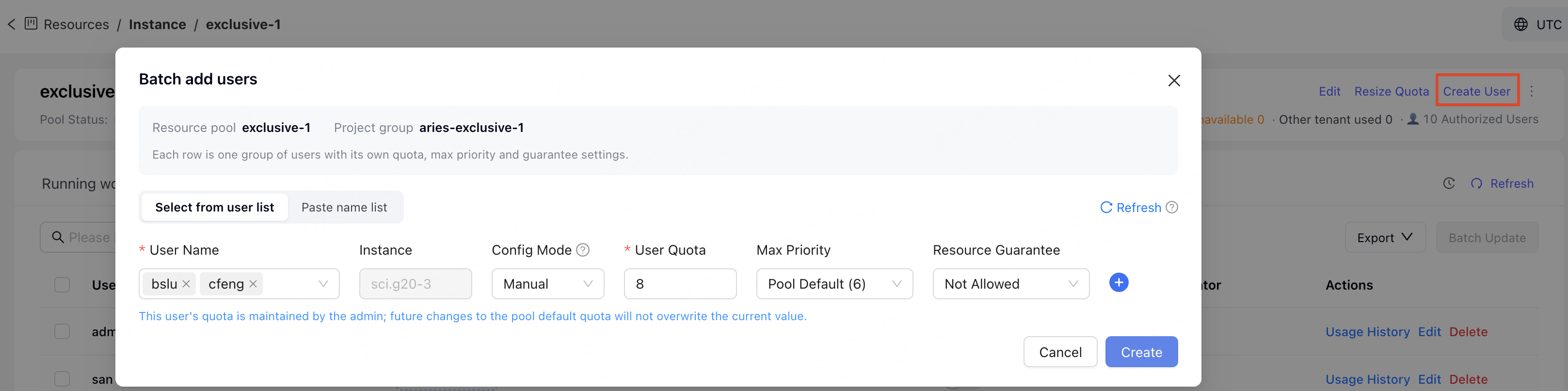
- Select from user list: Select the users to authorize and configure individual quotas.
- Paste name list: Paste usernames separated by commas or line breaks. Each line corresponds to a group of users and its configuration. You can set Instance, Config Mode, User Quota, Max Priority, and Resource Guarantee; to use different configurations, add a new line and configure them separately.
Other Actions
After searching for a username on the User Info tab, you can also perform the following actions:- Batch Update: Adjust the quota, Max Priority, or Resource Guarantee settings for multiple users at once.
- Export: Select Export CSV List to download user information, or select Copy Names to Clipboard to copy usernames.
- Edit: Modify the quota settings for an individual user.
- Delete: Remove authorized users from the resource pool.
Scaling Resource Pools
You can adjust the total quota of a resource pool by scaling it out or in. Whether scaling is supported depends on the resource pool type, resource pool status, and the current account permissions. Before making adjustments, ensure that the current account has organization administrator permissions or is a resource administrator for the target resource pool. In the resource pool list or on the resource pool details page, click Resize Quota for the relevant resource pool to adjust its total quota. Scaling supports by quantity or Specify Nodes.- During scale-out, quota is migrated from the shared resource pool by default. You can also specify another resource pool of the same resource type as the quota source. Before submitting, ensure that the source resource pool has sufficient available quota.
- Before scaling down, ensure that the target resource pool does not contain used resources exceeding the total capacity after scale-down. If resources are occupied by Develop, Training, or Inference, the scale-down operation may fail.
Convert Resource Pool Type
Dedicated resource pools and exclusive resource pools can be converted into each other. Before conversion, ensure that the current account has organization administrator permissions or is the resource administrator of the target resource pool, and meets the following conditions:- No update, delete, or other resource operations are in progress for the target resource pool.
- The converted resource pool type meets the requirements of the use case.
- When converting to a dedicated resource pool, the quota must meet the whole-machine validation requirements.
Consolidate Dedicated Resource Pool Fragments
After a dedicated resource pool has been running for an extended period, resource fragmentation may occur: multiple small workloads become distributed across high-specification nodes, preventing large-scale training or inference tasks from obtaining contiguous resources. Defragmentation consolidates distributed workloads onto a small number of nodes, freeing up completely idle nodes. Before the cleanup, you can go to the dedicated resource pool details page to view node and migration information:- Node Info: Locate nodes by idle-first priority, status, node name, or workload name, and view node status, hosted workloads, and resource usage. When resource distribution on a node needs to be addressed, use the available page options to migrate resources, defragment resources, or stop scheduling.
- Migration Records: View resource migration records initiated from the node view, including the status, direction, migration mode or node, evicted workloads, and initiator. Resource allocation initiated by directly editing the resource pool quota is not included in these records.
Filter Criteria
- The resource pool type is dedicated.
- The resource pool status is
readyorfailed. - No cleanup task is currently running in the resource pool.
- The current account is a tenant administrator or resource pool administrator.
Organizing Process
- Go to the dedicated resource pool details page.
-
Click the Node Info tab, and then click Defragment.
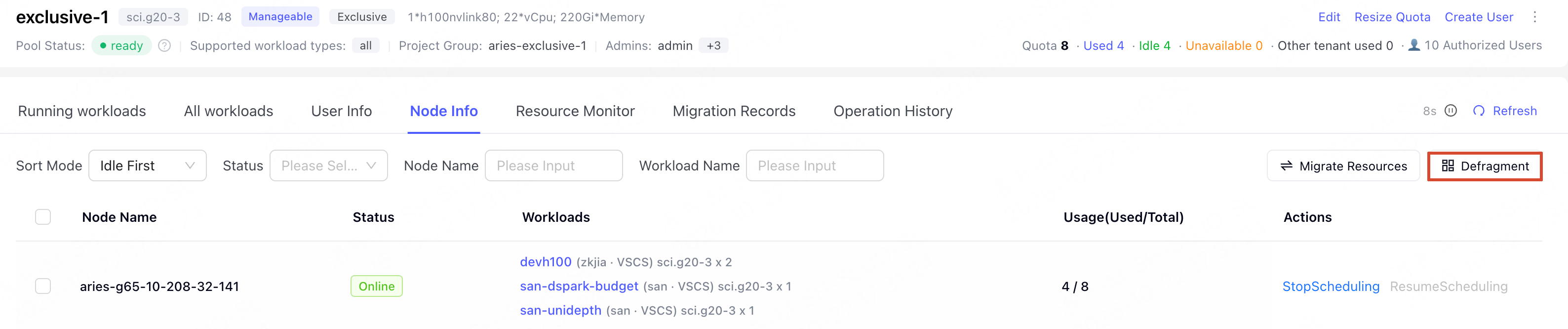
- In the dialog box, select the workload types to be defragmented and the maximum number of rounds.
- Run a trial preview to review the list of workloads expected to be adjusted.
- After confirmation, start defragmentation and view the results.
Risks and Limitations
Defragmentation uses a conservative reserve-first, migrate-later strategy. The platform evicts and recreates the original Pod only after the target node has successfully reserved resources. If reservation fails, the target node encounters an exception, or any other unexpected situation occurs, the platform terminates the migration. A single consolidation run does not guarantee that all workloads can be migrated successfully. Insufficient resources on target nodes, insufficient quota, Pod status changes, node exceptions, or a timeout during a consolidation round may cause some workloads to remain incomplete or be skipped. Pods that remain incomplete or are skipped do not affect the processing results of other Pods. If you choose to stop the workload, the stop action terminates the corresponding training task, with the same effect as manually stopping it. If the task is configured with a checkpoint, it can later be resumed from the checkpoint.FAQ
Why can't I see a resource pool when creating a task?
Why can't I see a resource pool when creating a task?
Ensure that the current account is authorized to use the resource pool and that the resource pool supports the current task type. A resource pool can restrict the supported workload types. If the current task type is not supported, you may be unable to select the resource pool when creating a task, or the submission may be rejected during quota validation.
Why might a task still fail to be scheduled even when my personal quota is sufficient?
Why might a task still fail to be scheduled even when my personal quota is sufficient?
Personal quota only limits the amount of resources a user can use within the resource pool. Whether a task can be scheduled also depends on the resource pool’s total quota, available resources, instance specification, workload type restrictions, and resource pool status.
When do I need to scale out a resource pool?
When do I need to scale out a resource pool?
When the target resource pool has insufficient total quota or available quota, resulting in queued tasks, submission failures, or an inability to allocate sufficient personal quota to users, consider scaling out the resource pool. Before scaling out, ensure that the source resource pool has sufficient available quota.
Why does resource auth check failed occur when submitting a task?
Why does resource auth check failed occur when submitting a task?
Resource pools support workload type configuration. After configuration, only the selected workload types can use the resource pool. If the Task Type is not allowed by the resource pool, the submission will be rejected during quota validation, and an error similar to the following may occur:If you need to submit tasks in this resource pool, modify the resource pool’s workload type configuration.