

Create a JupyterLab Development Environment
1. Go to the Creation Page
- Go to Develop > JupyterLab.
- Click Create.
2. Configure the Settings
Basic Information
Resource Information
When you submit the request, the platform verifies the resource quota and resource pool availability. If the quota is insufficient, reduce the number of specifications, select another specification, or contact an administrator to expand capacity.
Environment Information
Advanced Configuration
3. Submit the Creation Request
Click Create to submit the request. The development environment is created asynchronously, and you can view status changes in the list. If the request is submitted successfully but the list is not refreshed immediately, refresh the list or search for the development environment name before creating another one. After the development environment enters the running state, we recommend confirming the actual instance, resource pool, image pull result, storage mounts, and service startup result in the details.Open JupyterLab
- Go to Develop > JupyterLab.
- Find the target development environment in the list.
- Confirm that the development environment is running.
- Click Open.
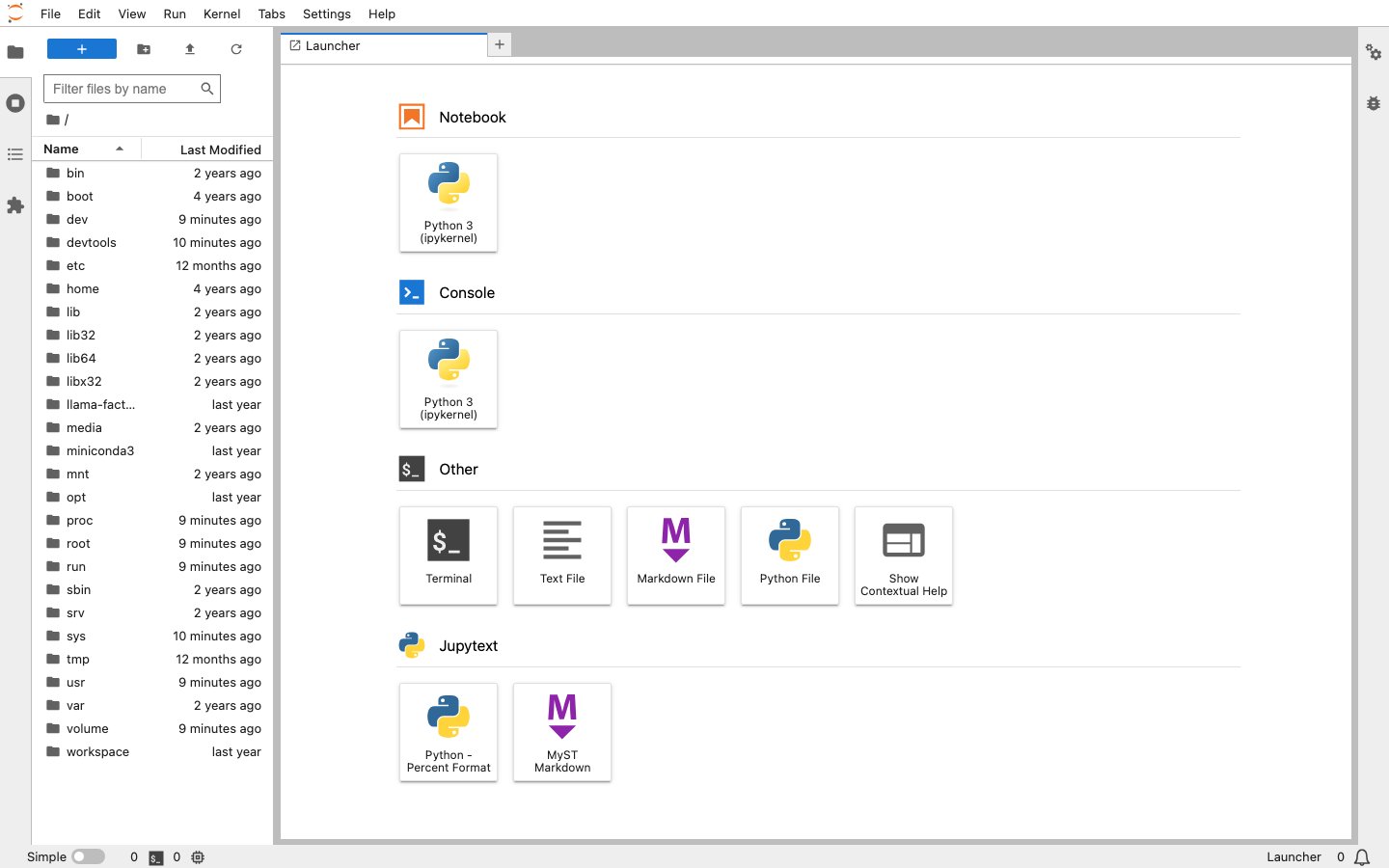
- After entering JupyterLab, confirm that the default directory and the mount paths for Volumes, datasets, or models are as expected.
Save Files, Dependencies, and Runtime Progress
Files, software environments, and program runtime states must be saved separately. Before rebuilding, stopping, rescheduling, or deleting a development environment, confirm how each type of output is saved.Save Files and Outputs
Save Notebooks, code, dependency lists, outputs, and model files that need to be retained long term to a mounted Volume. Container local disks have limited capacity, and writing large amounts of data may cause the workload to be evicted by the system. Data written to the local disk may not be recoverable after the development environment is restarted, migrated, or deleted. For example, after mounting a project Volume to/mnt/workspace, you can organize directories by purpose:
A path name does not determine persistence; the key is whether it is within an active mount. Keep input data and output directories separate to avoid modifying shared data sources.
Save Dependencies as an Image
If you install system dependencies, toolchains, or Python packages in a development environment and want to reuse them in a new environment, you can save the running development environment as a custom image.- Keep the source development environment in the running state.
- Check that the container writable layer does not contain credentials, keys, temporary data, or sensitive files that should not be shared.
- In the development environment actions, click Save Image, provide the image information, and submit it.
- Keep the source development environment running during the save process. Avoid stopping, deleting, rescheduling, or making extensive dependency changes.
- Confirm that the save succeeded in the custom image build records, then create a development environment using the new image and verify that key dependencies are available.
Save Runtime Progress
Notebook files save only code, Markdown, and saved outputs; they do not save the complete Python process, GPU state, or training progress. Long-running experiments must save checkpoints in the program and resume from checkpoints after a restart. Closing the browser only disconnects access and does not automatically stop the development environment. However, in-place restarts, rescheduling, stopping, automatic scale-in, or deletion interrupt Notebook, script, and terminal processes. Before performing these actions, save your files and runtime progress.View and Manage Development Environments
View Status and Resources
On the Develop > JupyterLab list or details page, view the development environment status, resource specifications, actual instance, resource pool, runtime duration, and events to determine whether the development environment is ready, resources are sufficient, or it has been idle for an extended period. If the development environment does not enter the running state, first check the status details and events. Then, follow the prompts to check resource quotas, image components, volume mount paths, startup commands, or environment variables.In the storage information on the details page, you can view Pod ephemeral storage usage. Ephemeral storage is suitable for small amounts of disposable runtime files. Data that needs to be retained, such as notebooks, dependency caches, checkpoints, output results, or model files, should be written to a mounted Volume. For more information, see Best Practices for Using Ephemeral Storage.
Manage the Lifecycle
After creation, you can perform lifecycle management actions for JupyterLab development environments from the list or details page.Choose How to Start or Restart
When you need to reuse or restart a development environment, select an action based on its current status and your objective.Other Actions
- Stop: Stops the running development environment and releases compute resources. Development environment configurations and data written to Volumes are retained.
- Update: Modifies configurations such as the image, resource specifications, Volume mounts, dataset or model mounts, startup commands, and environment variables. Changes to resources, images, or mounts may affect operation, and some changes take effect only after a restart.
- Clone: Creates a new development environment based on the current configuration. Cloning does not copy the complete disk, process memory, or non-persistent data.
- Save Image: Saves the running development environment as a custom image for later reuse of installed dependencies and tools. The development environment may be temporarily unavailable during saving, so it is recommended to perform this action when no interactive operations are in progress.
- Adjust Visibility: Sets the development environment to private or public within the project group. Adjusting visibility does not affect the running state.
- Delete: Removes the development environment record and releases occupied resources. Deletion is irreversible. Before deleting, confirm that any data you need to retain has been saved to a Volume.
Configure Scheduled Start/Stop and Automatic Scale-In
A JupyterLab development environment continuously consumes compute resources while it is running. You can configure scheduled start/stop or automatic scale-in based on your usage habits to reduce idle resource consumption. If you need to run long-running experiments, first confirm whether relevant policies are enabled and save files and progress in advance.Configure Scheduled Start/Stop
Go to Develop > JupyterLab, and select Scheduled Start/Stop from the More actions for the target development environment. Scheduled start/stop automatically starts or stops development environments according to recurring time rules and is suitable for development scenarios with fixed working hours. The panel uses a six-field cron expression: second, minute, hour, day, month, and day of week. The time zone is UTC.
When the schedule crosses midnight, you must also adjust the date or day of the week. The timezone setting in the development environment does not change the UTC requirement of the Scheduled Start/Stop panel. After submission, you can verify through events whether the schedule runs as expected. Scheduled startup still requires waiting for resource scheduling to complete.
Configure Automatic Scale-In
Go to Develop > JupyterLab, and select Automatic Scale-In from the More actions for the target development environment. Automatic scale-in determines whether to stop a development environment based on GPU utilization and an observation window. CPU development environments are currently not supported. Automatic scale-in does not automatically restart the development environment after it is triggered. To continue using it, start it manually or use a scheduled start/stop plan.
When setting the window and threshold, consider data loading, CPU preprocessing, and normal debugging wait times. During these stages, the GPU may be idle while the program is still running. The current control flow may also scale the environment down to 0 when no monitoring samples are available. Before enabling this feature, save your files and progress, and determine how you will resume work afterward.
Debug Distributed Tasks with JupyterLab
If you need to temporarily validate a distributed training script in a Notebook environment, you can create multiple JupyterLab development environments and runtorchrun in the terminal of each environment using the same primary-node address and port. You can obtain the primary-node address in the primary-node environment by running echo $POD_IP.
--master_addr, --master_port, --nnodes, and --nproc_per_node are consistent across all nodes. Set --node_rank according to the node order. For formal large-scale training, workloads that require queue scheduling, or scenarios requiring more reliable fault tolerance, we recommend using Training.
FAQs
What should I do if a development environment remains queued for a long time or fails to be created?
What should I do if a development environment remains queued for a long time or fails to be created?
View the status details and events to confirm that the selected resource specification, remaining quota, and pool availability meet the requirements. If the quota is insufficient, reduce the number of specifications, switch to a different specification, or contact an administrator to expand capacity.
What should I do if JupyterLab cannot be opened or repeatedly restarts?
What should I do if JupyterLab cannot be opened or repeatedly restarts?
Confirm that the development environment is running, and check whether the image includes
bash and JupyterLab-related components. Then check the startup command, environment variables, and mount path. Ensure that the initialization command has exited normally and that no continuously running service or command waiting for manual input is blocking startup.What should I do if importing packages in a Notebook fails?
What should I do if importing packages in a Notebook fails?
Confirm that the Kernel used by the Notebook is the same interpreter used to install the dependencies. If dependencies are installed in a container-local path, they may need to be reinstalled after restarting, migrating, or creating a new environment. We recommend incorporating stable dependencies into the image or retaining a dependency list.
What should I do if files, extensions, or dependencies are missing after a restart?
What should I do if files, extensions, or dependencies are missing after a restart?
First, confirm whether files and configurations have been written to Volume. Notebook files, code, extension configurations, dependency caches, and output results must be persisted separately. Saving an image does not back up mounted Volume data or process state.
What information should I provide when requesting support?
What information should I provide when requesting support?
Provide the development environment type and ID, region and cluster, time of occurrence, status details, image information, and sanitized error messages. Do not send private keys, access keys, or complete links containing authentication information.