

Select a Tab by Analysis Target
After navigating to Resources > Task Dashboard, select a tab based on your analysis objective.View Running Tasks
Open the Running tasks tab. Use the region and cluster selectors, the All Types, All Specs, and All Users filters, the resource pool filter, and the task-name search field to find tasks.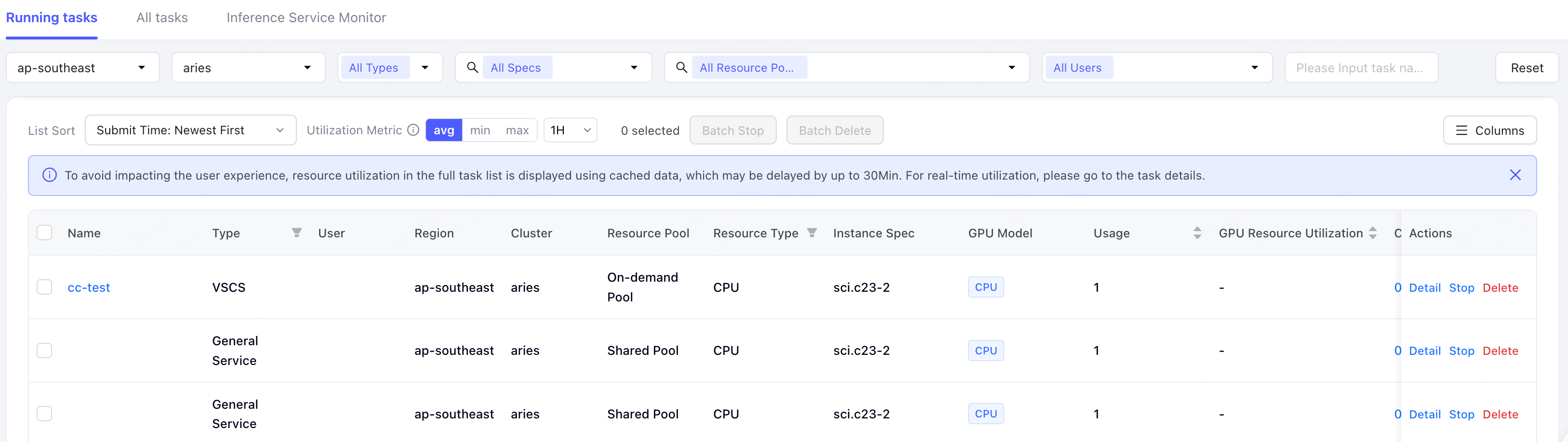
View Resource Usage
The task list provides the following resource and ownership information:
When a task cannot start or remains queued for an extended period, check whether the target resources are occupied by other tasks:
For further troubleshooting of tasks that fail to start or remain queued for an extended period, see Troubleshoot insufficient task resources or long queue times.
Handling Low-Utilization Tasks
If a task is consuming resources but GPU/CPU utilization remains low for an extended period, first check the following:- Whether the task is still in an active running phase.
- Whether data reading, the network, or storage has become a bottleneck.
- Whether the task specifications significantly exceed actual requirements.
- Whether the training task has communication waits, node exceptions, or uneven load distribution.
- Whether the number of inference service replicas exceeds actual traffic requirements.
Manage Running Tasks
Stopping or deleting affects task execution. Before proceeding, verify the target task to avoid accidental actions.
View All Tasks
Open the All tasks tab to view tasks submitted in the past 14 days and their history. Filter by region, cluster, workload type, resource type, resource pool, instance specification, user, and status, or search by name.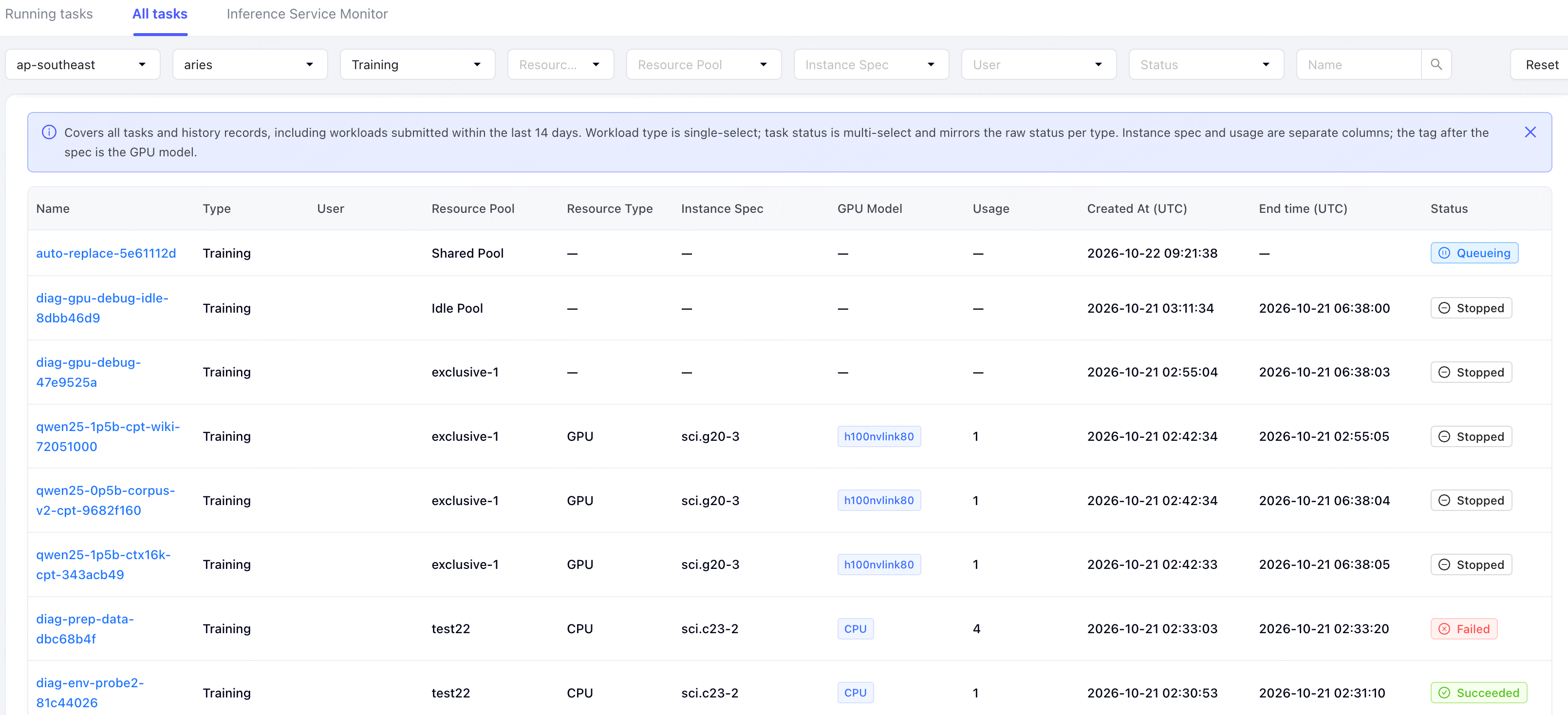
View Idle Task Monitoring
Open the Idle Task Monitoring tab to review resource usage, run duration, and preemption for idle training tasks. This tab reports monitoring data for idle training tasks only.Review Key Metrics
First select a region, cluster, and time range. The summary at the top of the page reports key metrics for the selected filters:Review Idle Task Trends
Idle task trends show how idle resources are used during the selected period. The page typically includes these charts:
Use these trends together with the summary metrics:
- If submissions increase but GPU hours do not rise at the same pace, tasks may be running for shorter periods or being preempted sooner.
- If the preemption rate increases while the time to first preemption decreases, idle resources may be available for shorter periods.
- If the mean and P50 run durations differ significantly, task run durations may vary widely. Review individual tasks for more detail.
Review Participating Users
The participating users list shows which users submitted idle training tasks during the selected period. It typically includes:
If a user’s submission count or requested idle resource amount is notably high, review the corresponding tasks under Running tasks or All tasks. Then determine whether to adjust the submission rate, task specifications, or checkpoint strategy.