

Select Tabs by Analysis Target
After navigating to Resources > Resource Dashboard, select a tab based on your analysis objective.
When comparing different tabs or exported data, ensure that the filter criteria—such as region, cluster, resource type, resource pool, and time range—are consistent. If the page provides a project group filter, use the same project group scope as well to avoid values that cannot be directly compared due to differing statistical scopes.
View Resource Pool Usage
Go to Resources > Resource Dashboard, open the Resource Pool tab, and select a region, cluster, resource type, instance specification, and time range to view the information. The resource pool tab is used to view trends and summary information by resource.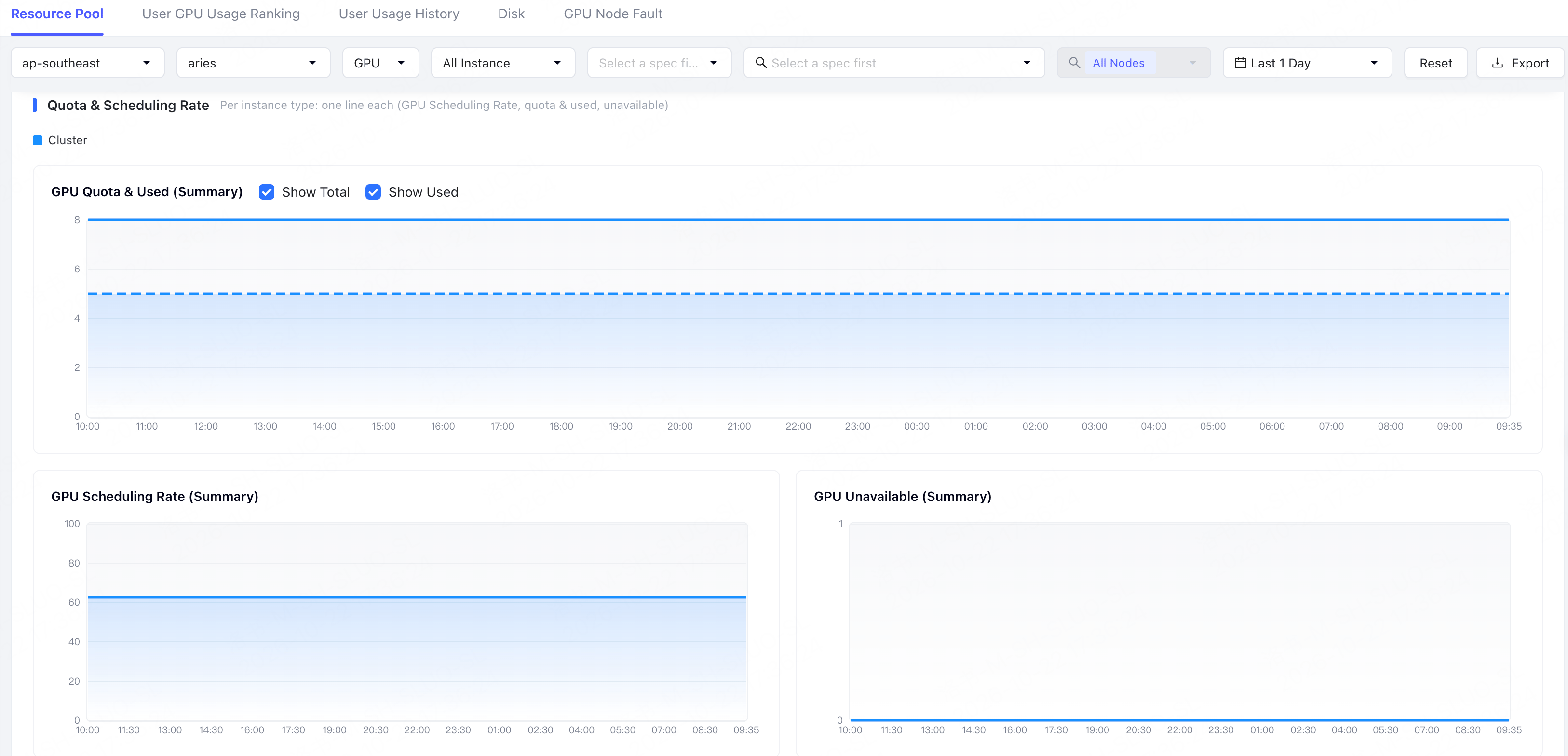
If the usage of a resource type remains close to its total quota, or a large number of resources are unavailable, subsequent tasks may be queued or fail to be submitted. You can continue to view the resource pool details to determine whether you need to scale out, adjust the resource pool configuration, or renew resource orders.
View User GPU Usage Ranking
Go to Resources > Resource Dashboard and open the User GPU Usage Ranking tab to view resource usage within a specified time range by user. You can filter by user, region, cluster, specification, resource type, resource pool, task type, task scale, and time range.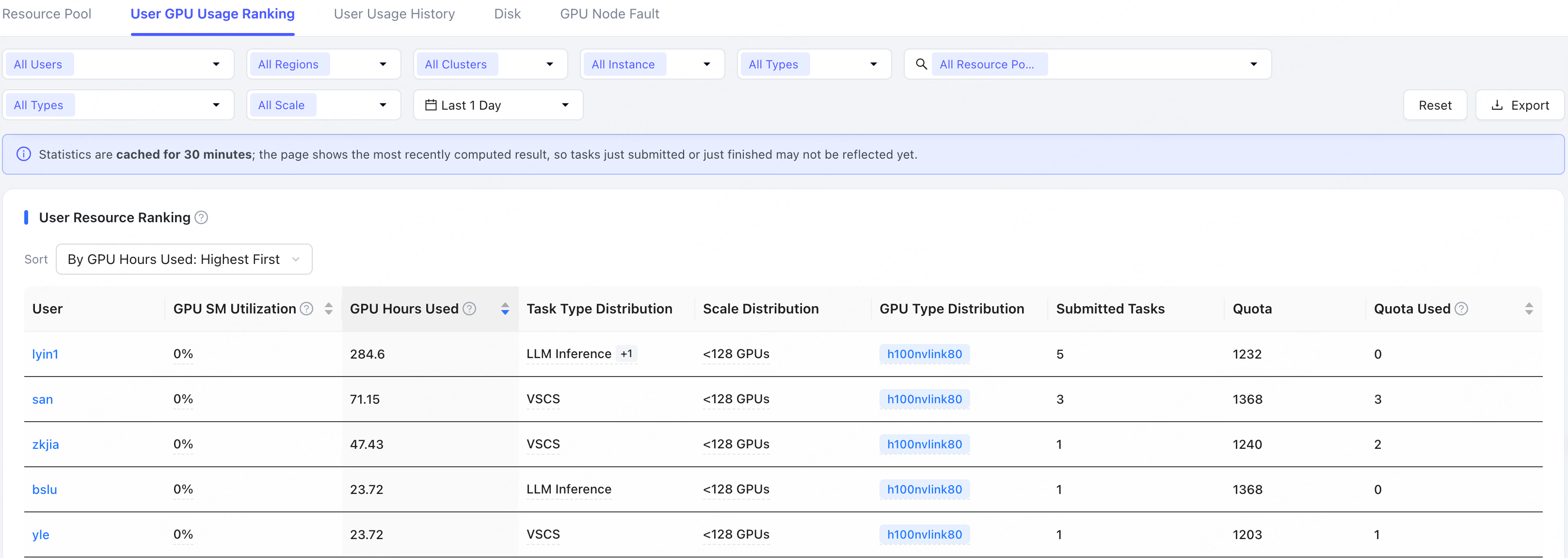
Statistics in User GPU Usage Ranking are cached for 30 minutes. The page displays the results of the previous calculation. Tasks that have just been submitted or completed may not be included in the statistics immediately.
To analyze the resource consumption of an individual user, click the target user in User GPU Usage Ranking to go to the User Resource Detail page. When comparing different charts, keep the user, region, cluster, specification, type, resource pool, and time range consistent.
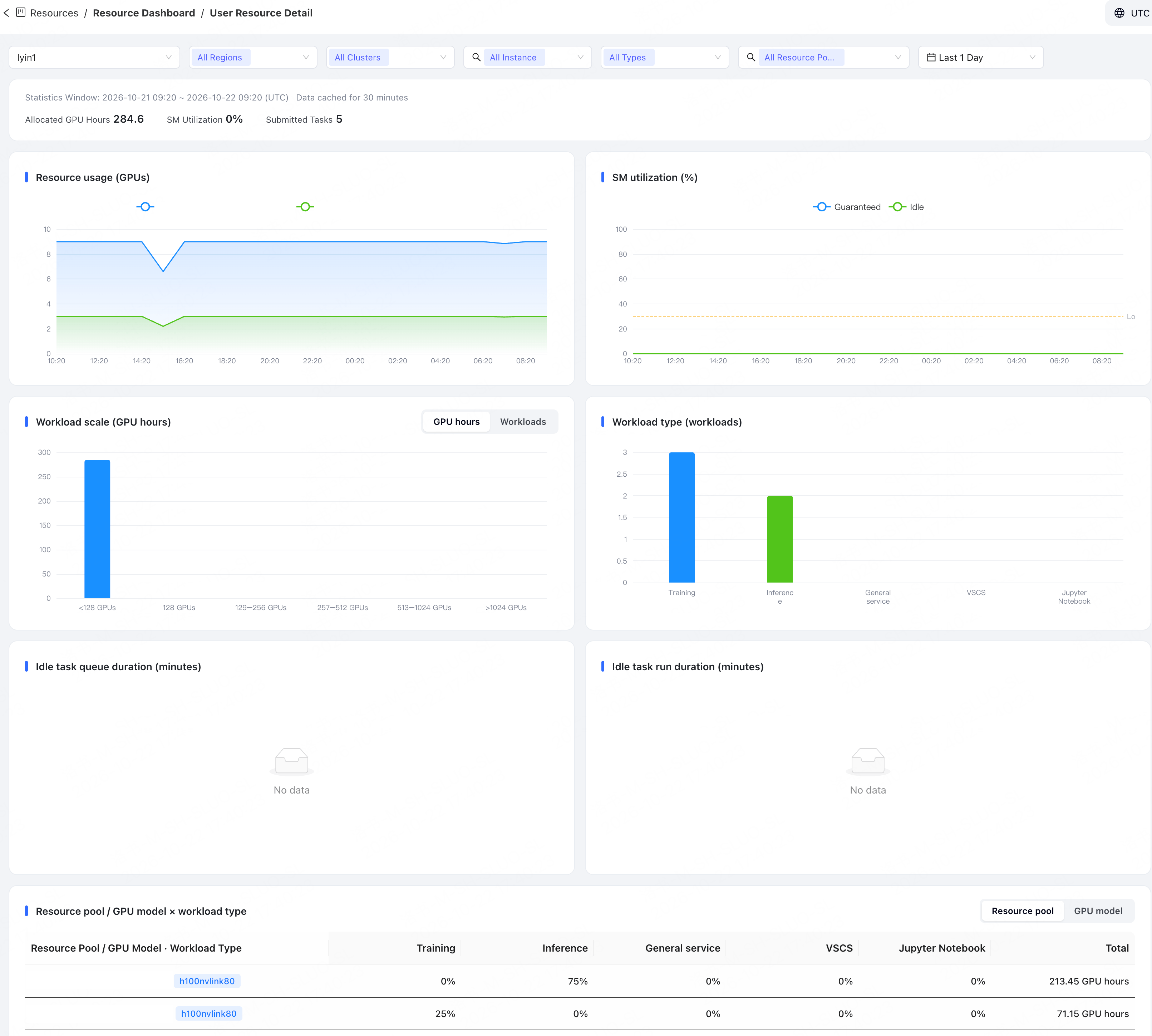
Data in User Resource Detail is also cached for 30 minutes. Tasks that have just been submitted or completed may not be immediately reflected in the aggregated metrics and charts.
View User Usage History
Go to Resources > Resource Dashboard, open the User Usage History tab, select one or more users, then select a region, cluster, resource type, resource pool, and time range to view changes in user usage within the specified resource pool.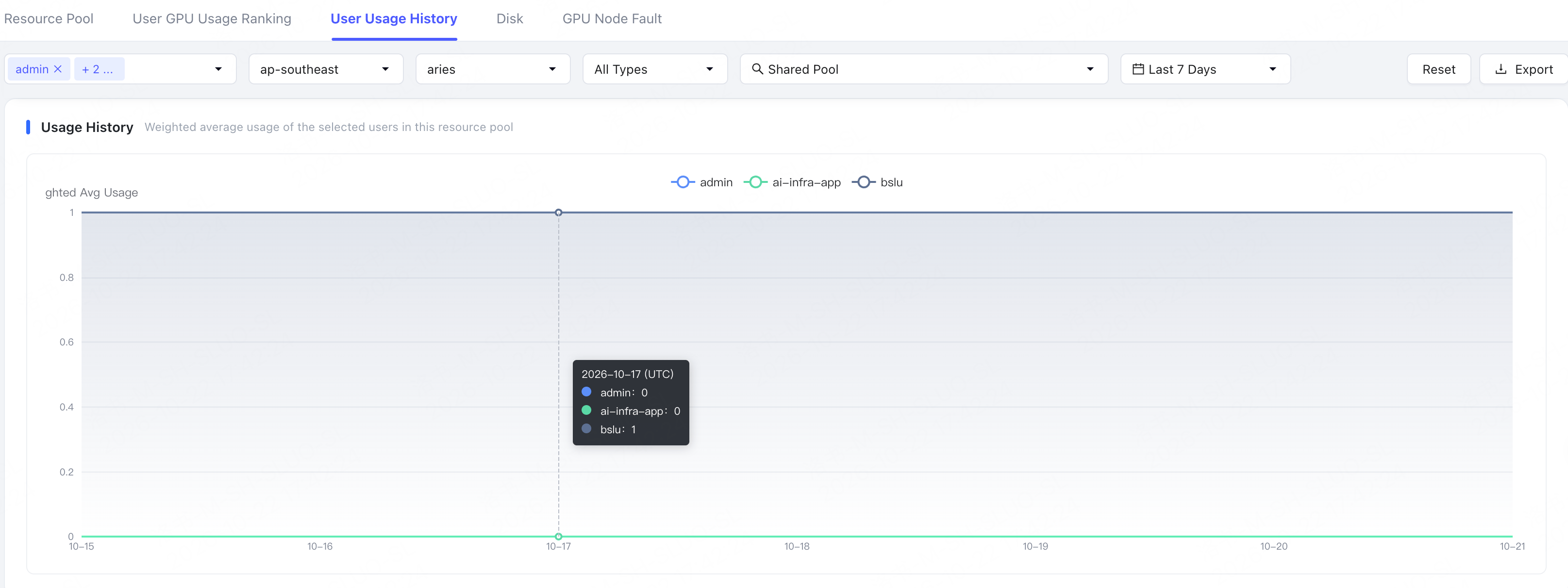
If you need to confirm real-time changes immediately after a task releases resources, prioritize viewing the task details or resource pool details. If the page prompts you to select a user and resource pool, complete the filtering before viewing historical trends.
View Disk Usage
Go to Resources > Resource Dashboard, open the Disk tab, and filter by region, cluster, resource pool, and node to view node disk usage.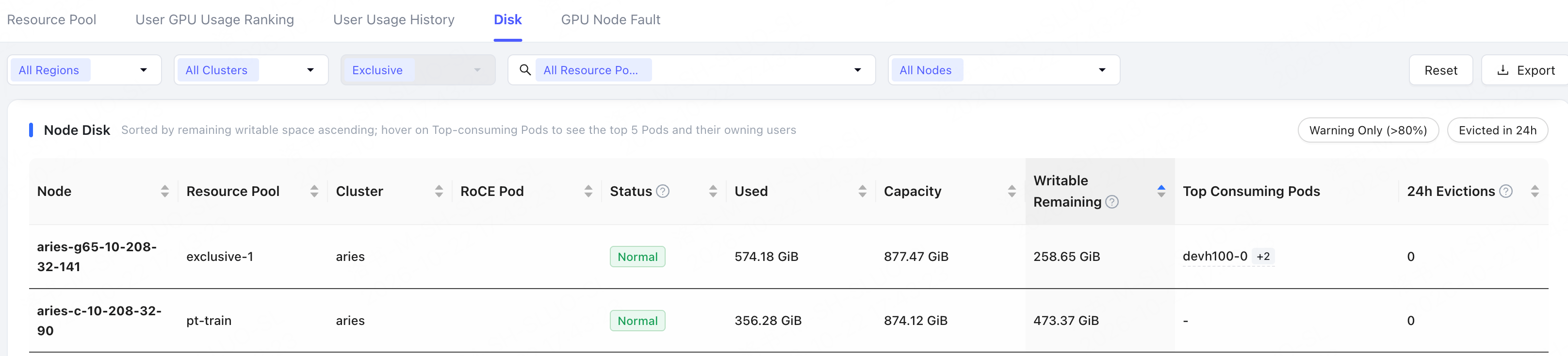
If the node has low remaining writable space, or the 24h Evictions value is not 0, use Top Consuming Pods, task details, and task resource usage to further identify the specific workload.
View GPU Node Faults
Go to Resources > Resource Dashboard, open the GPU Node Fault tab, and filter by instance specification, region, cluster, and time range to view historical trends and real-time status for GPU node failures.Determining Whether Resources Are Constrained
When a task cannot start or remains queued for an extended period, the Resource Dashboard can help you first determine whether capacity is constrained or resources are heavily concentrated in use:
For a complete investigation into why a task cannot start or remains queued for a long time, see Troubleshoot insufficient task resources or long queue times.
Export Resource Data
For capacity analysis or team reconciliation, you can export resource usage data from the Resource Dashboard based on filter criteria. Before exporting, we recommend confirming that the region, cluster, resource type, instance specification, and time range align with the analysis criteria. Retain the filter scope, statistical units, and time window in the analysis records. To explain resource peaks, you can also review task resource utilization. If you only need to verify a recently completed create, stop, or scale operation, prioritize checking the task details, resource pool details, or order status.Frequently Asked Questions
Why do the figures in the Resource Dashboard and resource details differ?
Why do the figures in the Resource Dashboard and resource details differ?
First, verify that the region, cluster, resource pool, instance specification, unit of measurement, and time range are consistent across both pages. Some ranking and trend data may be subject to statistical caching, so recently submitted, stopped, or released tasks may not be reflected in the dashboard immediately. If the page is blank, displays an error, or GPU SM utilization is 0, also confirm that monitoring samples are available. If discrepancies remain after aligning the criteria, retain screenshots of both pages, the query time, and field names, and contact platform support.