

- Click the task name to go to the training task details page.
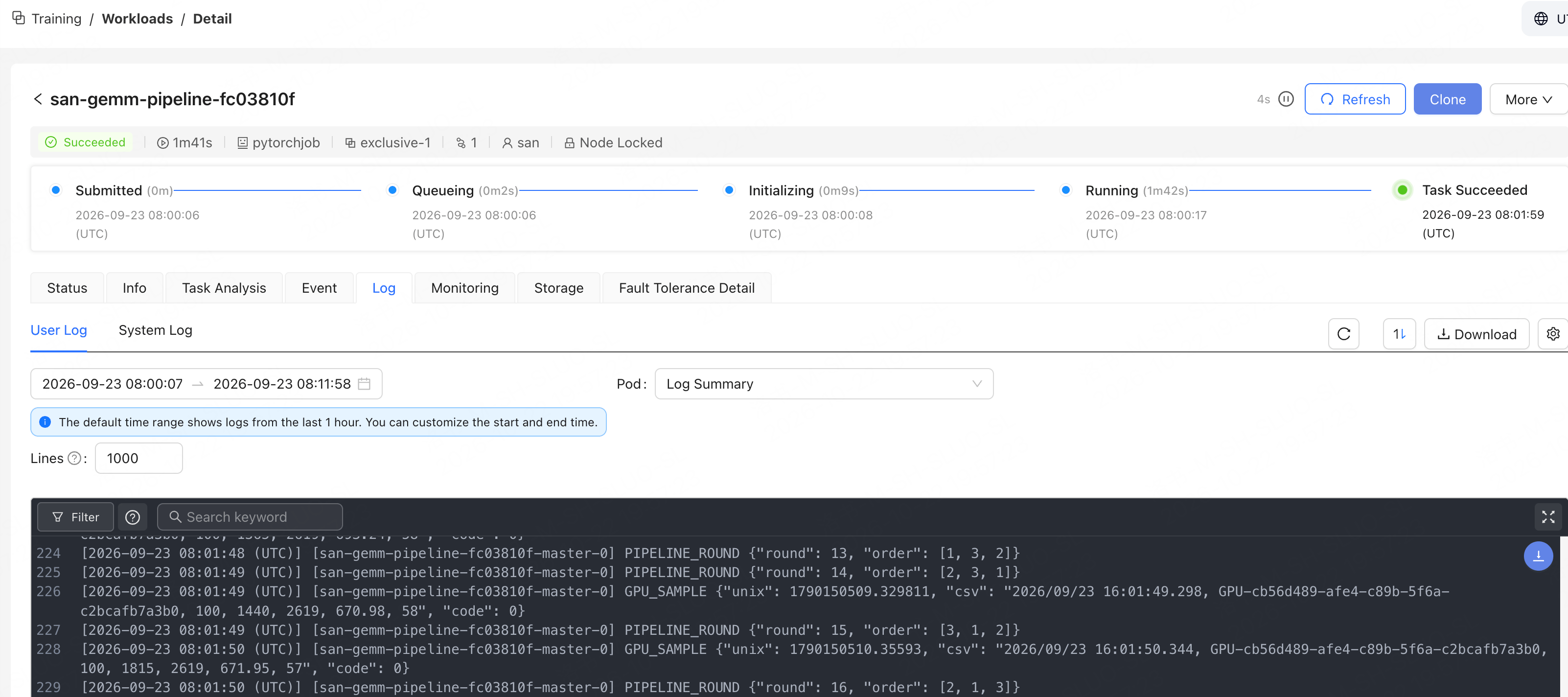
- Open the Log tab.
- Select User Log or System Log.
- Set a time range, or filter for a specific Pod.
- View the logs.
Platform logs currently retain data only for the past 30 days. If the selected start time falls outside the log retention period, logs may not be displayed.
The log viewer supports keyword search, viewing the last lines, automatic refresh, manual refresh, and log downloads. It can be used to locate errors and retain troubleshooting records.