

Find Training
The task list includes the Personal Tasks and Shared Tasks tabs. In Personal Tasks, you can typically view tasks, view logs, clone, resubmit, stop, delete, share, and add labels. In Shared Tasks, you can typically view details, view logs, or clone tasks.- Go to Training > Workloads.
- Select a region and cluster.
- Select the Personal Tasks or Shared Tasks tab.
- As needed, enter a name, select a status, label, or project group, or click View All to expand the search scope. Tag filtering typically uses an AND relationship. When multiple tags are selected, the list filters for tasks that match all of the selected tags.
- Click Search.
Determine Task Status
After locating the task, use its status to determine whether to continue waiting, view details, troubleshoot the issue, or perform management actions such as cloning, resubmitting, stopping, or deleting it.
Tasks with automatic fault tolerance enabled may display fault-tolerance-related substatuses. When an idle-time task or Spot task is preempted, it may enter the failed state. If the status information shows
was preempted by another task, this usually indicates that the task was preempted by another task. Determine the specific cause based on Status and Event.
Queue position represents only a snapshot of resource contention at the current moment and cannot be converted into a stable wait time. Changes in resource pool availability, resources released by other tasks, Priority, Guarantee, or node constraints may affect task ordering and startup conditions.
View Task Information by Target
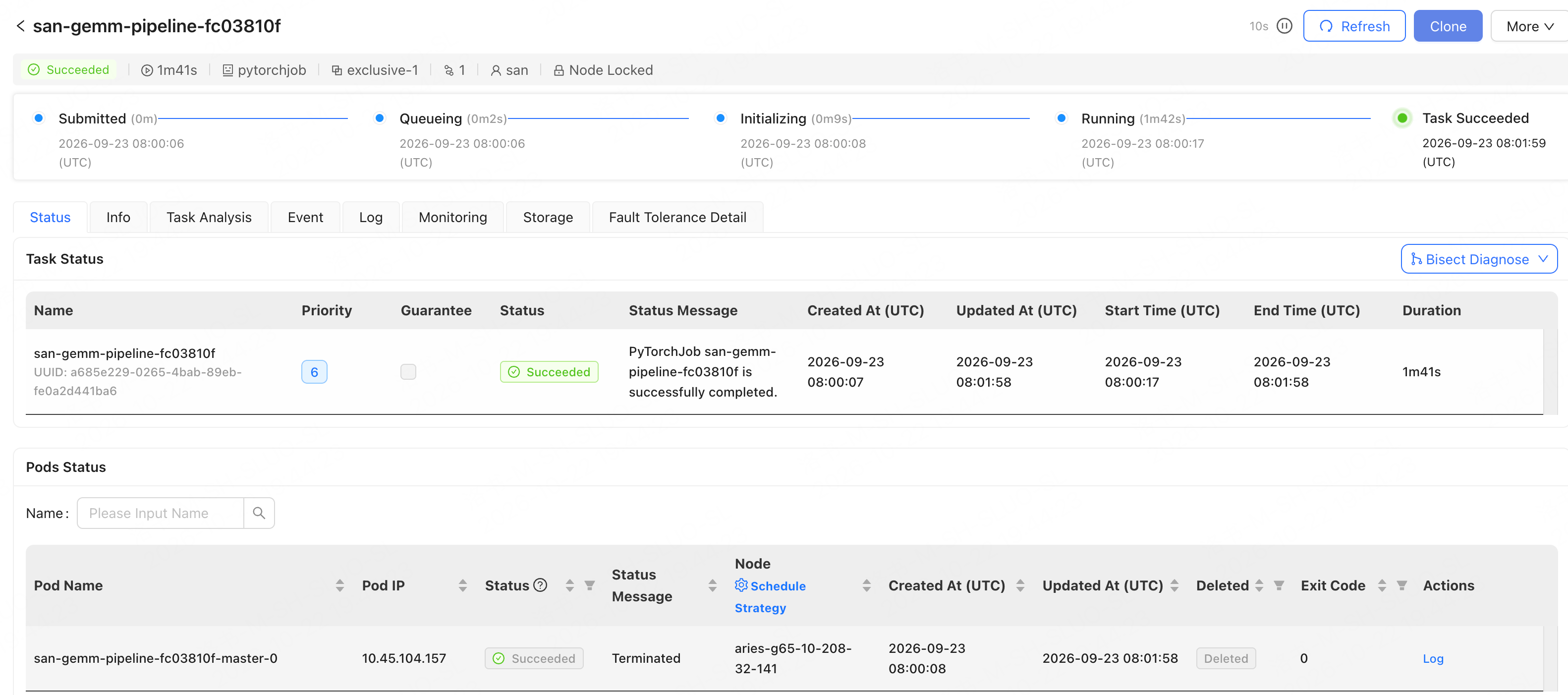
After locating the task and opening the training task details page, first select the appropriate tab based on what you want to view. Recommended use by target:View Status Details
- In the task list, click the name of the target task to open the training task details page.
- Open the Status tab.
View Task Details
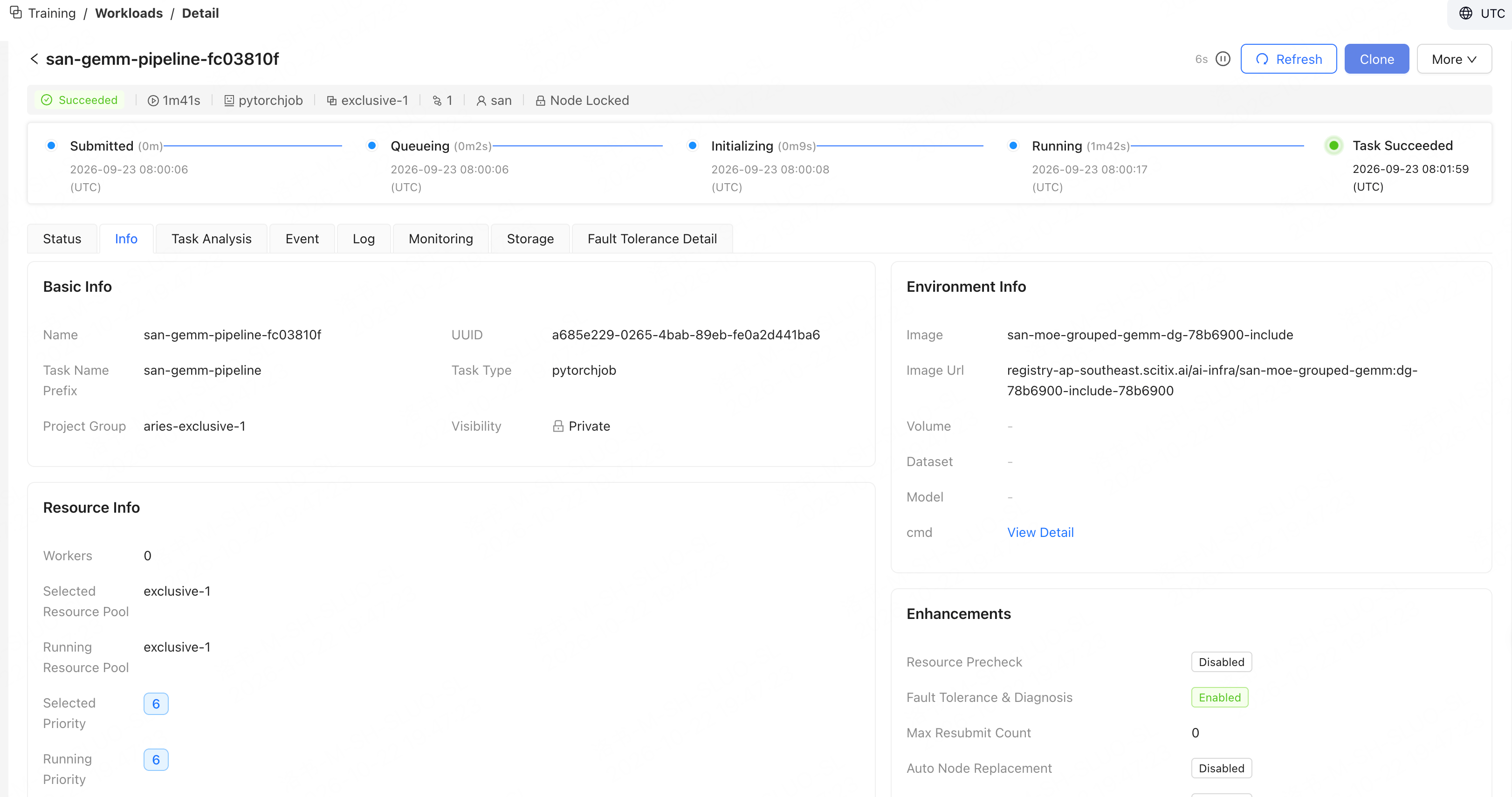
- In the task list, click the name of the target task to go to the training task details page.
- Open the Info tab.
View Events
- Click the task name to go to the training task details page.
- Open the Event tab.
- Review events in chronological order to determine whether the task is stuck during scheduling, image pulling, Volume mounting, Pod startup, execution, or fault recovery.
- If an event points to a Pod, node, resource pool, or mount target, return to the Status, Info, Log, or Monitoring tab for further troubleshooting.
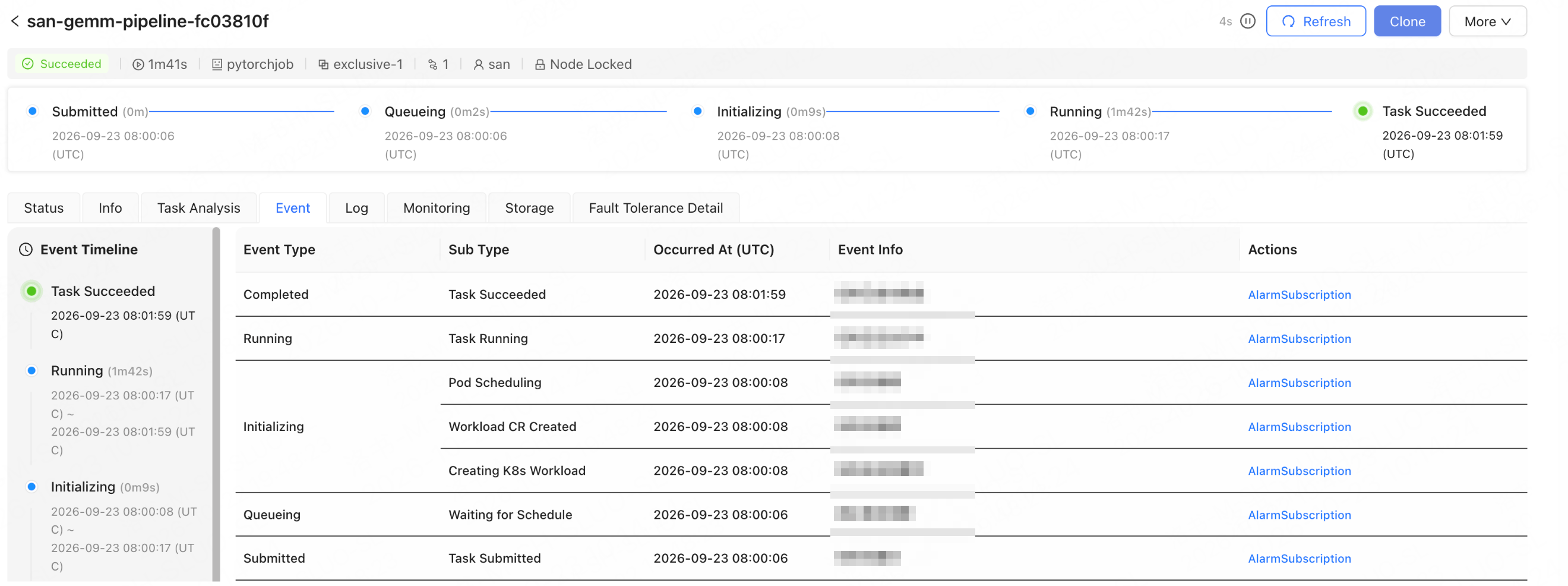
Events are useful for first identifying when an issue occurred. Logs are used to view container and training program output, while monitoring is used to assess resource usage and metric performance.
For distributed tasks, if only some replicas are not ready, first locate the specific Pod or role in Status, then use Event to determine whether the issue is related to resources, nodes, images, mounts, or startup commands.
View Storage
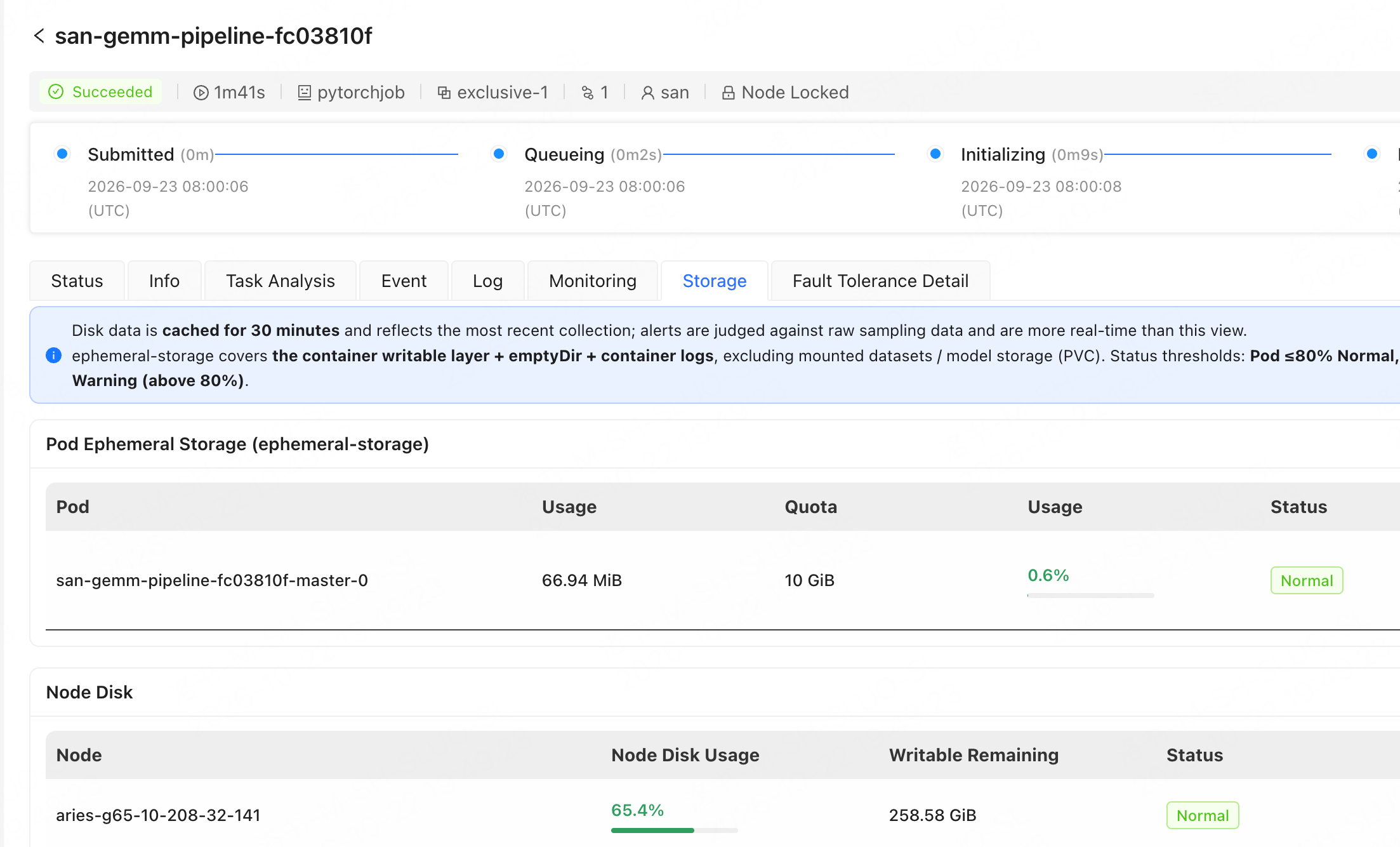
- In the task list, click the name of the target task to go to the training task details page.
- Open the Storage tab.
-
Pod ephemeral storage accounts for local temporary data such as container writable layers,
emptyDir, and container logs. It does not include mounted datasets, model storage, or other PVC data. - The disk information of the node where the task Pod resides is used to view the disk watermark and remaining writable space on that node. The data displayed on the page may be subject to collection delays. Please refer to the page prompts.
If training logs, checkpoints, intermediate data, or model outputs continue to grow, write them to a mounted Volume to prevent the Pod’s ephemeral storage from filling up and causing the task to be evicted. For details, see Best practices for ephemeral storage.