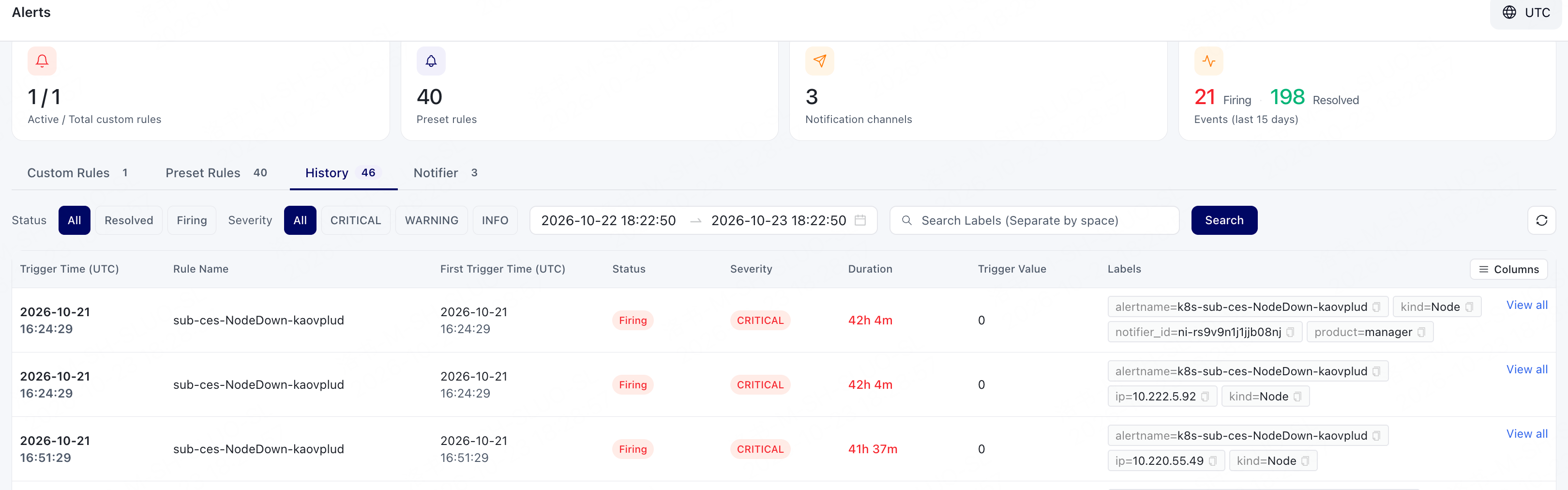
View History Events
- Log in to the GPU Cloud console and go to the Alerts page.
- Click the History tab.
-
Filter alarm events as needed.
- Click Search.
-
View alarm events in the history event list.
Labels can help identify the source of an alert. They may include information such as the product, region, cluster, resource name, namespace, rule name, or notification. When troubleshooting, first use the labels to identify the resource associated with the alert, then go to the corresponding resource or monitoring metrics to check its status and metrics.