

Supported Notification Channels
When creating a notifier, Type supports the following channels:- Feishu Application
- Feishu
- HTTP Trigger
- Slack
- Telegram
- WeCom
- Discord
- Teams
Create Notifier
- Log in to the GPU Cloud console and go to the Alerts page.
- On the Notifier tab, click Create Notifier.
-
Configure the name and type of the notifier.
-
Configure notifications based on the selected type.
Different notification channels require different recipient addresses or account information. Before configuration, obtain the required information from the relevant messaging platform.
- Feishu Application
- Feishu
- HTTP Trigger
- Email
- Slack
- Telegram
- WeCom
- Discord
- Teams
- Select Send Resolved as needed. When selected, a resolved notification will also be sent when the alert is resolved.
-
Click Confirm.
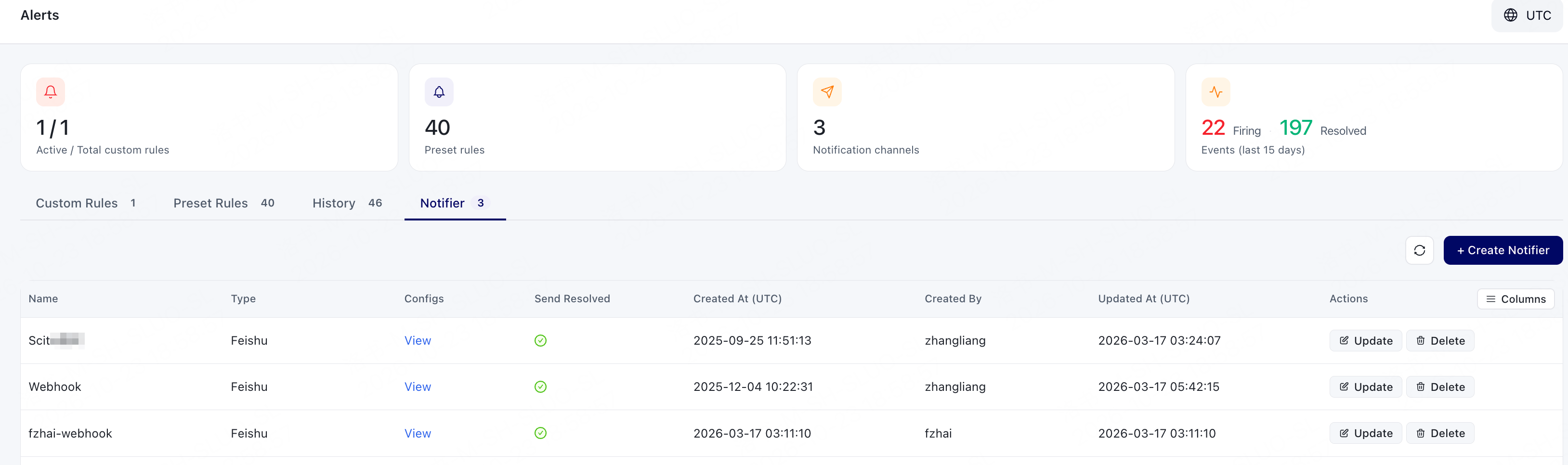
After creation, verify that the newly created notifier is displayed. To view its configuration, click View for the corresponding notifier.
Update Notifier
- Log in to the GPU Cloud console and go to the Alerts page.
- Click the Notifier tab.
- Locate the Notifier you want to modify and click Update. Before making changes, we recommend confirming that the notification channels and recovery message delivery method meet your expectations.
- After modifying the configuration, click Confirm.
Delete Notifier
- Log in to the GPU Cloud console and go to the Alerts page.
- Click the Notifier tab.
- Locate the Notifier that is no longer needed and click Delete.