

Find Services
- Go to Inference > LLM Inference.
- Select Region, Cluster, and Project Group.
- Enter a service name in the search box, or use filters such as Engine Type, Service Status, and ResourcePool.
- View services on the Personal Services or Shared Services tab.
View Service Details
In the service list, click Details for the target service. The top of the Details page displays the service status, engine, engine version, creator, region, cluster, and visibility. The tabs below provide access, troubleshooting, monitoring, and testing.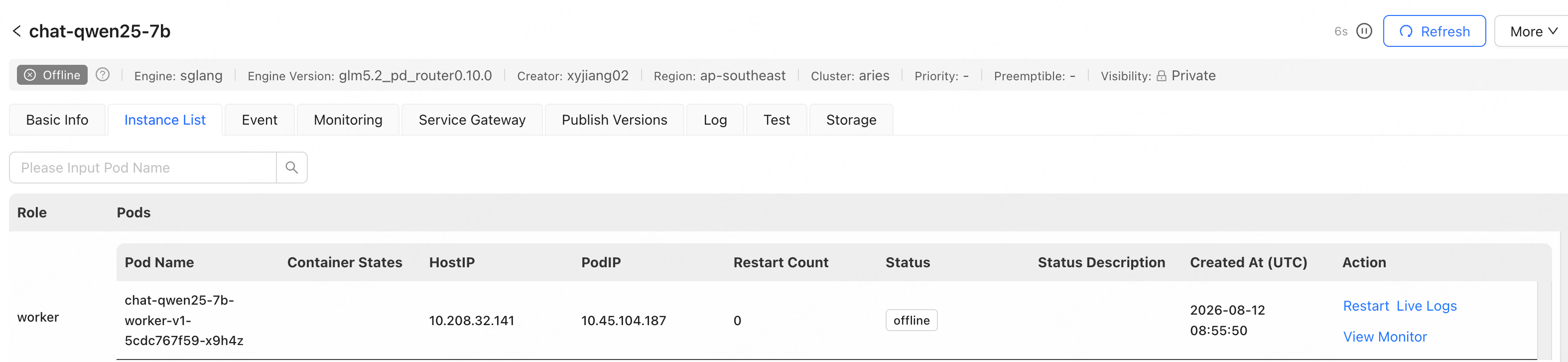
Obtain and Verify Access Entry Points
After the service enters the Running state, click Details in the service list and go to the Service Gateway tab to view the gateway configuration, access address, and authentication information, and test the access endpoint as needed.
If the page provides both a dry-run entry point and a production entry point, the dry-run entry point is for validation only and is not recommended as the formal endpoint. Auth Token must not appear in screenshots, Logs, or shared materials.
Adjust Service Capacity
When service capacity is insufficient, business traffic changes, or role resources need to be adjusted, click Scale Out/In in the service list. Before scaling out, confirm the resource pool quota and available nodes. Before scaling in, ensure that the remaining capacity can handle the current traffic, and pay attention to long-lived connections, streaming requests, and in-flight requests.
After clicking OK, go to the details page to view Event and Instance List, and verify that the target replicas and ready replicas gradually reach the expected numbers. If instances remain unready for an extended period, check Log and Monitoring. After scaling out is complete, send minimal requests and observe the error rate, latency, and resource usage. After scaling in is complete, verify that the remaining instances can still process requests reliably.
Manage Services
Troubleshoot Service Exceptions
When troubleshooting service unavailability or performance issues, we recommend checking the following in order:- Check the service status and events to determine whether there are insufficient resources, image pull failures, probe failures, or gateway configuration issues.
- Check the instance status to identify affected roles and instances.
- Check the logs to determine whether there are issues with Model loading, Engine startup, or request processing.
- Check resource monitoring and Engine monitoring to determine whether GPU, GPU memory, CPU, memory, throughput, or latency is a bottleneck.
- If you need to verify API correctness, initiate functional testing; if you need to assess capacity, initiate performance stress testing.