

Confirm Image Availability
Go to Images > Custom, open the Available Images tab, and find the image you want to use.\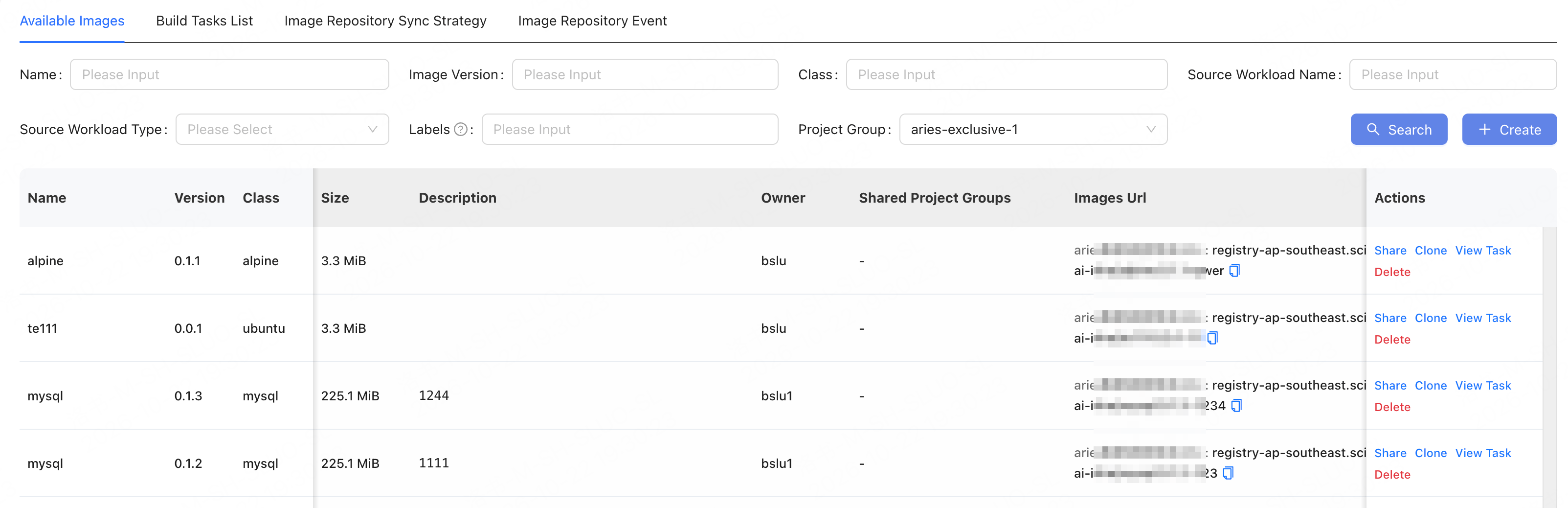
An image being pulled and started only indicates that the runtime environment has passed basic checks. Training tasks and inference services must still be validated separately through training steps, output results, or actual requests.
Manage Custom Images
After locating the target image in the Available Images list, you can perform the following actions as needed:
Before deleting a shared image, we recommend confirming with the relevant users to avoid affecting development environments, training tasks, or inference services that are still using the image. Existing containers can continue running, but this does not mean that the image can still be pulled when creating, restarting, scaling out, or rolling back containers later.
Frequently Asked Questions
What should I do if I cannot find a built image when creating a workload?
What should I do if I cannot find a built image when creating a workload?
First, confirm that the current region, target cluster, project-group visibility scope, and filter criteria match the image information. When using the image across clusters, also confirm that the image has been synchronized to the target cluster and use the image URL displayed on the target cluster page.
What should I do if training retries, service scaling, or historical rollbacks fail after an image is deleted?
What should I do if training retries, service scaling, or historical rollbacks fail after an image is deleted?
These actions may require pulling the original image version again. Restore a pullable image version, or use a verified alternative image, and confirm application and data compatibility.