

Notification Recipient Relationships
Both notification targets and contact groups can be enabled or disabled. If disabled, alert delivery that depends on the object may be affected.
Create a Notification Target
1. Go to the Creation Page
- Go to Alarm > Notification Management.
- On the Notify Targets tab, click Create.
2. Configure Notification Methods
Select a Method and complete the configuration on the corresponding tab.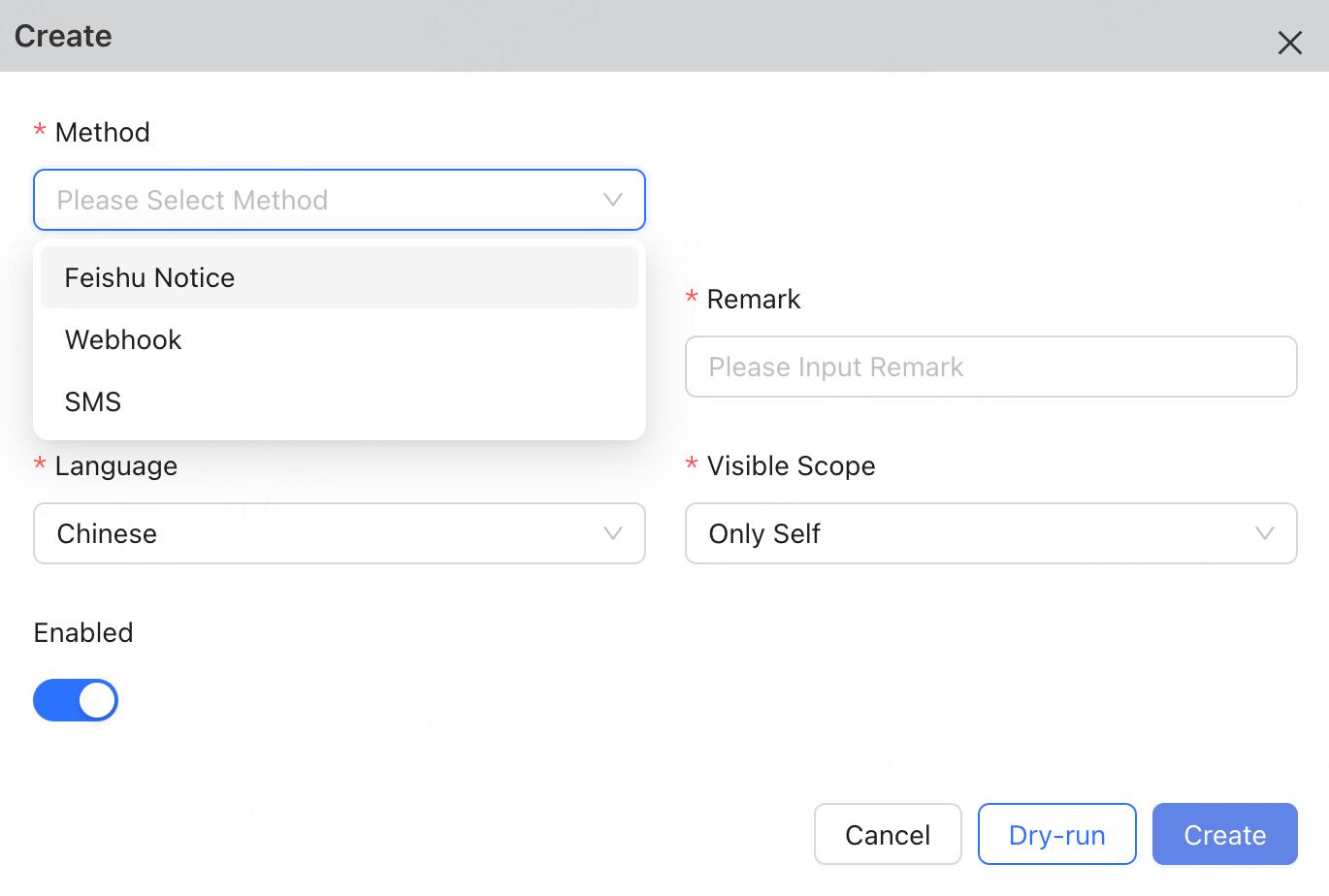
- Feishu Notice
- Webhook
- SMS
Feishu Notifications are suitable for sending alerts to specified Feishu users.
3. Create the Notification Target
Click Dry-run to verify that the current notification target is reachable. After the dry run succeeds, click Create. The dry run only verifies connectivity to the notification target; it does not guarantee that actual alerts will be delivered successfully. Actual delivery also depends on the subscription filter criteria, whether the alert is triggered, and whether the Noise Control suppresses or aggregates it. The same mobile number may be subject to an hourly sending rate limit. SMS messages exceeding the limit will be skipped, but Feishu notifications and webhook delivery will not be affected.Create a Contact Group
Contact groups are suitable for combining multiple notification targets into a single recipient.- Go to Alarm > Notification Management.
- Select the Contact Groups tab.
- Click Create.
-
Configure the contact group.
- Click Create.
Create a Third-Party Application
Third-party applications are used to manage configurations for enterprise applications such as Feishu applications. Before creating a Feishu application message notification target, you may need to prepare an available third-party application.- Go to Alarm > Notification Management.
- Select the Third-Party Application tab.
- Click Create.
-
Configure the third-party application.
- Click Create.
Manage Notification Objects
After locating the target object under Alarm > Notification Management, you can maintain the configuration as needed:Configure a Webhook Template
A Webhook notification target can send alerts to group bots, third-party systems, or a unified notification platform. When creating a Webhook notification target, you can customize a JSON request body template. The platform replaces template variables with alert data and sends a POST request to the Webhook URL. The following top-level variables are supported:{{ .Content }}: The complete content of the alert, which may be a JSON object or a string.{{ .AlarmTime }}: The time when the alert occurred, for example,2025-12-05T06:52:04Z.
{{ .Content }}. Available fields may vary by alert type. For the full set of variables, refer to the template configuration prompts in the console.
Send to a custom service and include complete alert data: