

Subscription and Activation Logic
An alarm subscription typically includes the alert type, subscription scope, notification targets, and noise control rules.
Test sending only verifies connectivity to the notification target; it does not guarantee that actual alerts will be sent successfully. Actual delivery also depends on the subscription scope, whether an alert is triggered, and noise control.
Create an Event Alarm Subscription
Event alerts are triggered by business events and are suitable for monitoring status changes such as training job failures, image build results, service exceptions, orders, quota, and storage.1. Open the Event Subscription Form
- Go to Alarm > Alarm Subscription.
- On the My Subscriptions tab, click Create.
2. Configure the Event Subscription
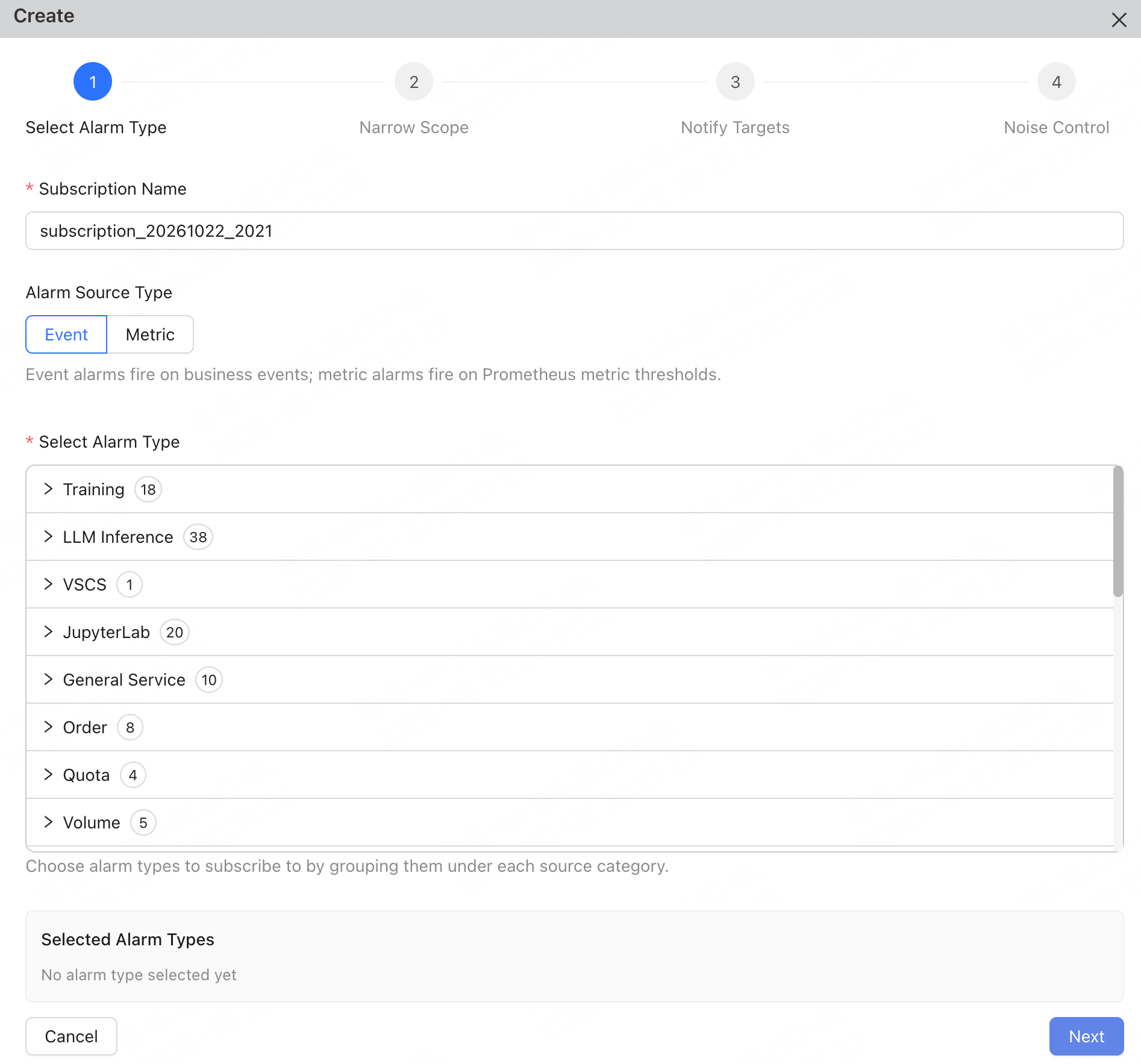
Select Alert Type
- Enter the Subscription Name.
- Set Alarm Source Type to Event.
- In the alert type list, expand the business category and select the alert types to subscribe to.
- Confirm your selections in Selected Alarm Types.
Configure Subscription Scope
Click Next. In the Narrow Scope step, specify the objects matched by the subscription as needed.
This step is optional. If left blank, all events under the selected alert type will be subscribed to.
Configure Notify Targets and Noise Control
- Click Next.
- In the Notify Targets step, select at least one notification target or contact group.
- If no suitable target is available, click Create to create a notification target or contact group.
- Click Next.
-
In the Noise Control step, configure group aggregation and mute periods as needed.
Event-type
Triggeralerts ignore threshold and interval settings.
3. Create the Event Subscription
Click Create. Once created, the subscription takes effect immediately when enabled. To avoid exact duplicates, the platform consolidates subscriptions with the same user, alert item, and filter criteria. Creating another subscription with these criteria updates the existing one instead of adding a new one. To create a separate subscription, adjust the filter criteria or subscription target.Create a Metric Alarm Subscription
Metric alerts are triggered based on Prometheus metric thresholds and are suitable for monitoring resource utilization, service metrics, or custom business metrics.1. Open the Metric Subscription Form
- Go to Alarm > Alarm Subscription.
- On the My Subscriptions tab, click Create.
2. Configure the Metric Subscription
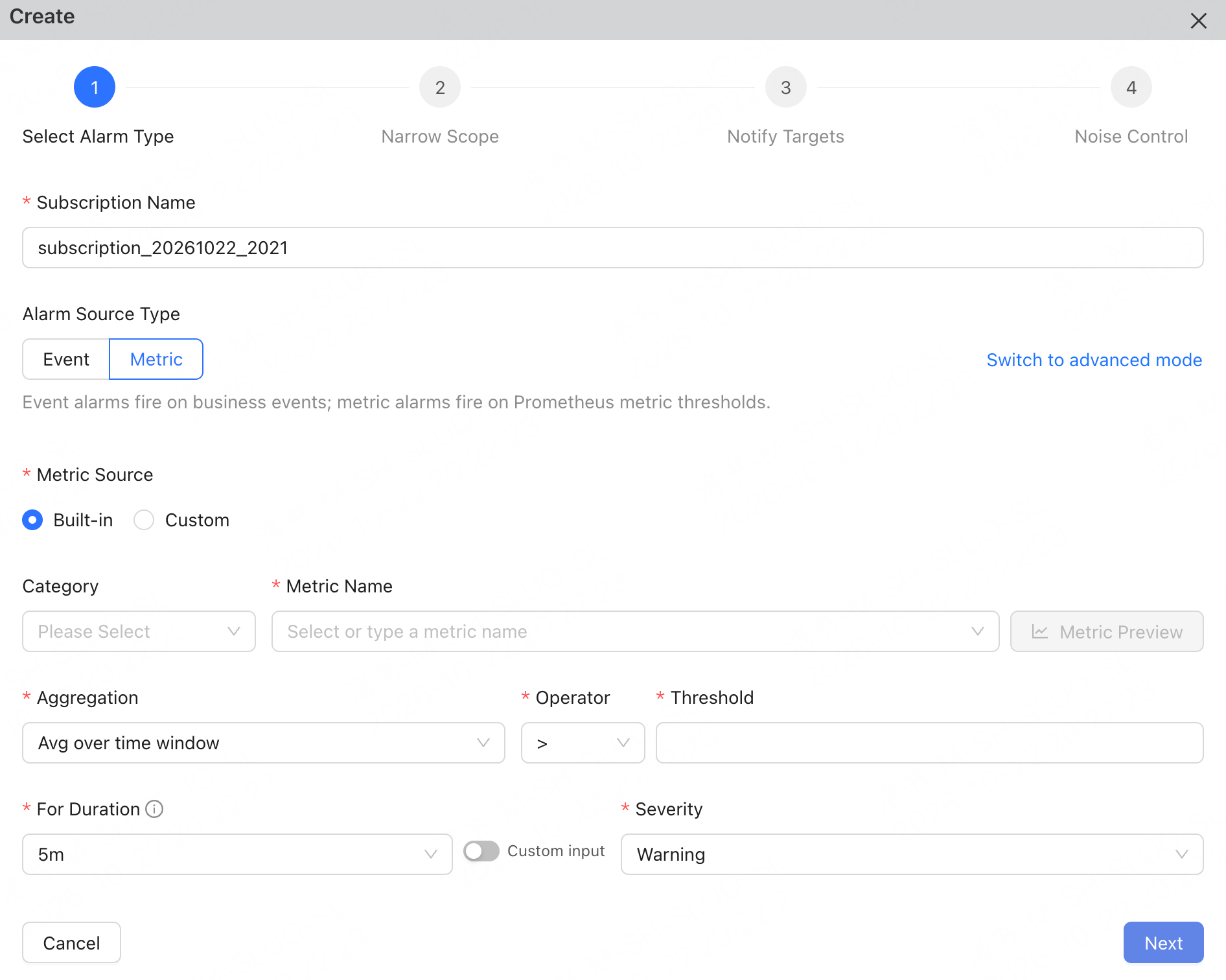
Configure Metric Conditions
- Enter the Subscription Name.
- Set Alarm Source Type to Metric.
-
Select the Metric Source.
Continue configuring the metric conditions:
Using Advanced Mode
If basic mode cannot express the conditions, click Switch to Advanced Mode and use a PromQL expression to configure an alert. Advanced mode is suitable for combining multiple conditions, filtering custom labels, or calculating complex metrics. Before using it, ensure that the PromQL expression includes the requirednamespace or orgname isolation label so the query meets the platform’s isolation requirements.
Configure Subscription Scope, Notify Targets, and Noise Control
Click Next to continue configuring Narrow Scope, Notify Targets, and Noise Control. Metric alerts can be further limited to applicable objects based on the selected workload scope, such as all workloads, specified workload types, or specified resource pools. Notify targets and noise control are the same as those for event alerts.3. Create the Metric Subscription
After confirming the configuration, click Create. Once created, the subscription takes effect immediately when enabled.Manage Subscriptions and Noise Control Rules
After locating the target subscription in Alarm > Alarm Subscription, you can adjust its configuration or enabled status as needed.
To manage noise control across multiple subscriptions, use the Global Noise Control Rules tab. Global rules apply only to the current user and do not affect other users.
Subscription-level rules take precedence over global rules. Muting and group aggregation are independent rule types; the system checks each type separately to decide whether to use a subscription-level rule or fall back to a global rule.
If a subscription has a rule of a given type, the global rule of that type generally will not take over, even when the subscription-level rule is disabled.
To continue inheriting the global rule, do not create a disabled rule of the same type in the subscription.
View Results
After the subscription is created, you can verify it in the following ways:- In the My Subscriptions list, confirm that the subscription is enabled.
- Perform a test send to the bound notification target to confirm that the receiving endpoint is reachable.
- After an actual alert occurs, view the alert record, delivery method, and delivery result in Alarm Overview.