

Billing methods
The tables below summarize billing by product. Follow the links for the applicable billing rules.Model Inference
Siverse
To check whether a Siverse quota is active, find its expiration date, or renew it, see View and renew resource orders.
GPU Cloud
Balance and promotional credits
Sign in to the console, expand Available Balance in the top bar, and follow the link to the billing center. Open Overview.- Available Balance shows the cash balance available across products. It excludes promotional credits.
- Promotional Credits shows Available Credits and the amount Expiring Within 7 Days. Select View Details to check each credit’s status, amount used, remaining balance, and expiration date.
Top up your balance
You can add funds to your tenant’s balance online from Overview. To maintain the name and address used for payment processing and invoices, see Update your profile.-
In Top up, select a preset amount or enter a custom amount.
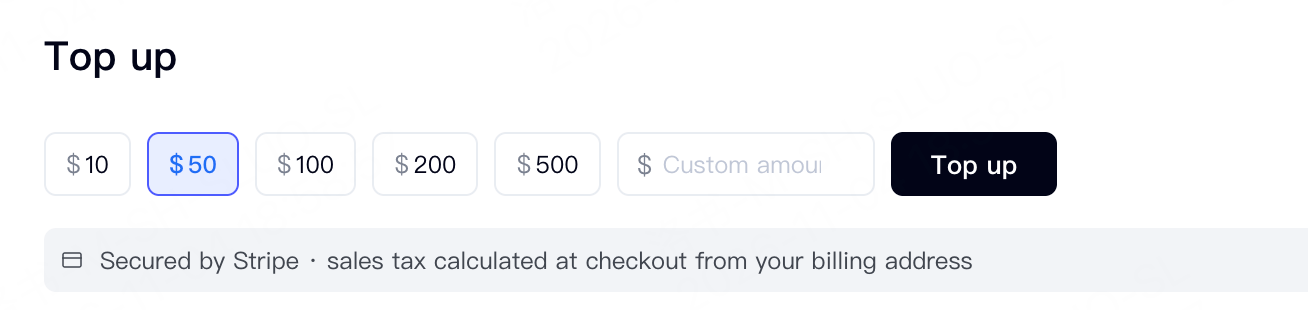
- Check the amount and select Top up to proceed to Stripe checkout.
- Review the checkout total and complete payment. Sales tax is calculated at checkout based on your billing address.
- Return to Overview and check Available Balance to verify the top-up.
Find billing information
Use bills to reconcile service charges and orders to check purchase records, periods, status, and amounts. An order amount is not a substitute for the service charges shown on a bill.
To analyze token usage for individual model requests, see View model usage details.