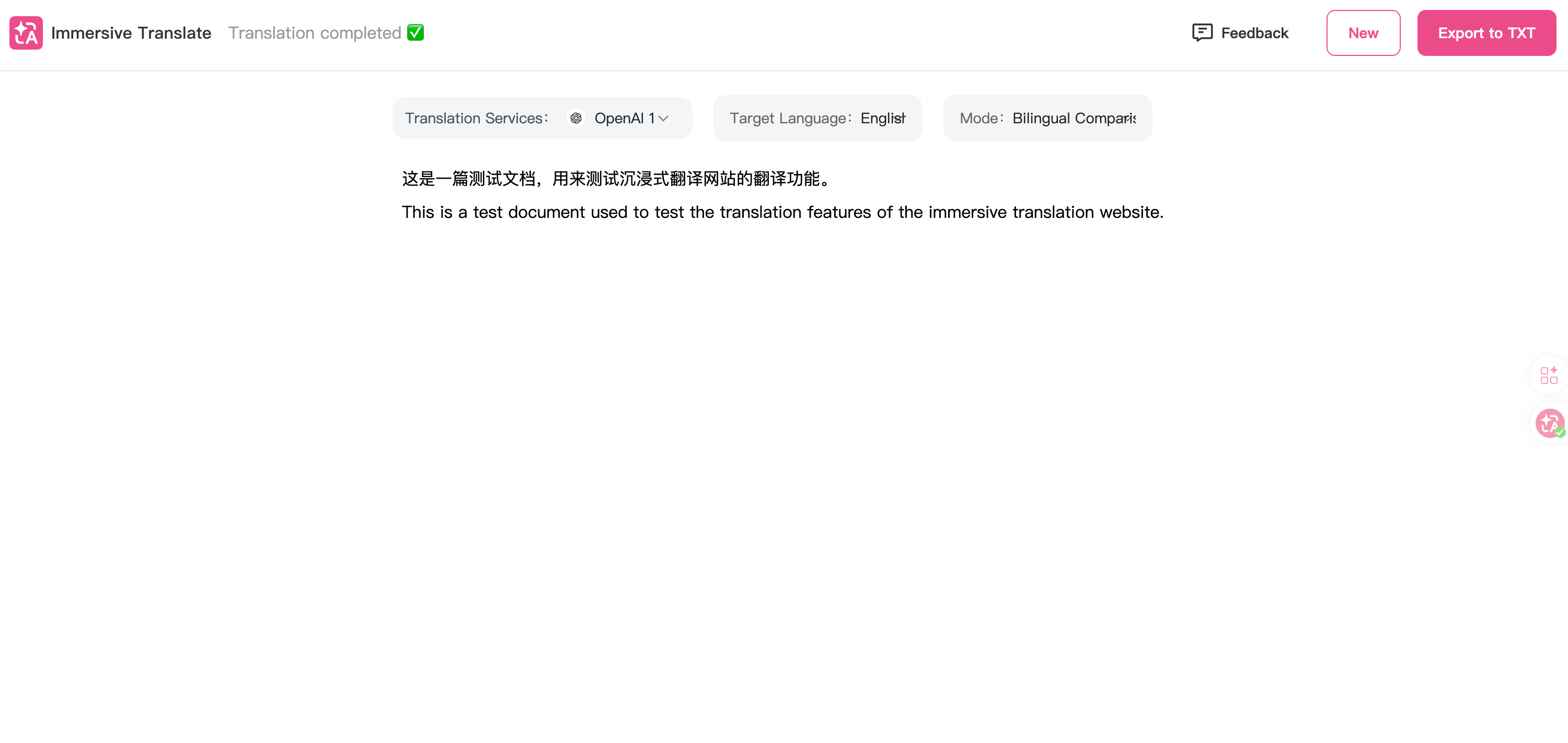
- Read foreign-language articles or documentation with the original text and translation side by side.
- Translate PDF reports or EPUB books while keeping layout and structure.
- Generate or translate video subtitles for learning or accessibility.
Configure
1. Install the extension
Open the Immersive Translate official site and choose Install browser extension or the equivalent option. Pick the version for your browser, such as Chrome, Edge, or Firefox, and install it.2. Configure API and model
Click the Immersive Translate extension icon and open Settings. In the settings page, set:
Save the settings.
Tip
- Keep your API Key private. Do not share it or commit it to version control.
- General-purpose or multilingual models, such as Qwen or DeepSeek models, work well for translation. Choose a model with sufficient context length for long documents.
- Translation of long texts can consume many tokens. Be aware of the platform’s pricing and rate limits.
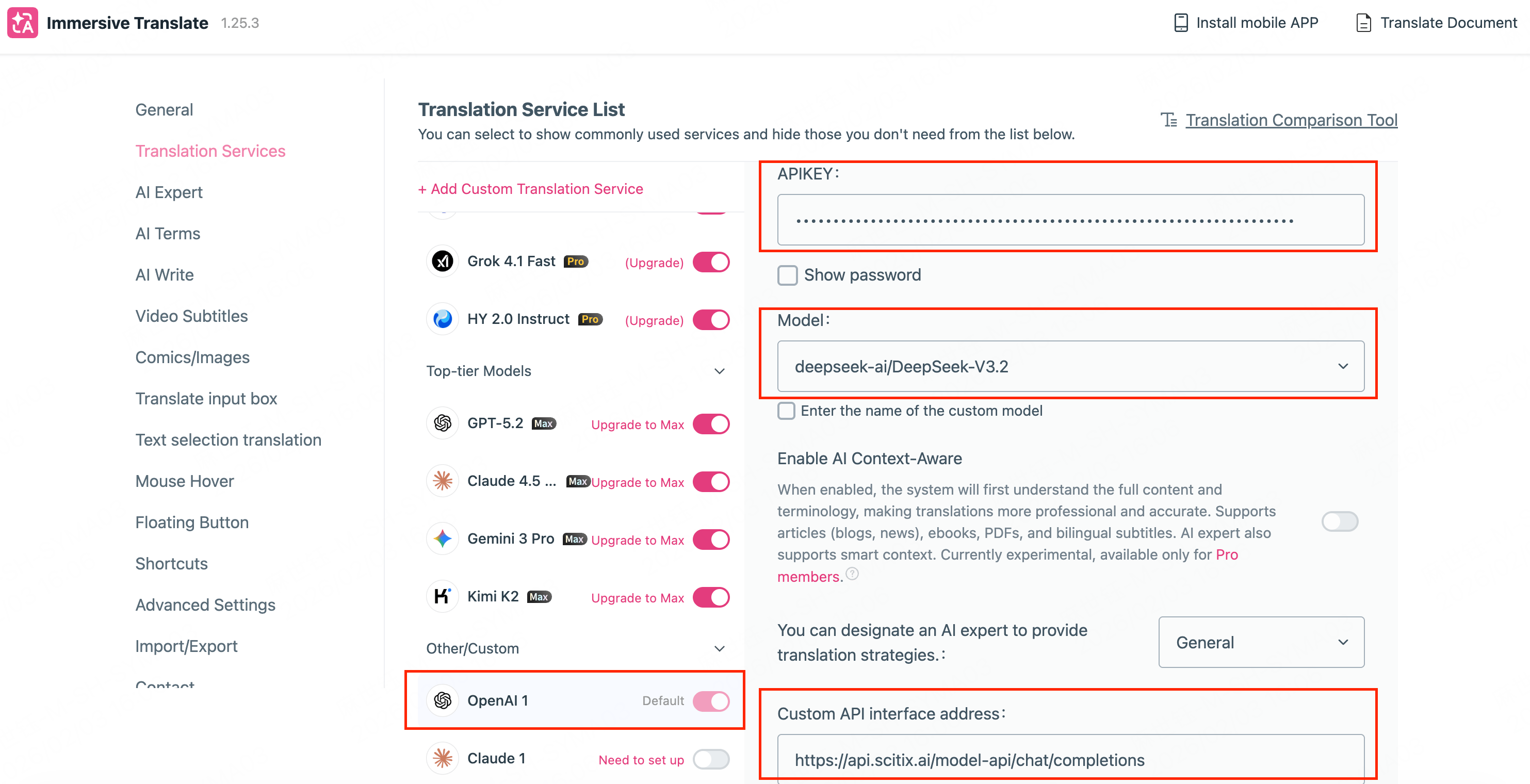
3. Set translation service to OpenAI
Set the translation service to OpenAI, or to the option that allows a custom API endpoint.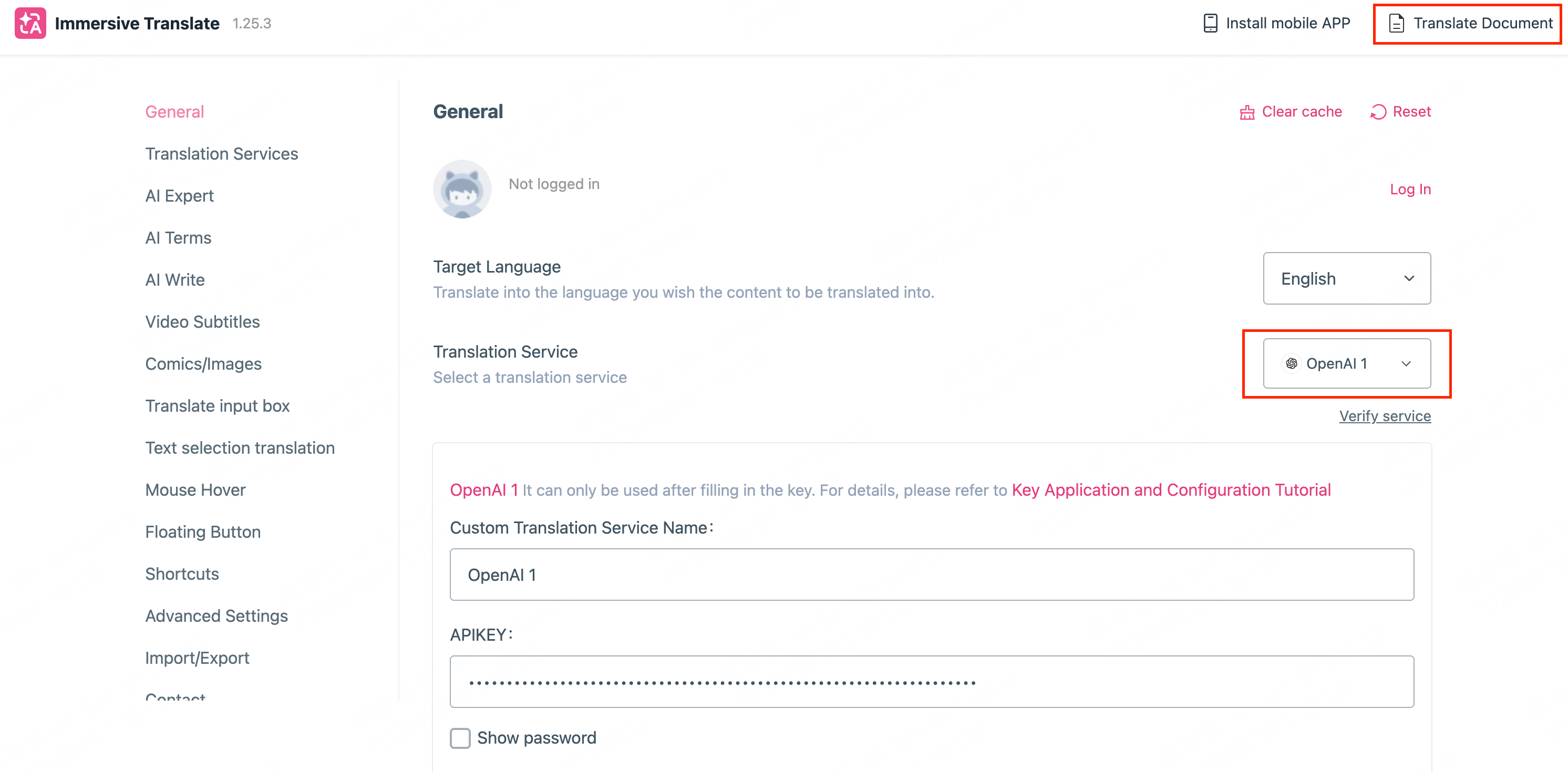
Verify
Click Translate document in the top-left to open the translation interface. Open a supported page, PDF, or EPUB, then use the extension to get bilingual translations. The following example shows a page with the original text and translation side by side.