

Usage notes
- Scale-up is suitable when file system capacity is insufficient, or when training, inference, or data processing jobs are expected to write more data. GPFS file systems use thick provisioning. After scale-up is complete, the file system is metered based on the adjusted capacity.
- Scale-down is suitable when the file system is overprovisioned and the current data size is significantly lower than the target capacity. Before you scale down a file system, check the current file system usage. We recommend that you delete or migrate data that is no longer needed and reserve sufficient capacity to avoid scale-down failures or future write issues when usage is close to the target capacity.
Prerequisites
Before you adjust the capacity, make sure that:- The file system is in the
Runningstate. - The target capacity meets the capacity range and scaling increment of the current storage type.
- You have evaluated the impact of the capacity adjustment on running jobs.
- If you need to scale down the file system, the current usage is lower than the target capacity and sufficient capacity is reserved.
Procedure
- Log on to the console and go to GPFS.
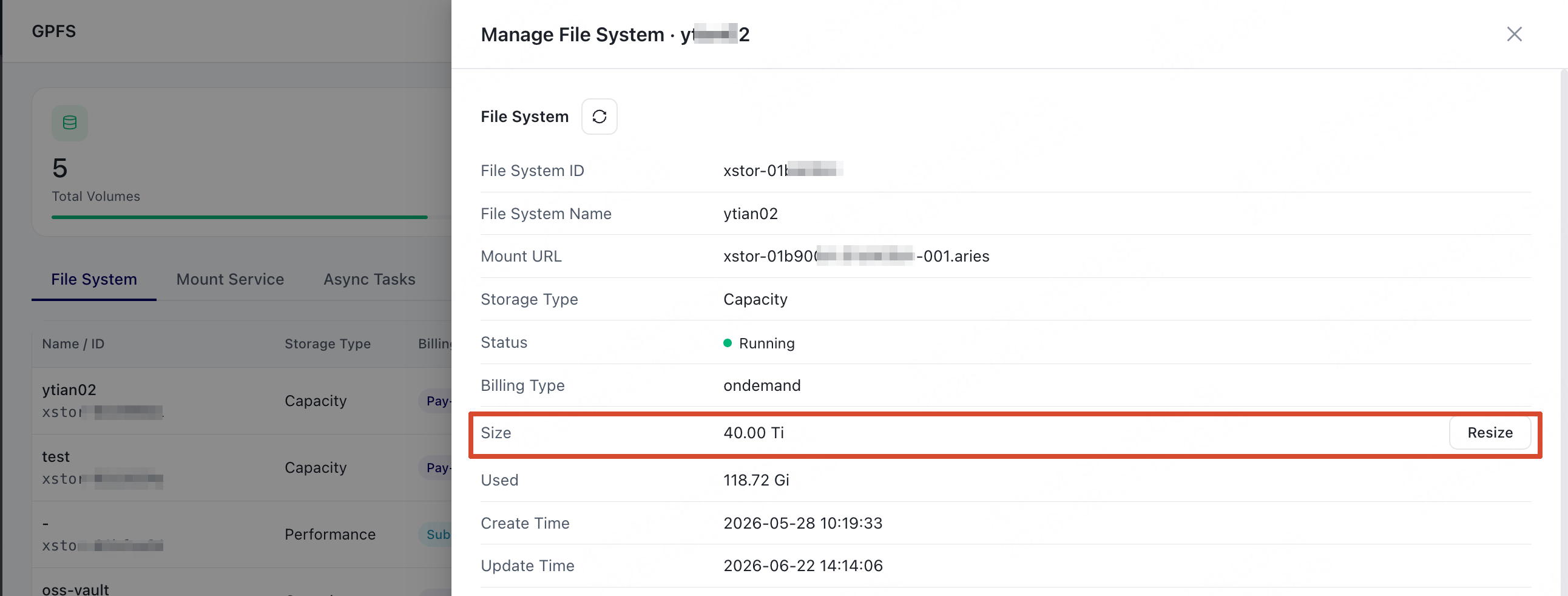
- Find the file system whose capacity you want to adjust and choose Manage.
-
In the Size section of the panel, choose Resize.
-
Select Scale up or Scale down, and enter the capacity.
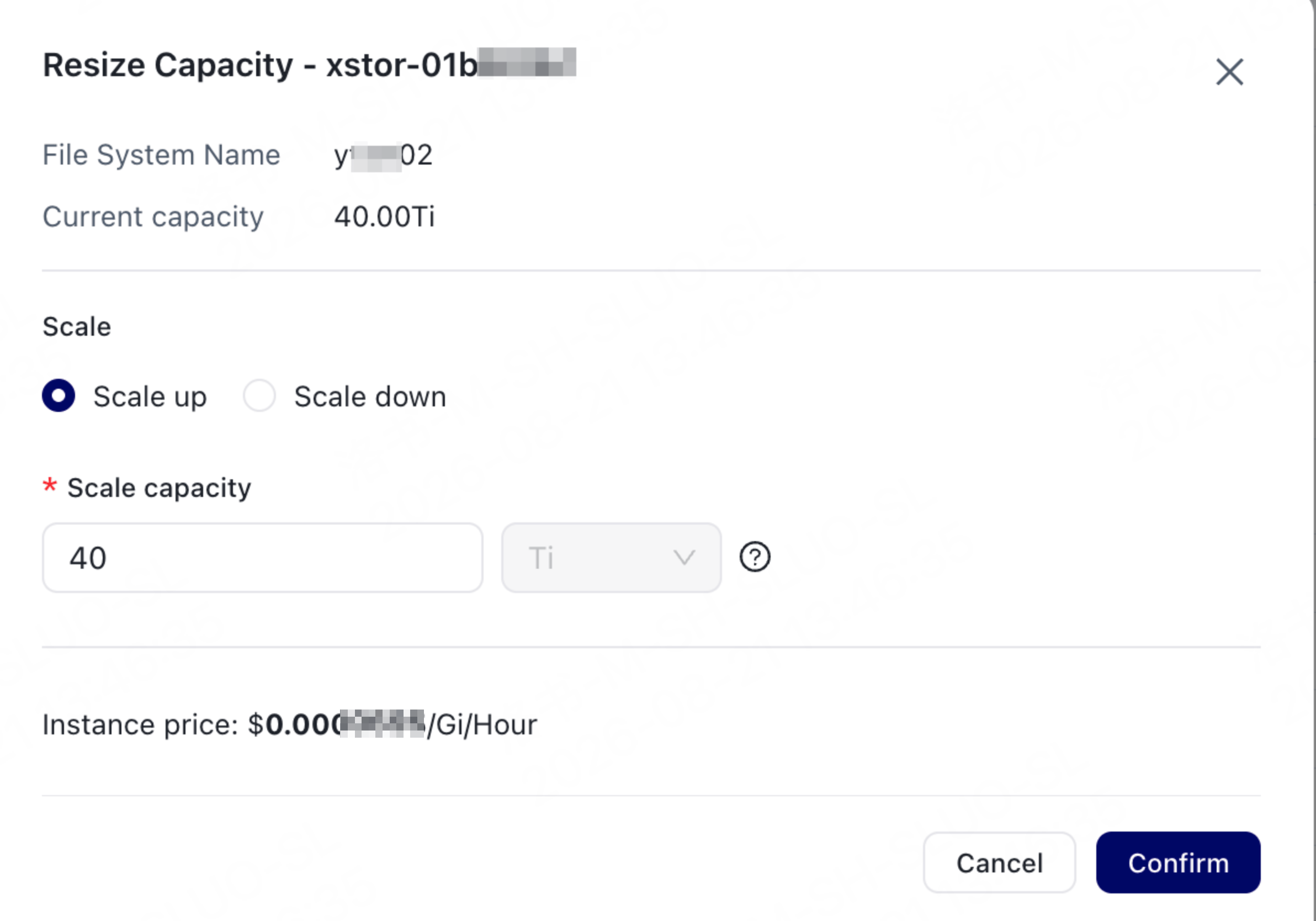
- Confirm the amount and choose Confirm.
-
Return to the file system list and check the adjustment result based on the status.
- Extending: The file system capacity is being adjusted. This status may be displayed for both scale-up and scale-down operations.
- Running: The capacity adjustment is complete.
- Failed: The capacity adjustment failed. Handle the issue based on the error message. If you cannot identify the cause, contact support.