

Applicable Scenarios
Querying logs is suitable for the following scenarios:- Troubleshoot abnormal resource, task, or application behavior.
- Search for application errors, task output, or debugging information by keyword.
- Filter logs by log fields.
- View aggregated results for similar logs through log clustering.
- Export query results for issue tracking or technical support troubleshooting.
Query Logs
- Log in to the GPU Cloud console and go to the Logs page. To query from the cluster entry point, go to the Clusters page, click the name of the target cluster to open the cluster workbench, and then go to OBSERVABILITY > Logs.
-
Under Kind, select a log type, for example,
container_stdout. - Select the time range to query.
- Enter log keywords in the search box. The search box supports full-text matching of log content. If no keyword is specified, the system queries logs based on the current log type, time range, and filter criteria.
- To further narrow the scope, click Add Filter and add field-based filter conditions. Filtering criteria and search criteria apply simultaneously to both the Raw Logs and Log Patterns views.
- Click Search.
View Raw Logs
On the Raw Logs tab, you can view log entries that match the current query criteria. When troubleshooting a specific issue, first use the time distribution to identify periods with concentrated anomalies, then use fields and log content to determine the scope of affected resources.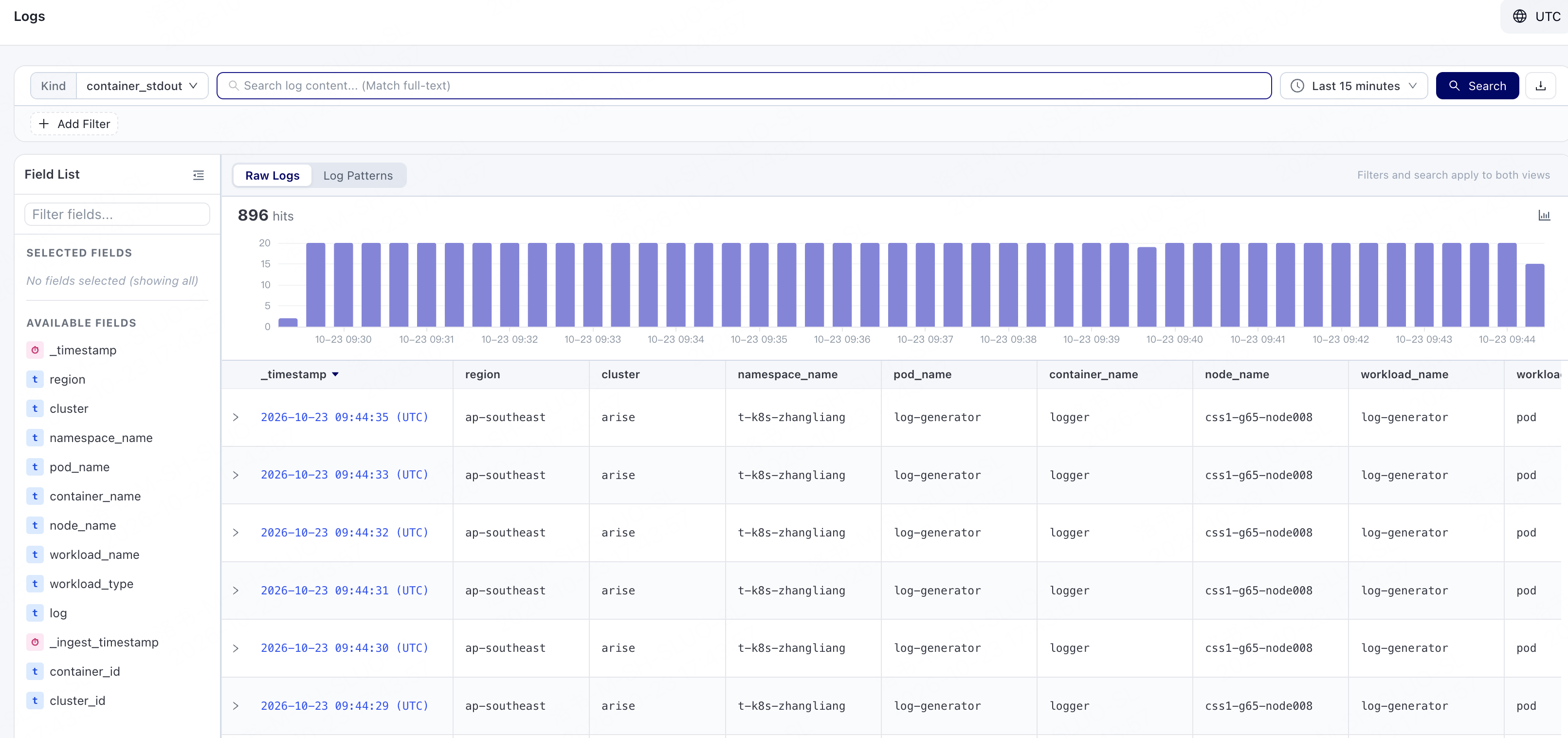
Filter Logs by Field
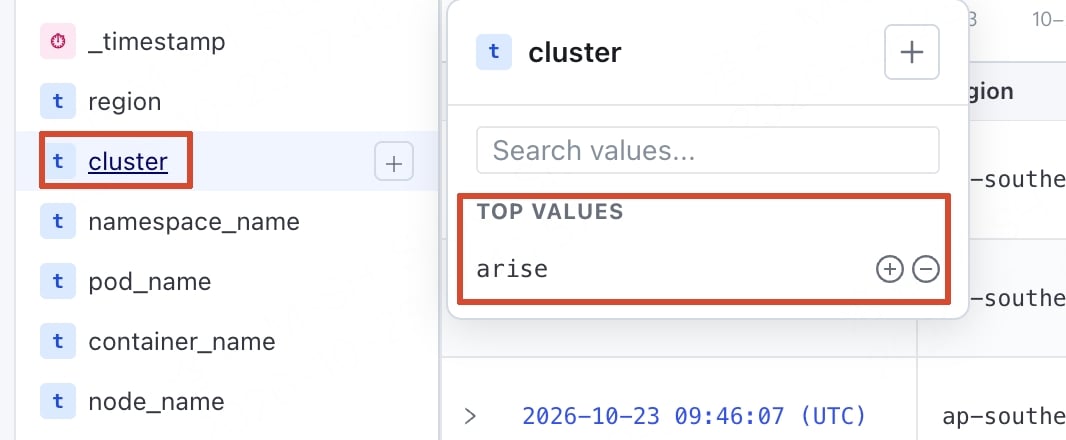
- In Available Fields on the left, click the + next to a field to add it to Selected Fields. The Logs results table displays results based on the selected fields.
- Click a field name to view its candidate values. In the candidate value list, click the + next to the desired value to filter Logs by that value.
Filter Logs by Time Range
Drag to select a time interval in the time distribution chart to quickly configure the time range. After selection, the time range at the top of the page is updated accordingly.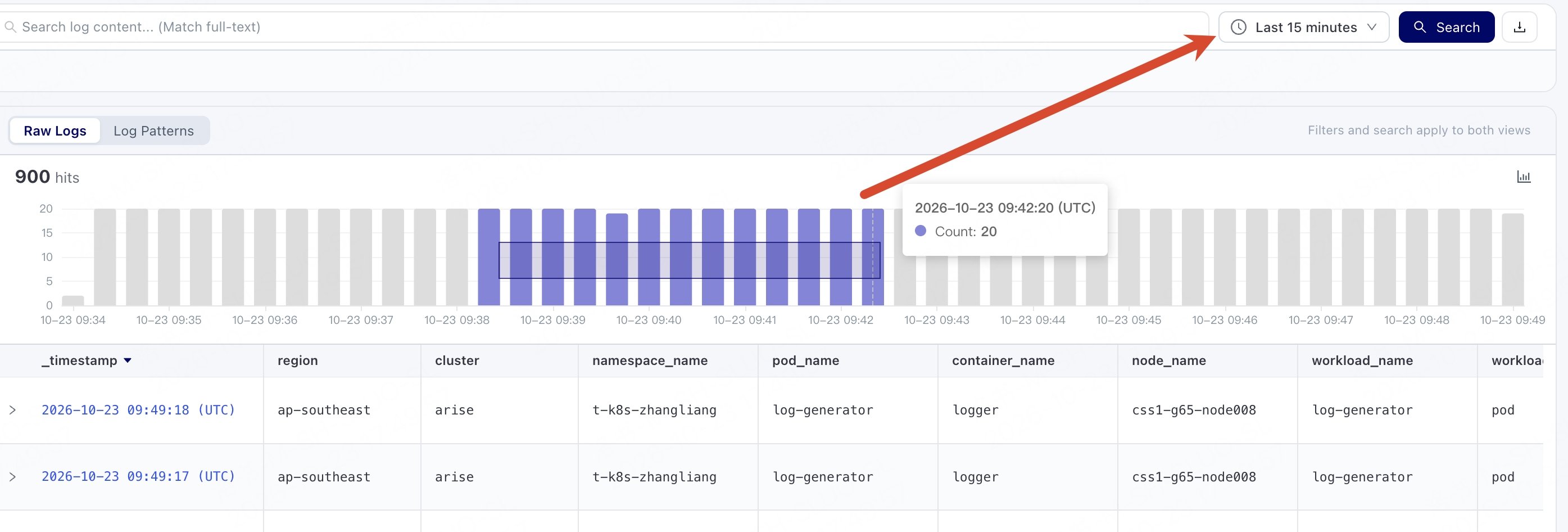
View Log Clusters
When there are many query results or you need to quickly identify frequent errors, switch to the Log Patterns tab to view aggregated results for similar logs. Log clustering uses the current search criteria, filter criteria, and time range. You can first narrow the scope by using keywords and field filters, then switch to the Log Patterns tab to view the aggregation results.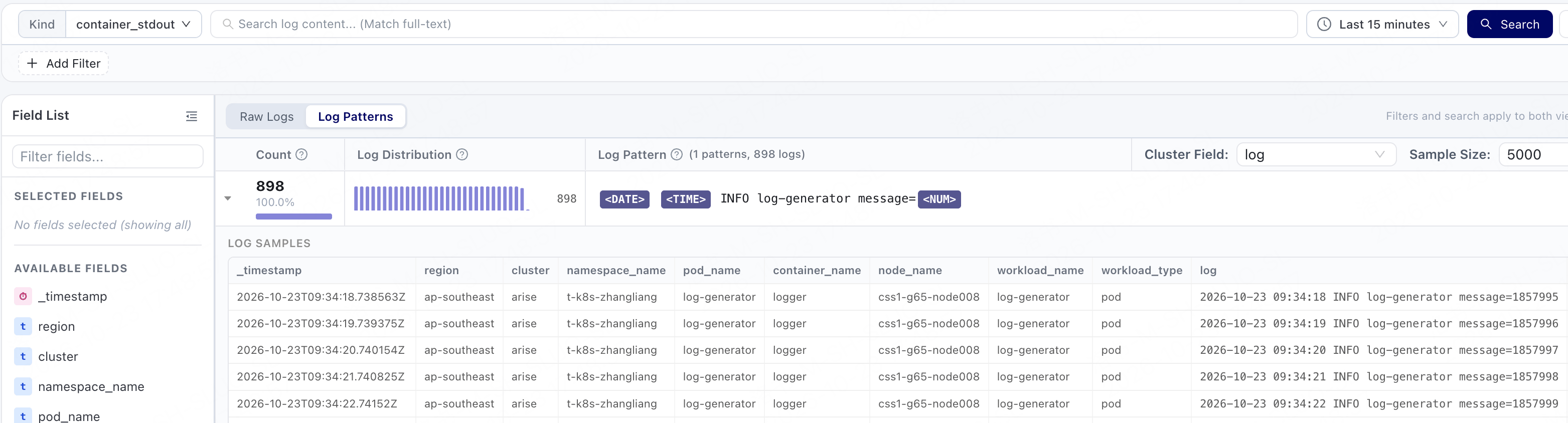
Export Logs
To save or share the query results, click the download icon in the upper-right corner of the page to export the logs. Before exporting, verify the time range, search keywords, and filter criteria to avoid exporting too many irrelevant logs.What should I do if I cannot find logs?
If the expected logs are not found, first check the following:
If you still cannot query the logs, record the query criteria, time range, resource name, and error message, and contact technical support.