

Review Before Proceeding
- A backend storage volume is ready for use by the CKS cluster.
- Information required to create a PV has been obtained, including capacity, access mode, CSI driver name, and a unique volume identifier. The specific fields and values are provided by the storage backend or storage administrator.
Create PV
- Log in to the GPU Cloud console and go to the Clusters page.
- On the Clusters page, click the name of the target cluster to access the cluster workspace.
-
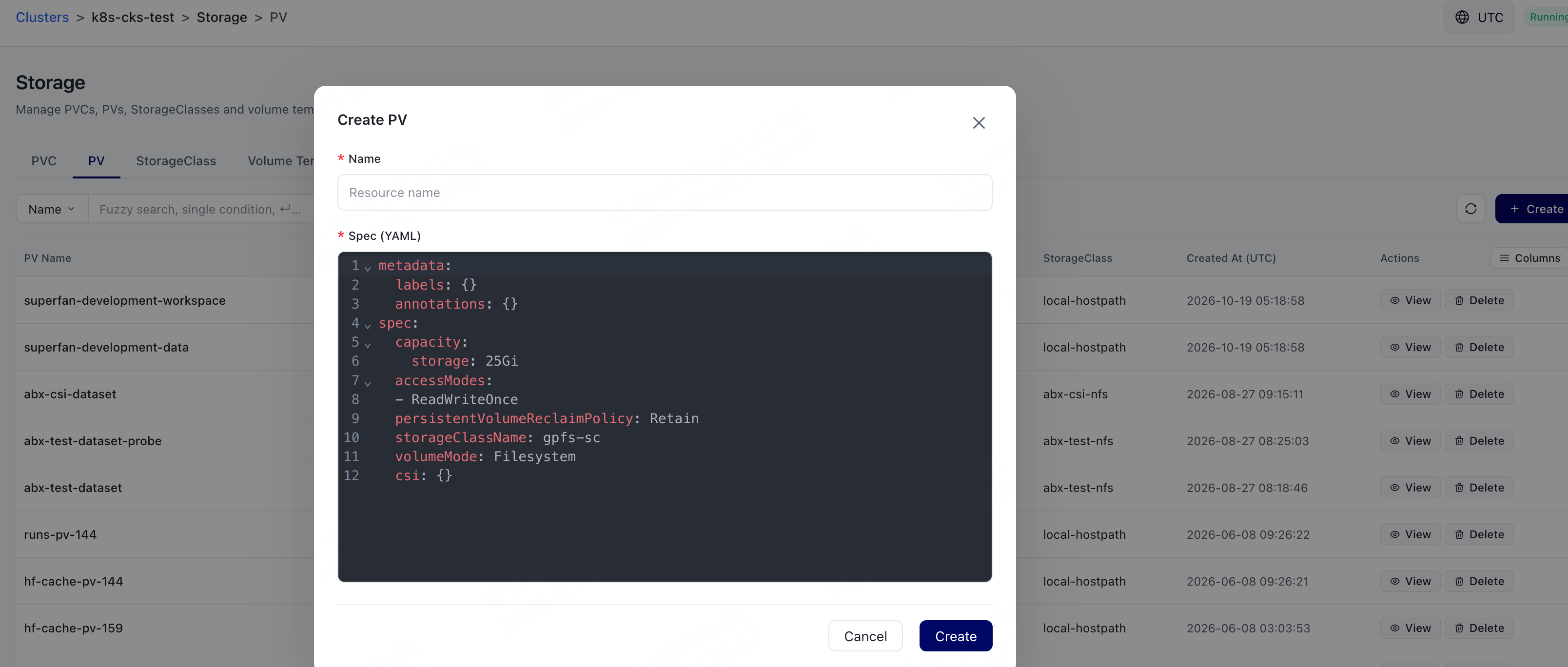
In the left navigation pane, go to the Storage page, switch to the PV tab, and click Create.
-
Set Name and complete the PV configuration in Spec (YAML).
The following YAML shows the basic structure of a CSI PV. Replace the placeholders with the actual values provided by the storage backend, and add other fields as required by the storage plugin.
- Click Create.
Create a PVC and Bind It to a PV
- On the Storage page, switch to the PVC tab and click Create.
-
Configure the PVC.
volumeNamemust be set to the name of the PV created in the previous step. The requested capacity must not exceed the PV capacity, andaccessModes,storageClassName, andvolumeModemust be compatible with the PV. - Click Create.
-
Return to the PVC tab and verify that the PVC status has changed to
Bound. Then, on the PV tab, verify that the target PV is bound to this PVC.
Next Actions
After the PVC status becomesBound, you can mount persistent storage to a workload. When a PVC or PV is no longer needed, see Clean up persistent storage resources.
Frequently Asked Questions
What should I do if a PVC cannot be bound to the specified PV?
What should I do if a PVC cannot be bound to the specified PV?
Ensure that
volumeName exactly matches the PV name, and verify that the requested capacity, access modes, storageClassName, and volumeMode are compatible with the PV. The target PV must also be available for binding and must not already be bound to another PVC.