> ## Documentation Index
> Fetch the complete documentation index at: https://docs.scitix.ai/llms.txt
> Use this file to discover all available pages before exploring further.
# TRAE
[TRAE](https://www.trae.ai) is an AI IDE with a built-in coding agent. Its **Custom Config** model option accepts an OpenAI-compatible endpoint, so you can point it to the ScitiX Model Inference API for agent and chat use.
Supported models include `glm-5.2` and `DeepSeek-V4-Flash`. For the full list and pricing, see the [model catalog](https://console.scitix.ai/model-inference/models).
## Configure
Create an API Key on the [API Keys](https://console.scitix.ai/model-inference/api_keys) page first.
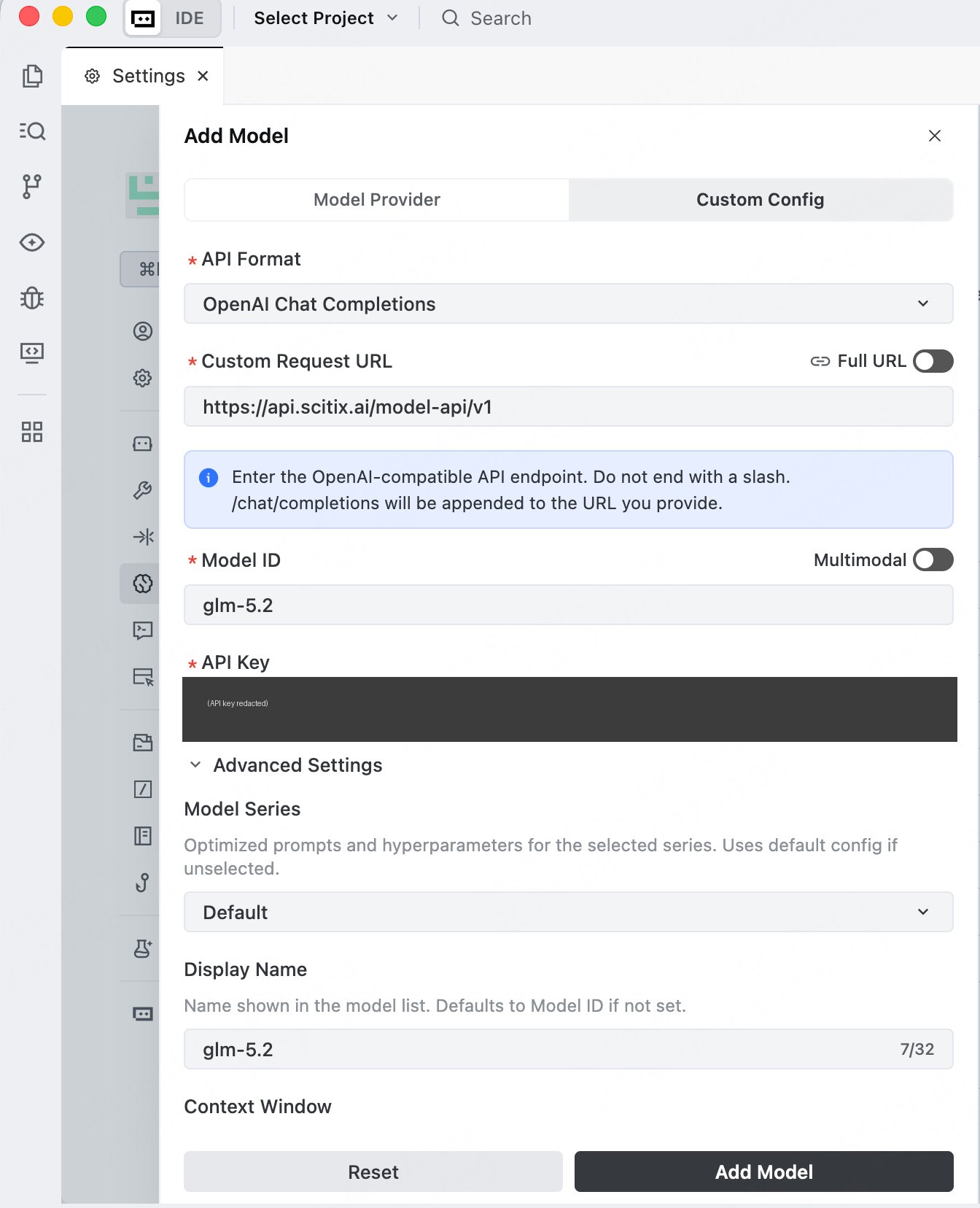
1. Open **Settings → Models**, click **Add Model**, and switch to the **Custom Config** tab.
2. Fill in the required fields.
| Field | Value |
| ------------------ | ------------------------------------------------------------------------------------------------ |
| API Format | **OpenAI Chat Completions** |
| Custom Request URL | `https://api.scitix.ai/model-api/v1` |
| Model ID | `glm-5.2` |
| API Key | Your API Key created on the [API Keys](https://console.scitix.ai/model-inference/api_keys) page. |
Leave the **Full URL** toggle off. TRAE appends `/chat/completions` to the URL you provide, so enter the base endpoint without a trailing slash.
Under **Advanced Settings**, you can set a **Display Name** and **Context Window**. **Multimodal** is a separate toggle in the **Add Model** dialog; enable it only for a vision-capable model. Choose a model with native tool calling for the agent's file actions.
3. Click **Add Model**.
 ## Verify
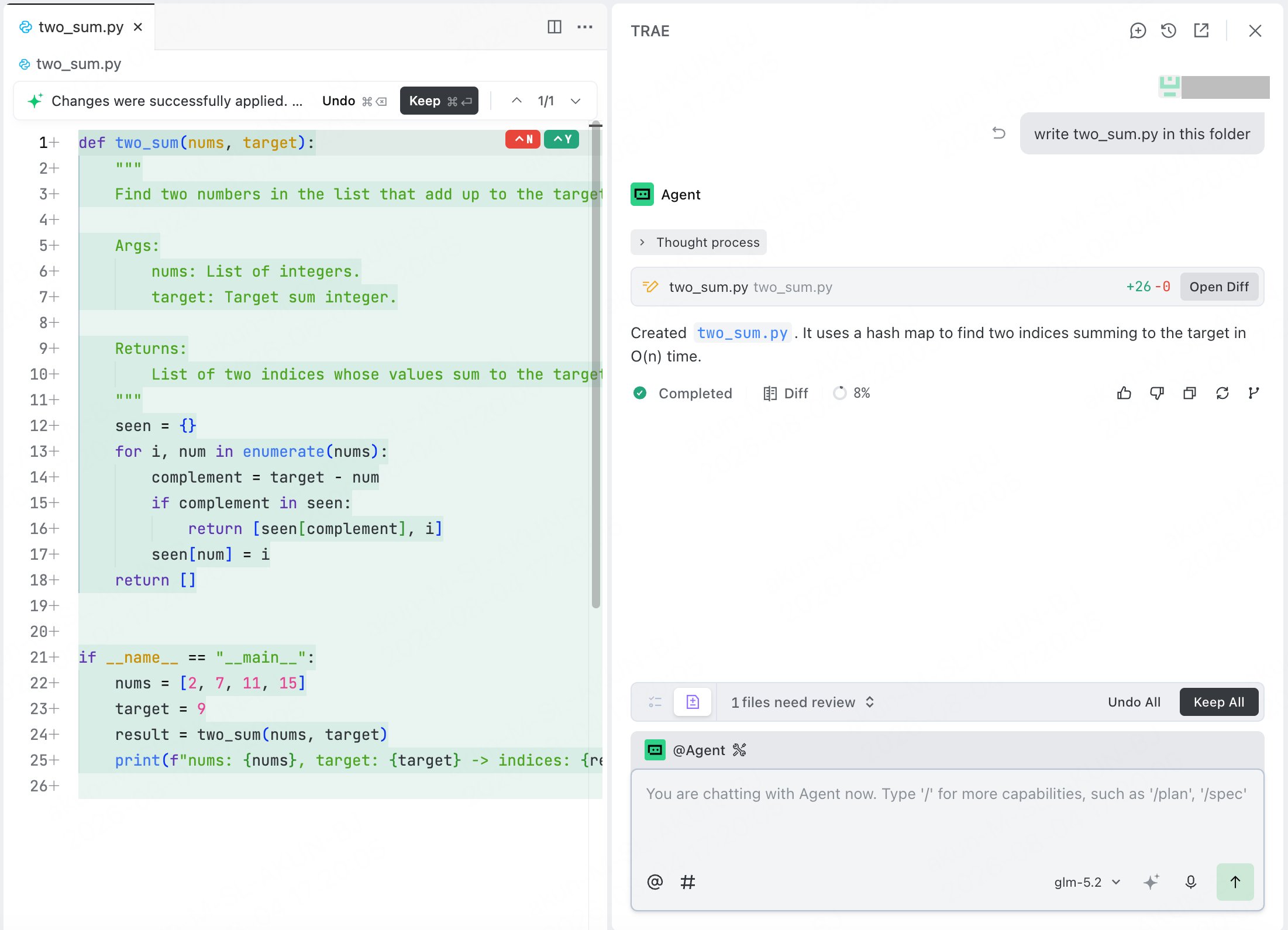
Open the agent panel, select the ScitiX model from the model picker at the bottom, and give it a task. TRAE plans the task and edits files, asking you to keep or undo the changes. A normal reply confirms that the connection works.
## Verify
Open the agent panel, select the ScitiX model from the model picker at the bottom, and give it a task. TRAE plans the task and edits files, asking you to keep or undo the changes. A normal reply confirms that the connection works.
 ## FAQ
* **Model not responding / no edits**: confirm that the selected model is the ScitiX model you added, and that it supports native tool calling.
## FAQ
* **Model not responding / no edits**: confirm that the selected model is the ScitiX model you added, and that it supports native tool calling.