> ## Documentation Index
> Fetch the complete documentation index at: https://docs.scitix.ai/llms.txt
> Use this file to discover all available pages before exploring further.
# SiYuan
[SiYuan](https://github.com/siyuan-note/siyuan) is a privacy-first personal knowledge management system with block-level Markdown editing and built-in AI writing and Q\&A. Its AI settings accept a custom OpenAI-compatible endpoint, so you can point them to the ScitiX Model Inference API.
The steps below reflect SiYuan's current AI settings. Newer versions may differ slightly. For available models, such as `glm-5.2` and `DeepSeek-V4-Flash`, and pricing, see the [model catalog](https://console.scitix.ai/model-inference/models).
## Configure
Create an API Key on the [API Keys](https://console.scitix.ai/model-inference/api_keys) page first.
### 1. Add the provider
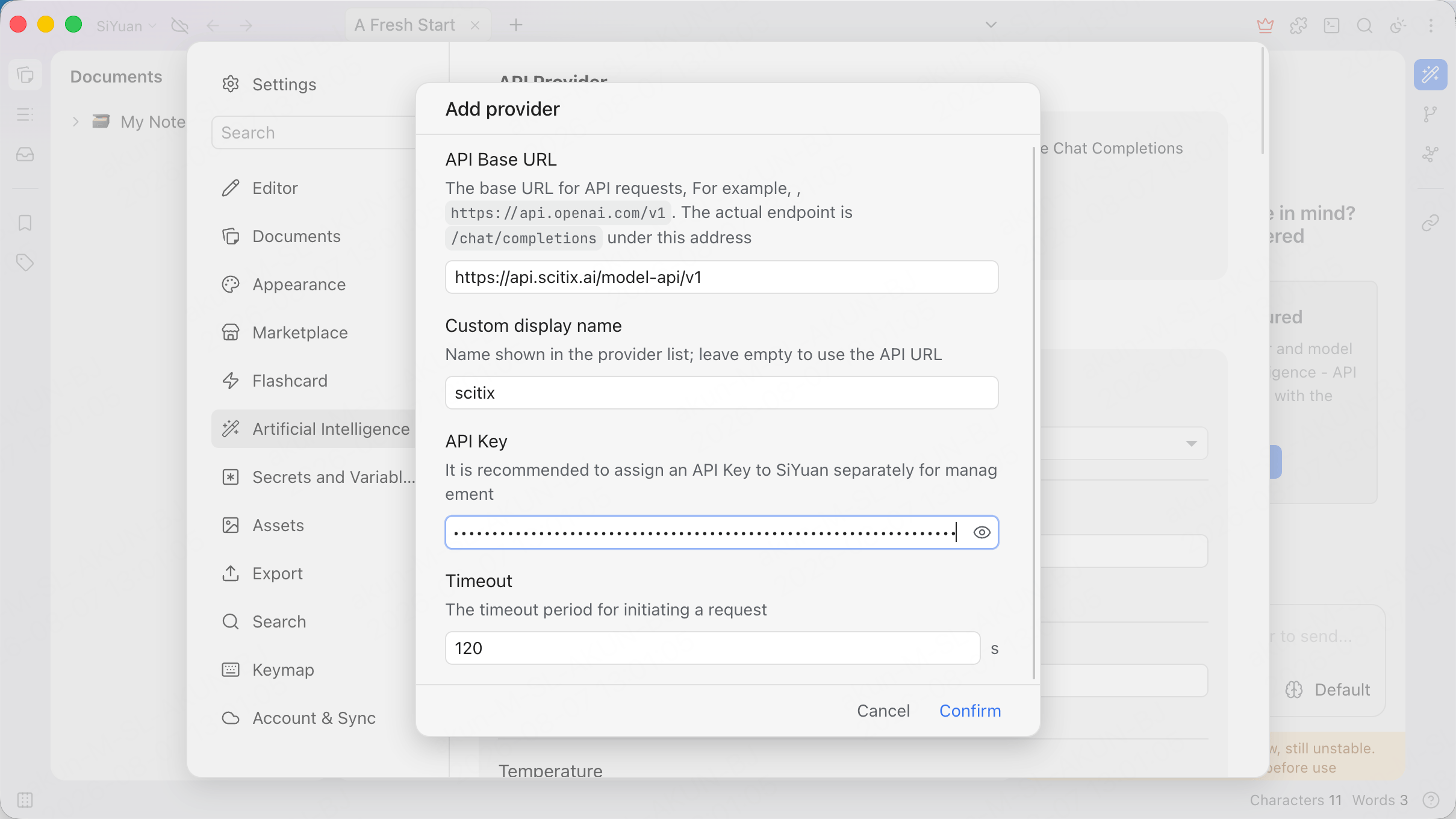
Open **Settings → Artificial Intelligence**, add a provider through the **Add provider** dialog, and fill in the required fields.
| Field | Value |
| ------------------- | ------------------------------------------------------------------------------------------------ |
| API Base URL | `https://api.scitix.ai/model-api/v1` |
| Custom display name | `scitix` (optional) |
| API Key | Your API Key created on the [API Keys](https://console.scitix.ai/model-inference/api_keys) page. |
The dialog notes that the actual endpoint is `/chat/completions` under this address, so the API Base URL ends with `/v1`.
 ### 2. Add the model
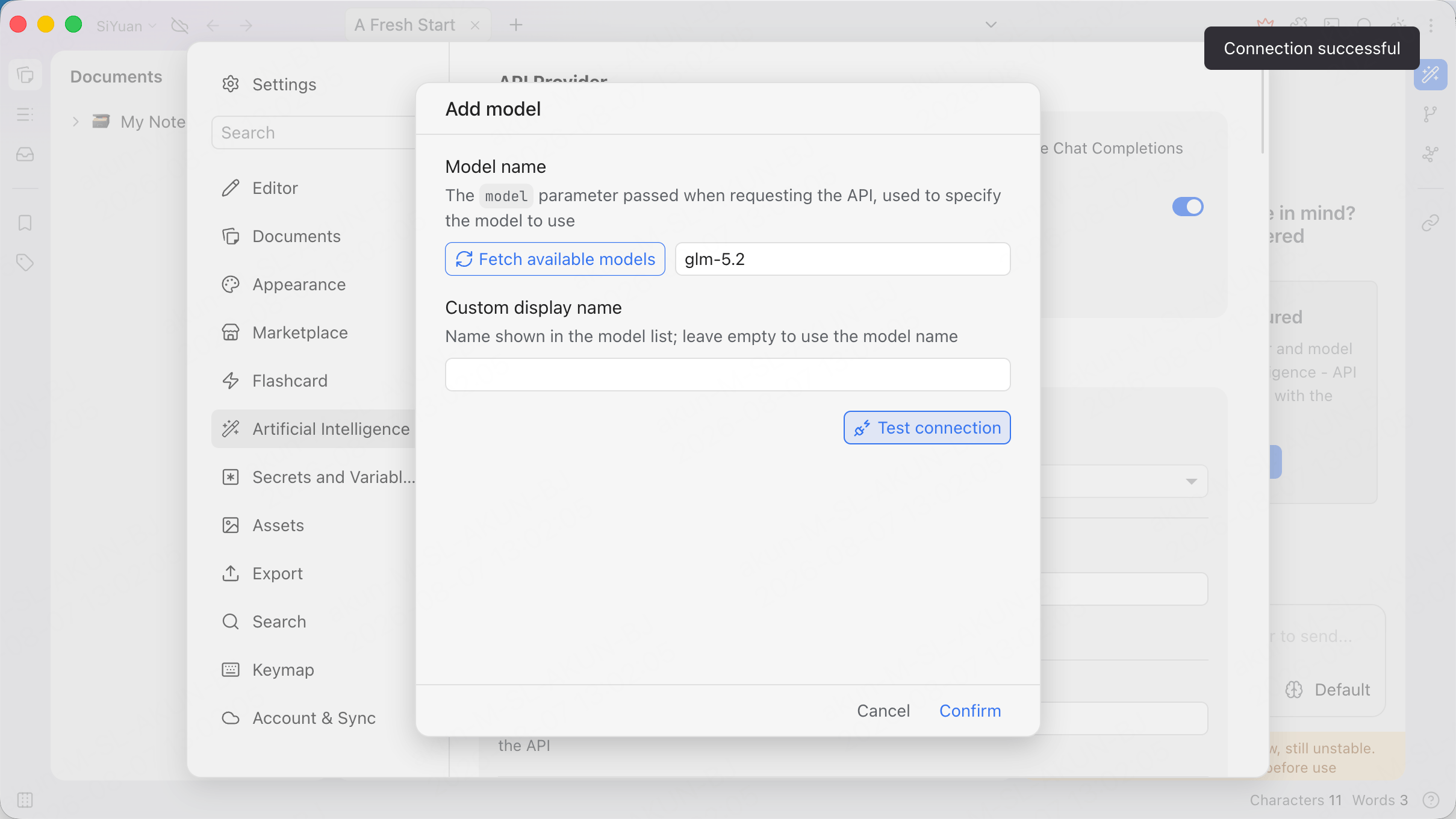
Add a model under the ScitiX provider through the **Add model** dialog. Set **Model name** to `glm-5.2`, or click **Fetch available models**.
Click **Test connection**. Expect **Connection successful**, then confirm.
### 2. Add the model
Add a model under the ScitiX provider through the **Add model** dialog. Set **Model name** to `glm-5.2`, or click **Fetch available models**.
Click **Test connection**. Expect **Connection successful**, then confirm.
 ## Verify
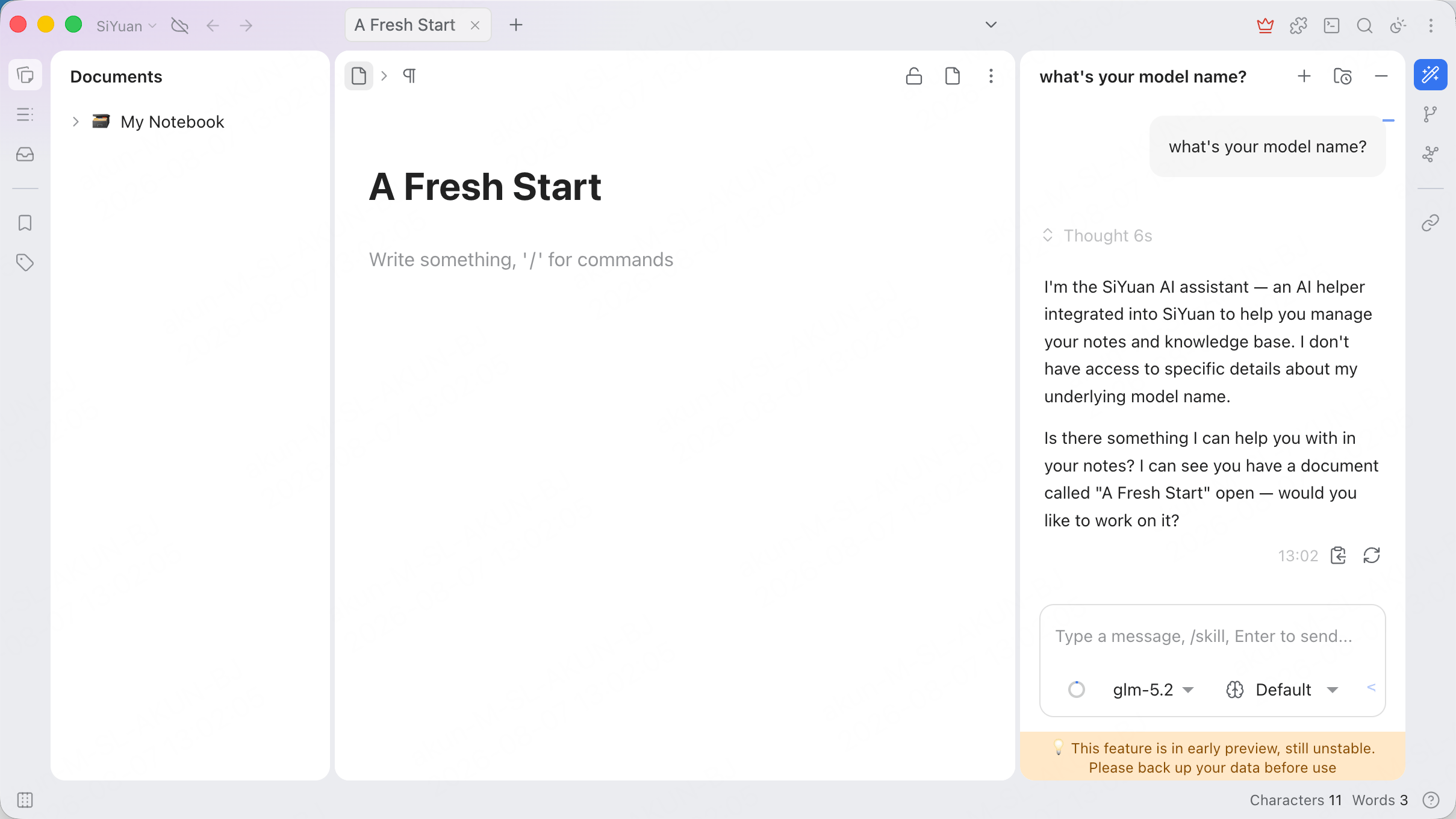
Open the AI chat panel, select `glm-5.2` from the model selector at the bottom, and send a message. A normal reply confirms that the connection works.
The assistant may identify itself as "the SiYuan AI assistant" rather than the underlying model. That is SiYuan's own system prompt, not a routing issue; the model selector still shows the ScitiX model in use.
The AI panel is marked as an early-preview feature in current builds. Back up your data before heavy use.
## Verify
Open the AI chat panel, select `glm-5.2` from the model selector at the bottom, and send a message. A normal reply confirms that the connection works.
The assistant may identify itself as "the SiYuan AI assistant" rather than the underlying model. That is SiYuan's own system prompt, not a routing issue; the model selector still shows the ScitiX model in use.
The AI panel is marked as an early-preview feature in current builds. Back up your data before heavy use.
 ## FAQ
* **Model not responding**: confirm the API Base URL, API Key, and model name. The model must be available over the OpenAI chat-completions protocol, such as `glm-5.2`.
## FAQ
* **Model not responding**: confirm the API Base URL, API Key, and model name. The model must be available over the OpenAI chat-completions protocol, such as `glm-5.2`.