> ## Documentation Index
> Fetch the complete documentation index at: https://docs.scitix.ai/llms.txt
> Use this file to discover all available pages before exploring further.
# Obsidian Copilot
[Obsidian Copilot](https://github.com/logancyang/obsidian-copilot) is an AI plugin for [Obsidian](https://obsidian.md). It lets you chat with your notes, generate content, and run commands. Its custom-model support connects to the ScitiX Model Inference API through an OpenAI-compatible endpoint.
The steps below reflect the plugin's current settings UI. Newer versions may differ slightly. For available models, such as `glm-5.2` and `DeepSeek-V4-Flash`, and pricing, see the [model catalog](https://console.scitix.ai/model-inference/models).
## Configure
Create an API Key on the [API Keys](https://console.scitix.ai/model-inference/api_keys) page first.
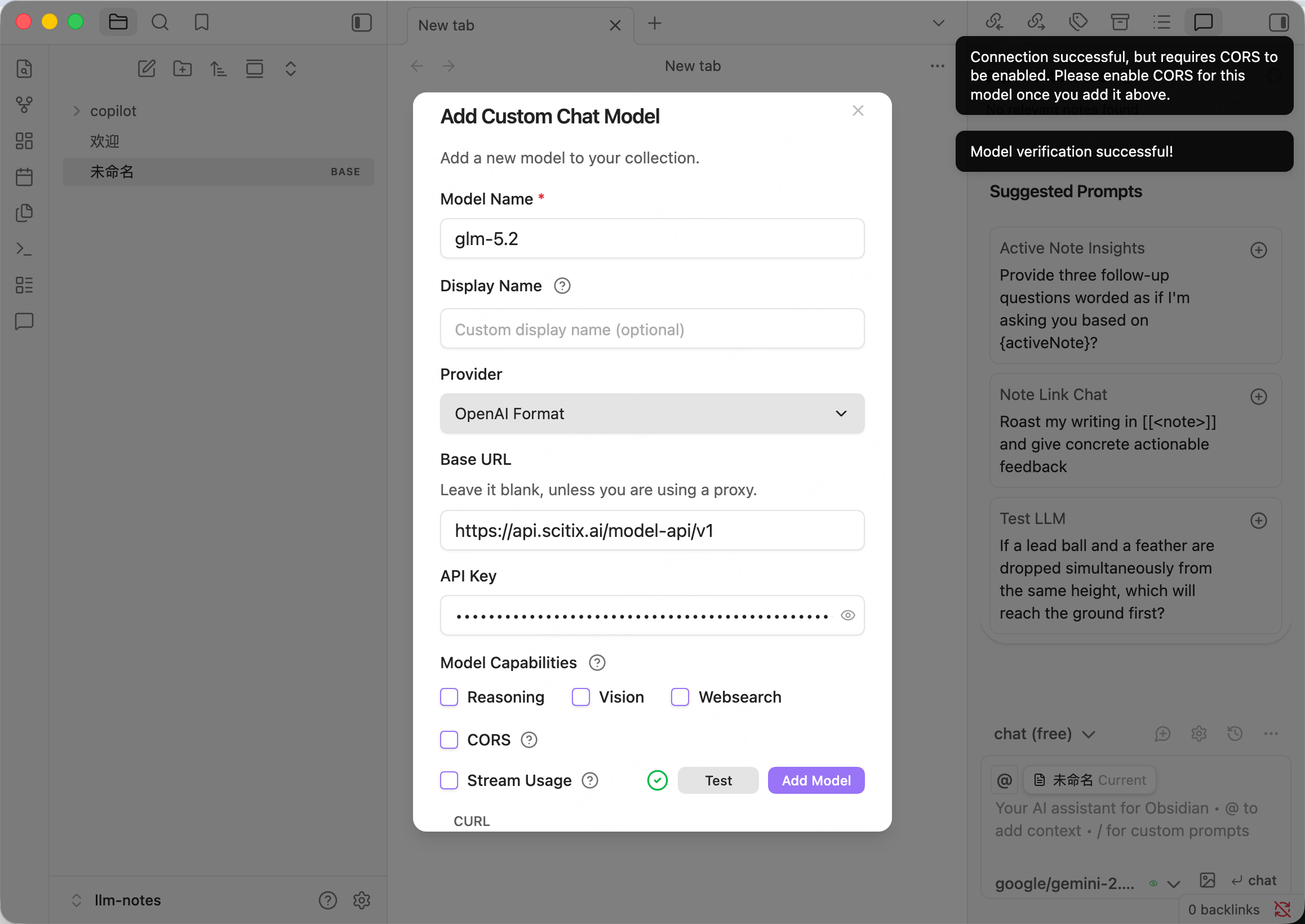
1. Open **Settings → Copilot → Model**, then click to add a model. The **Add Custom Chat Model** dialog opens.
2. Fill in the required fields.
| Field | Value |
| ---------- | ------------------------------------------------------------------------------------------------ |
| Model Name | `glm-5.2` |
| Provider | **OpenAI Format** |
| Base URL | `https://api.scitix.ai/model-api/v1` |
| API Key | Your API Key created on the [API Keys](https://console.scitix.ai/model-inference/api_keys) page. |
Keep the following in mind:
* **Provider** must be **OpenAI Format**. This is the option for a custom OpenAI-compatible endpoint. The named providers, such as OpenAI or Anthropic, target their official services.
* The Base URL field is hinted as "leave it blank unless you are using a proxy", but for a custom endpoint like ScitiX you must fill it with `https://api.scitix.ai/model-api/v1`.
* Choose a model with native tool calling if you use Copilot features that rely on it.
3. Tick the **CORS** checkbox under **Model Capabilities**.
The desktop app requires CORS for a custom endpoint. Otherwise, the **Test** button reports "Connection successful, but requires CORS to be enabled".
4. Click **Test** to verify the connection. Expect "Model verification successful!", then click **Add Model**.
 ## Verify
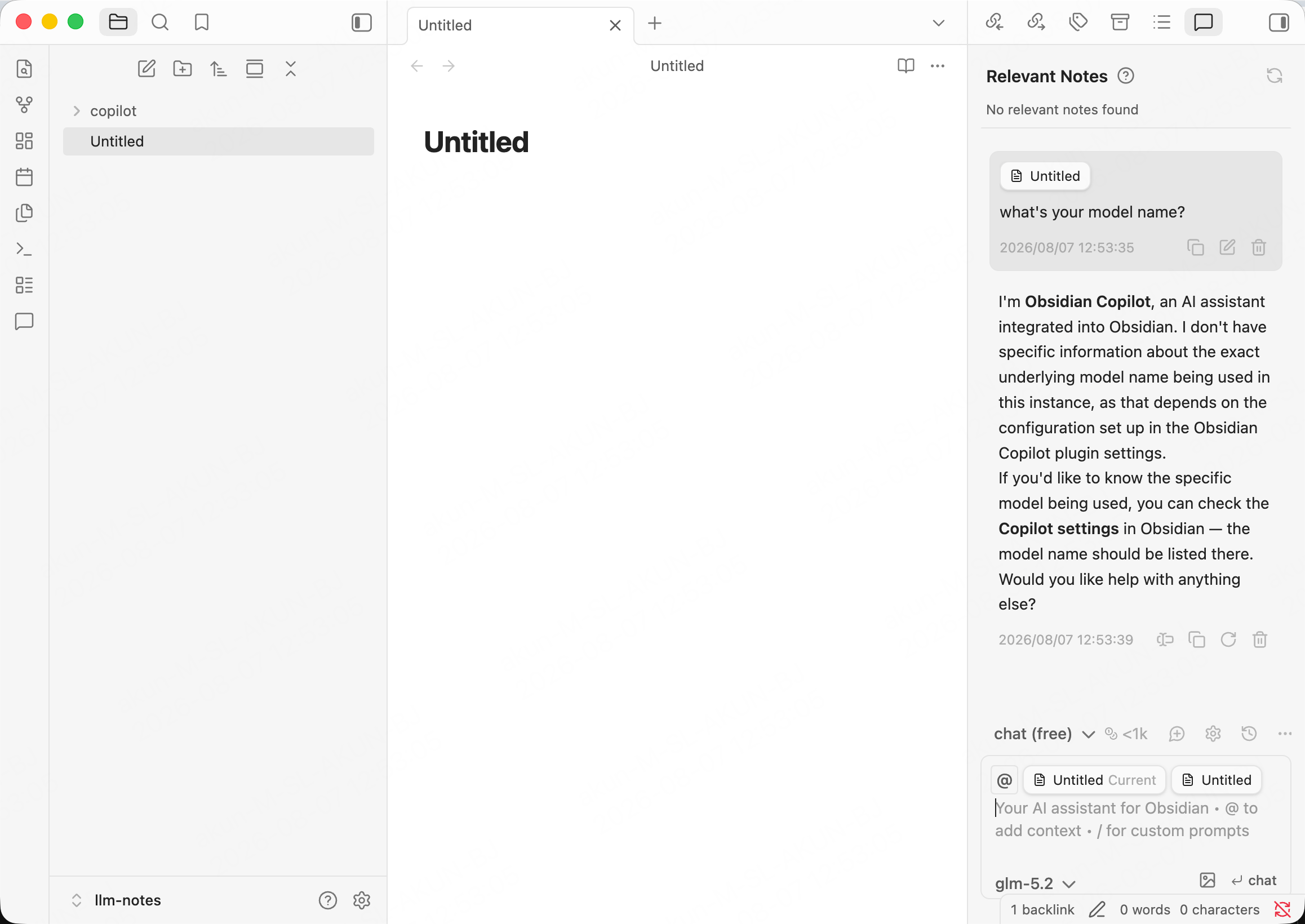
Open the Copilot chat pane, select `glm-5.2` from the model selector at the bottom, and send a message. A normal reply confirms that the connection works.
The assistant may identify itself as "Obsidian Copilot" rather than the underlying model. That is the plugin's own system prompt, not a routing issue; the model selector still shows the ScitiX model in use.
## Verify
Open the Copilot chat pane, select `glm-5.2` from the model selector at the bottom, and send a message. A normal reply confirms that the connection works.
The assistant may identify itself as "Obsidian Copilot" rather than the underlying model. That is the plugin's own system prompt, not a routing issue; the model selector still shows the ScitiX model in use.