> ## Documentation Index
> Fetch the complete documentation index at: https://docs.scitix.ai/llms.txt
> Use this file to discover all available pages before exploring further.
# LangBot
> Learn how to add an OpenAI model provider in LangBot, set a custom request URL, and connect multi-platform messaging bots to ScitiX models.
[LangBot](https://github.com/langbot-app/LangBot) is an open-source multi-platform messaging bot platform that supports QQ, WeCom, Feishu, DingTalk, Discord, Slack, and more. Its **OpenAI** model provider supports a custom request URL, so you can connect LangBot to ScitiX Model Inference.
This guide uses `glm-5.2` as an example. For the full model list and pricing, see [Models](https://console.scitix.ai/model-inference/models).
## Configure
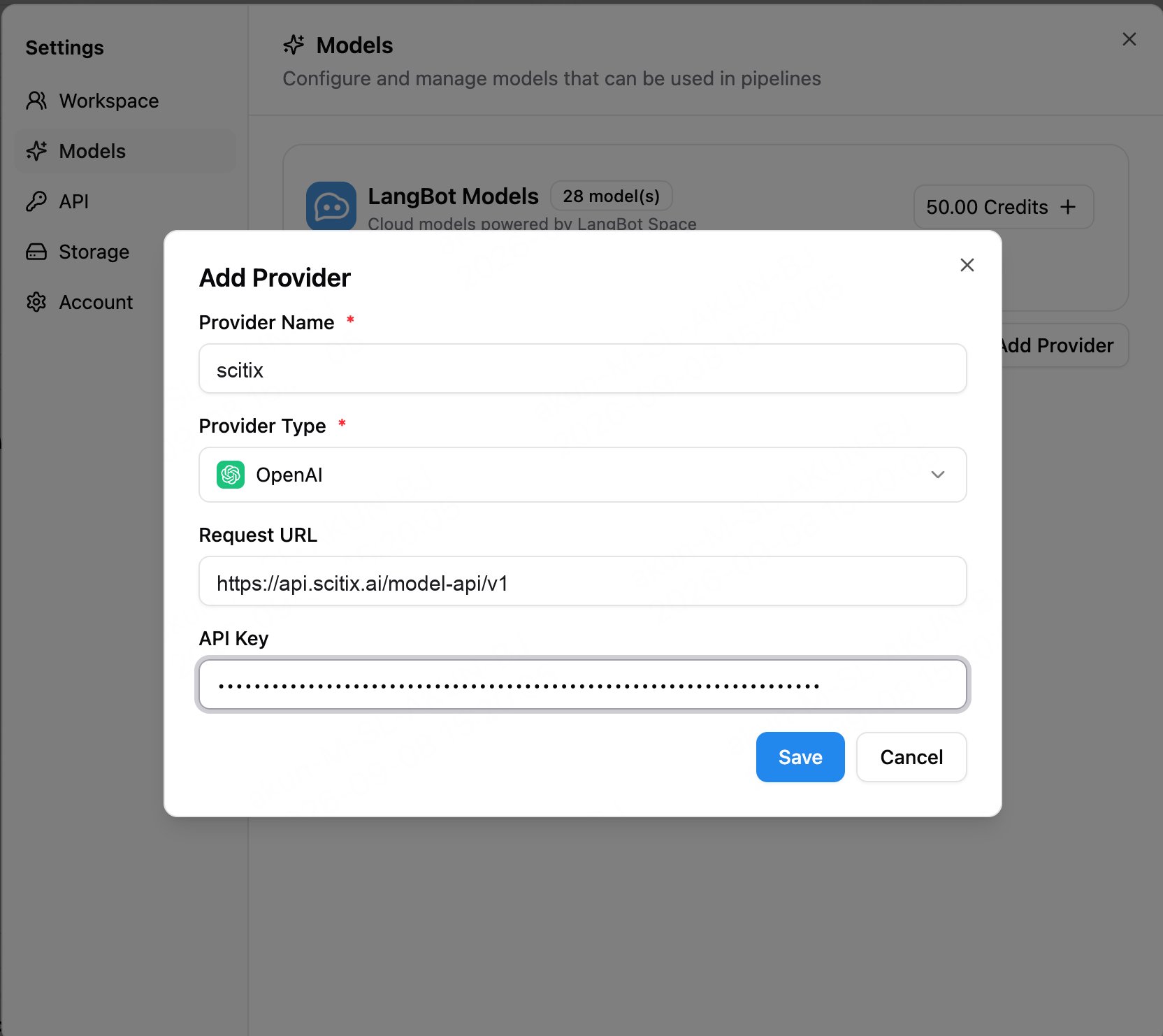
Create an API Key on the [API Keys](https://console.scitix.ai/model-inference/api_keys) page. Open the LangBot admin panel, go to **Settings > Models**, choose **Add Provider**, and fill in:
| Field | Value |
| ------------- | ----------------------------------------------------------------------------------------------- |
| Provider Name | A custom name, such as `scitix` |
| Provider Type | **OpenAI** |
| Request URL | `https://api.scitix.ai/model-api/v1` |
| API Key | Your API Key created on the [API Keys](https://console.scitix.ai/model-inference/api_keys) page |
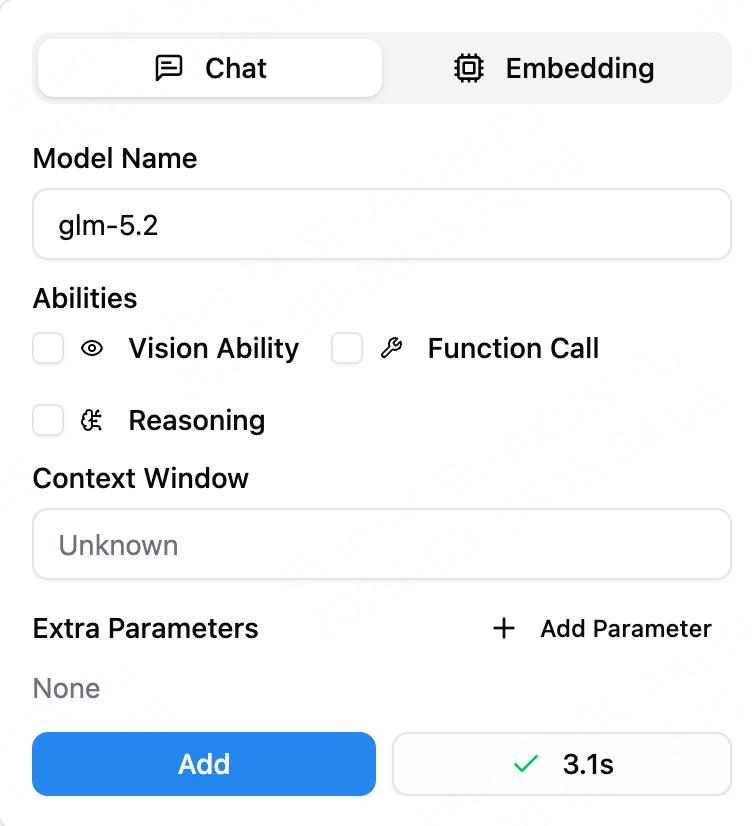
 After saving the provider, choose **Add Model** under that provider and enter the model name `glm-5.2`. Enable capabilities such as **Function Call** if your scenario requires them.
## Verify
When you add a model, LangBot sends a connectivity test to the ScitiX endpoint. A green check mark, such as `3.1s`, means the connection is successful.
After saving the provider, choose **Add Model** under that provider and enter the model name `glm-5.2`. Enable capabilities such as **Function Call** if your scenario requires them.
## Verify
When you add a model, LangBot sends a connectivity test to the ScitiX endpoint. A green check mark, such as `3.1s`, means the connection is successful.
 Then set this model as the conversation model in **Pipelines**, bind a messaging platform under **Bots**, and start using it.
## FAQ
* **Provider Type**:
Select **OpenAI**. Its Request URL is configurable, so no dedicated ScitiX preset is required.
* **Tool or agent capabilities**:
Choose a model that supports tool calling and enable **Function Call** when needed. `glm-5.2` supports tool calling.
* **Personal WeChat or personal QQ adapters**:
Third-party protocol adapters may carry compliance and account-ban risks. For production use, prefer official channels such as Feishu, DingTalk, WeCom, public accounts, QQ official bots, Discord, or Slack.
Then set this model as the conversation model in **Pipelines**, bind a messaging platform under **Bots**, and start using it.
## FAQ
* **Provider Type**:
Select **OpenAI**. Its Request URL is configurable, so no dedicated ScitiX preset is required.
* **Tool or agent capabilities**:
Choose a model that supports tool calling and enable **Function Call** when needed. `glm-5.2` supports tool calling.
* **Personal WeChat or personal QQ adapters**:
Third-party protocol adapters may carry compliance and account-ban risks. For production use, prefer official channels such as Feishu, DingTalk, WeCom, public accounts, QQ official bots, Discord, or Slack.