> ## Documentation Index
> Fetch the complete documentation index at: https://docs.scitix.ai/llms.txt
> Use this file to discover all available pages before exploring further.
# Immersive Translate
Immersive Translate is a bilingual, side-by-side translation extension that uses large language models for cross-language understanding. It supports real-time translation of web pages, PDFs, EPUB e-books, and video subtitles, and is available as a browser extension and in other forms. Common use cases include:
* Read foreign-language articles or documentation with the original text and translation side by side.
* Translate PDF reports or EPUB books while keeping layout and structure.
* Generate or translate video subtitles for learning or accessibility.
You can use the ScitiX Model Inference API as the translation backend by configuring Immersive Translate to use the **OpenAI** or compatible API option and pointing it to the platform's Chat Completions endpoint.
## Configure
### 1. Install the extension
Open the [Immersive Translate](https://immersivetranslate.com/en/) official site and choose **Install browser extension** or the equivalent option. Pick the version for your browser, such as Chrome, Edge, or Firefox, and install it.
### 2. Configure API and model
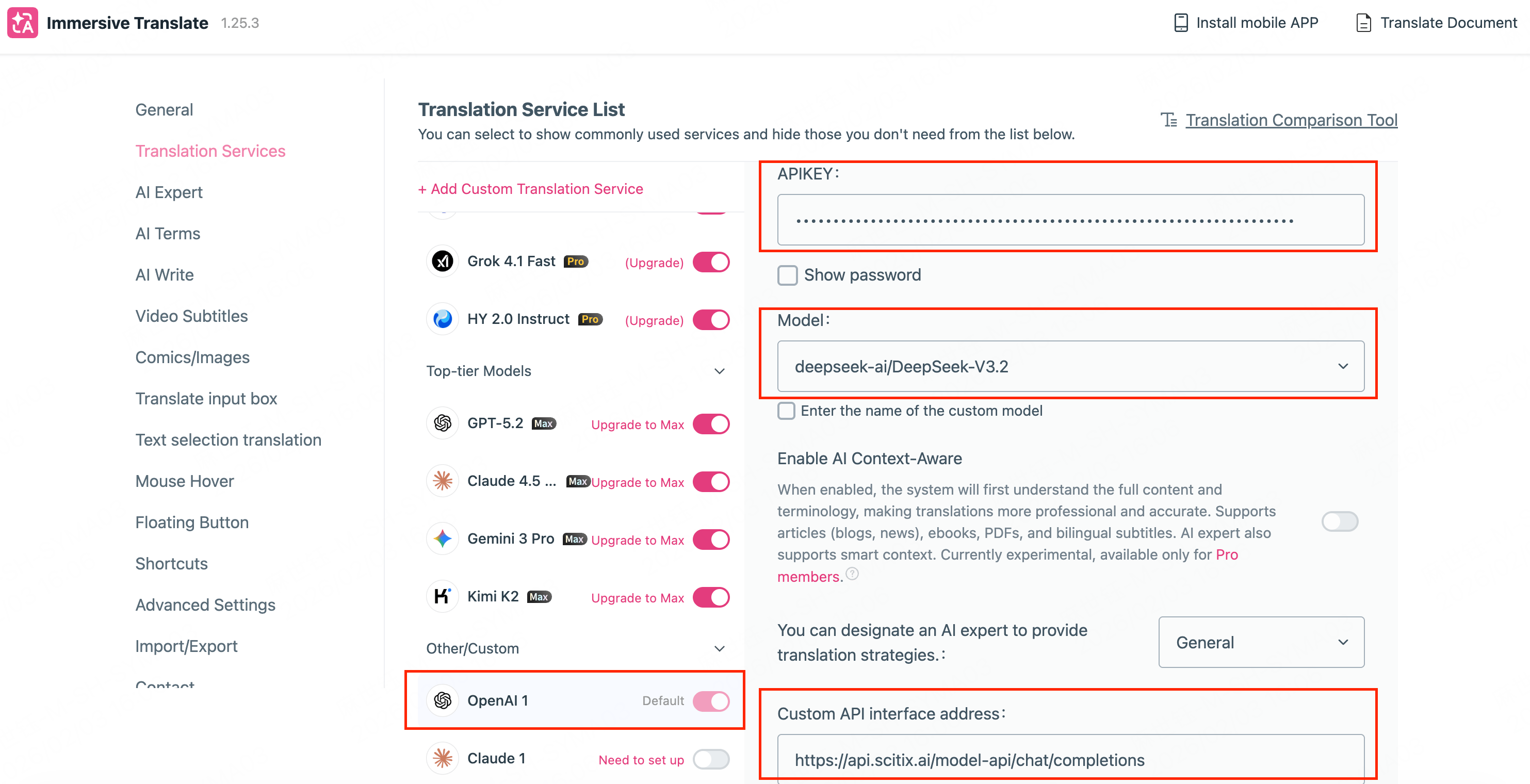
Click the Immersive Translate extension icon and open **Settings**. In the settings page, set:
| Setting | Value |
| ----------------------- | -------------------------------------------------------------------------------------------------------- |
| **API Key** | Your API Key from the [API Keys](https://console.scitix.ai/model-inference/api_keys) page. |
| **Model** | The model's invocation name as shown on ScitiX, such as `Qwen/Qwen3.5-397B-A17B` or `DeepSeek-V4-Flash`. |
| **Custom API endpoint** | `https://api.scitix.ai/model-api/chat/completions` |
Save the settings.
**Tip**
* Keep your API Key private. Do not share it or commit it to version control.
* General-purpose or multilingual models, such as Qwen or DeepSeek models, work well for translation. Choose a model with sufficient context length for long documents.
* Translation of long texts can consume many tokens. Be aware of the platform's pricing and rate limits.
 ### 3. Set translation service to OpenAI
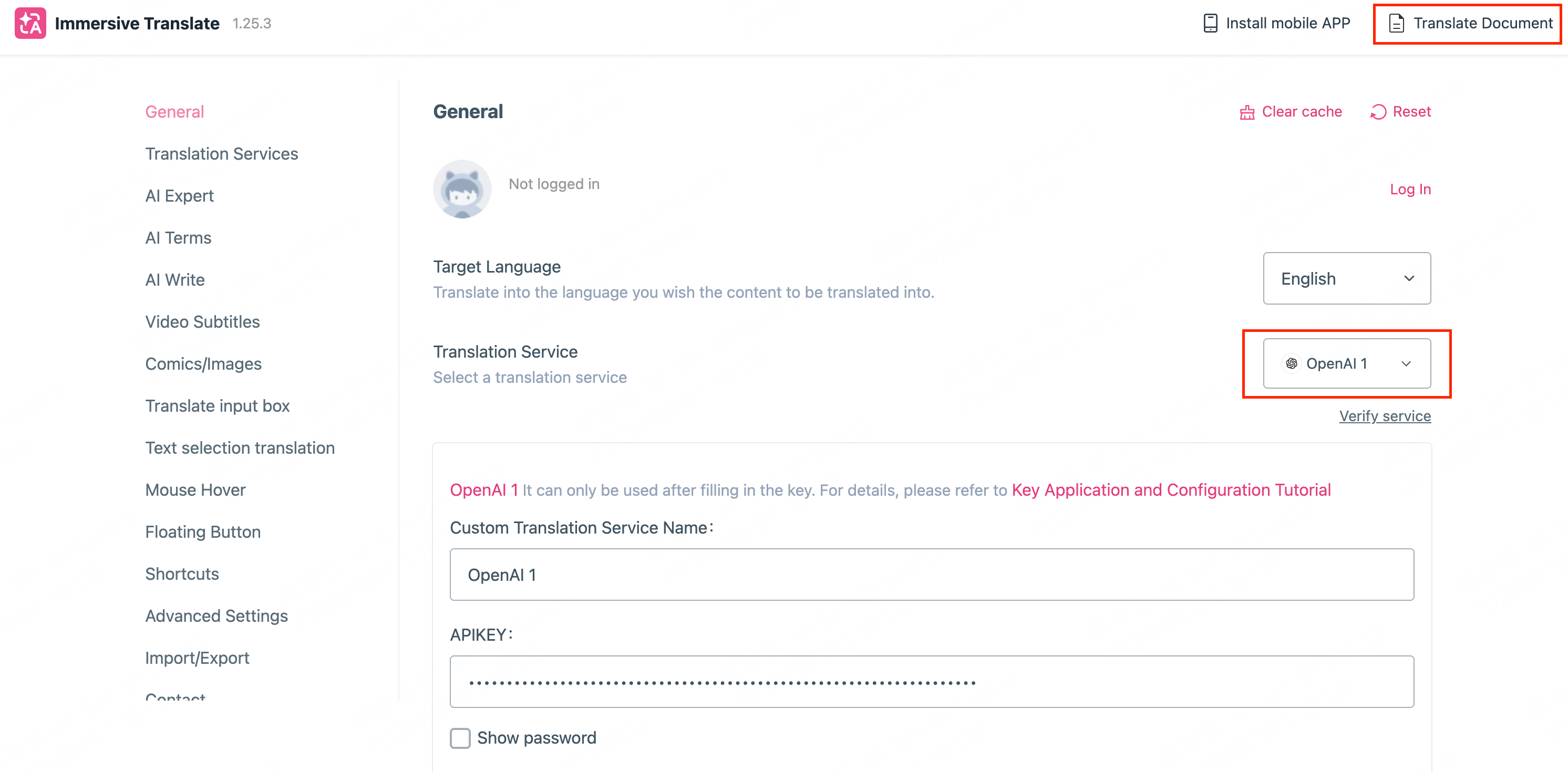
Set the **translation service** to **OpenAI**, or to the option that allows a custom API endpoint.
### 3. Set translation service to OpenAI
Set the **translation service** to **OpenAI**, or to the option that allows a custom API endpoint.
 ## Verify
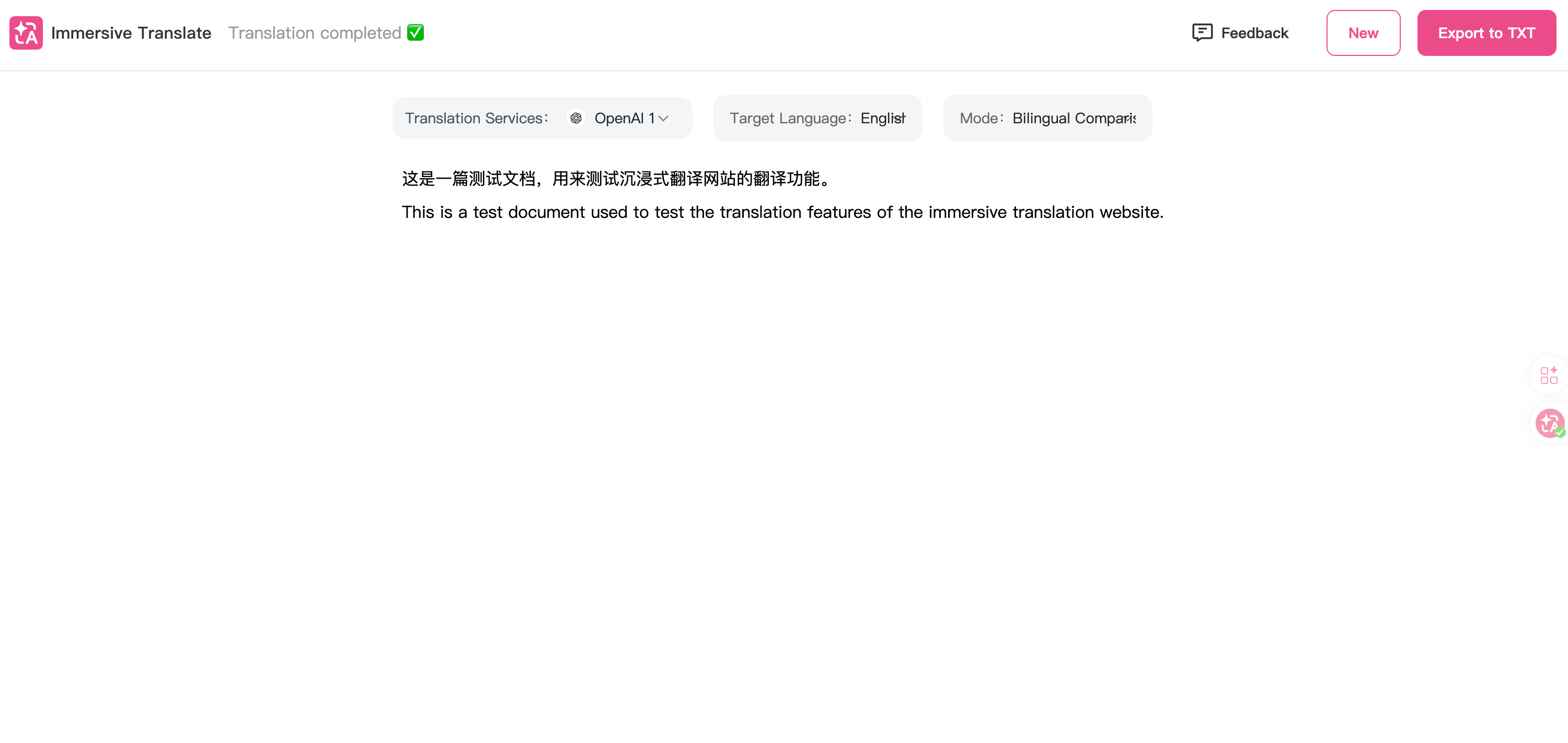
Click **Translate document** in the top-left to open the translation interface. Open a supported page, PDF, or EPUB, then use the extension to get bilingual translations.
The following example shows a page with the original text and translation side by side.
## Verify
Click **Translate document** in the top-left to open the translation interface. Open a supported page, PDF, or EPUB, then use the extension to get bilingual translations.
The following example shows a page with the original text and translation side by side.