> ## Documentation Index
> Fetch the complete documentation index at: https://docs.scitix.ai/llms.txt
> Use this file to discover all available pages before exploring further.
# Mount a GPFS File System
After you mount a GPFS file system, CES instances or CKS cluster nodes can access data in the file system through a local directory.
## Prerequisites
* The GPFS file system is in the `Running` state.
* The CES instance or CKS cluster node to be mounted is in the same region as the GPFS file system.
GPFS file systems cannot be mounted across regions. Only compute nodes in the same region as the file system can mount the file system.
* The local mount path has been planned.
* If you mount only a subdirectory in the file system, make sure that the subdirectory already exists.
* If multiple mounts exist on the same CES instance, each mount path must be unique.
## Procedure
### Mount from the GPFS page
1. Log on to the console and go to **GPFS**.
2. Select the file system that you want to mount and choose **Mount**.
3. Select the CES instance to which you want to mount the file system and configure the paths.
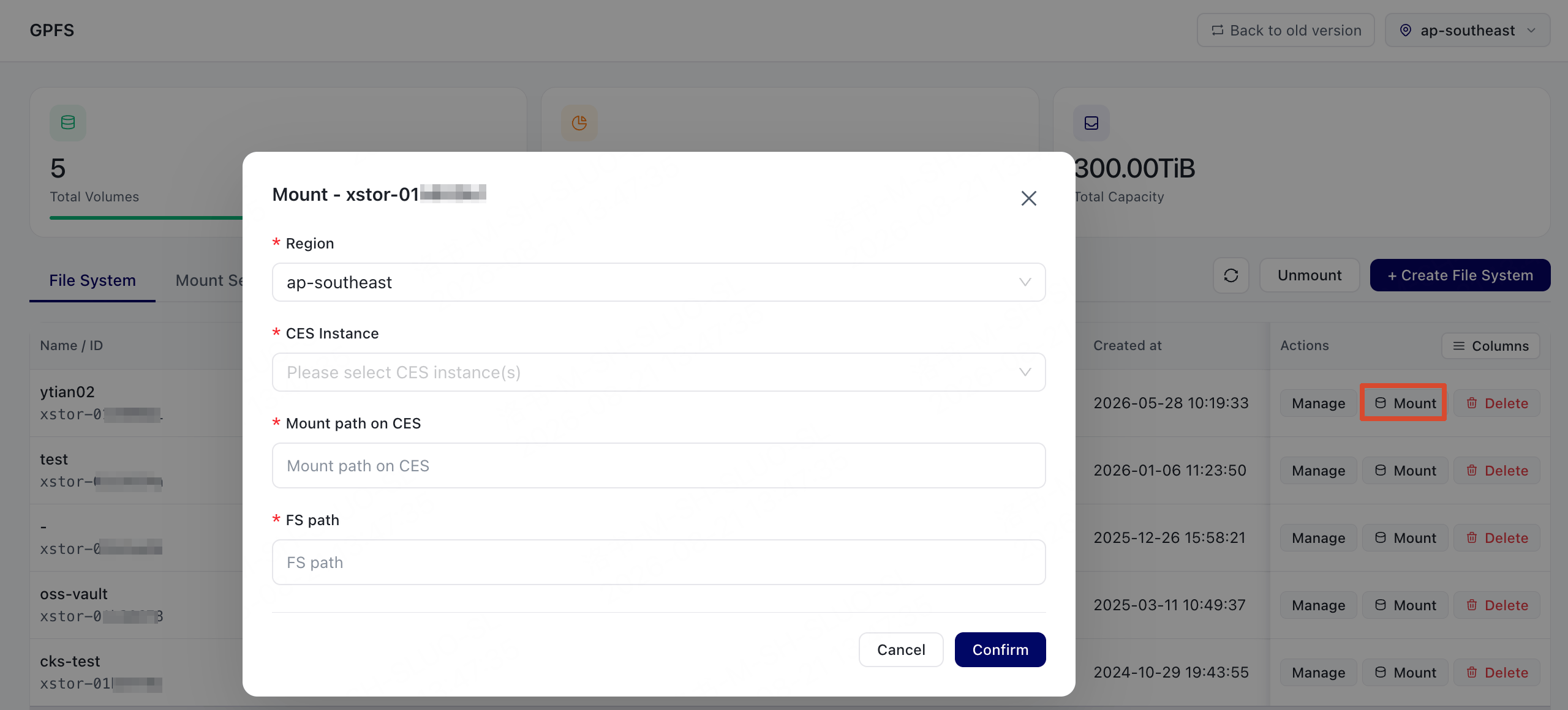 | Parameter | Description |
| ----------------- | --------------------------------------------------------------------------------------------------------------------------------------------------------- |
| Mount path on CES | The mount path of the file system on CES. After the mount is complete, go to this path to access data in the file system. |
| FS path | The remote path in the file system. Enter `/` to mount the entire file system. Enter `/path_to_your_dir` to mount only a subdirectory in the file system. |
4. Choose **Confirm**, and then check the mount result.
If the mount succeeds, the result is displayed as `success`. If the mount fails, the dialog box displays an error message.
### Mount from the instance page
1. Log on to the console and open the **Instances** page.
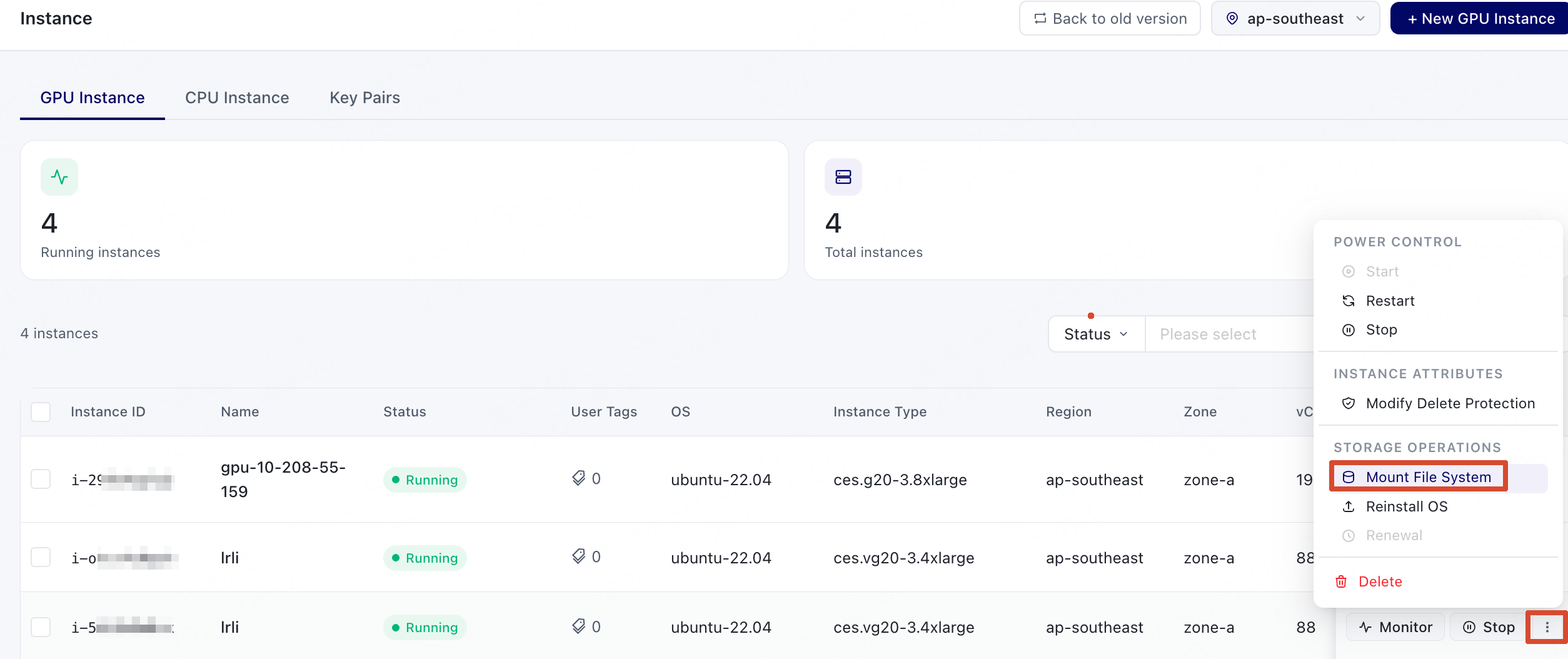
2. Select the CES instance to which you want to mount the file system, open the actions menu, and choose **Mount File System**.
| Parameter | Description |
| ----------------- | --------------------------------------------------------------------------------------------------------------------------------------------------------- |
| Mount path on CES | The mount path of the file system on CES. After the mount is complete, go to this path to access data in the file system. |
| FS path | The remote path in the file system. Enter `/` to mount the entire file system. Enter `/path_to_your_dir` to mount only a subdirectory in the file system. |
4. Choose **Confirm**, and then check the mount result.
If the mount succeeds, the result is displayed as `success`. If the mount fails, the dialog box displays an error message.
### Mount from the instance page
1. Log on to the console and open the **Instances** page.
2. Select the CES instance to which you want to mount the file system, open the actions menu, and choose **Mount File System**.
 3. In the dialog box that appears, follow the prompts to complete the configuration.
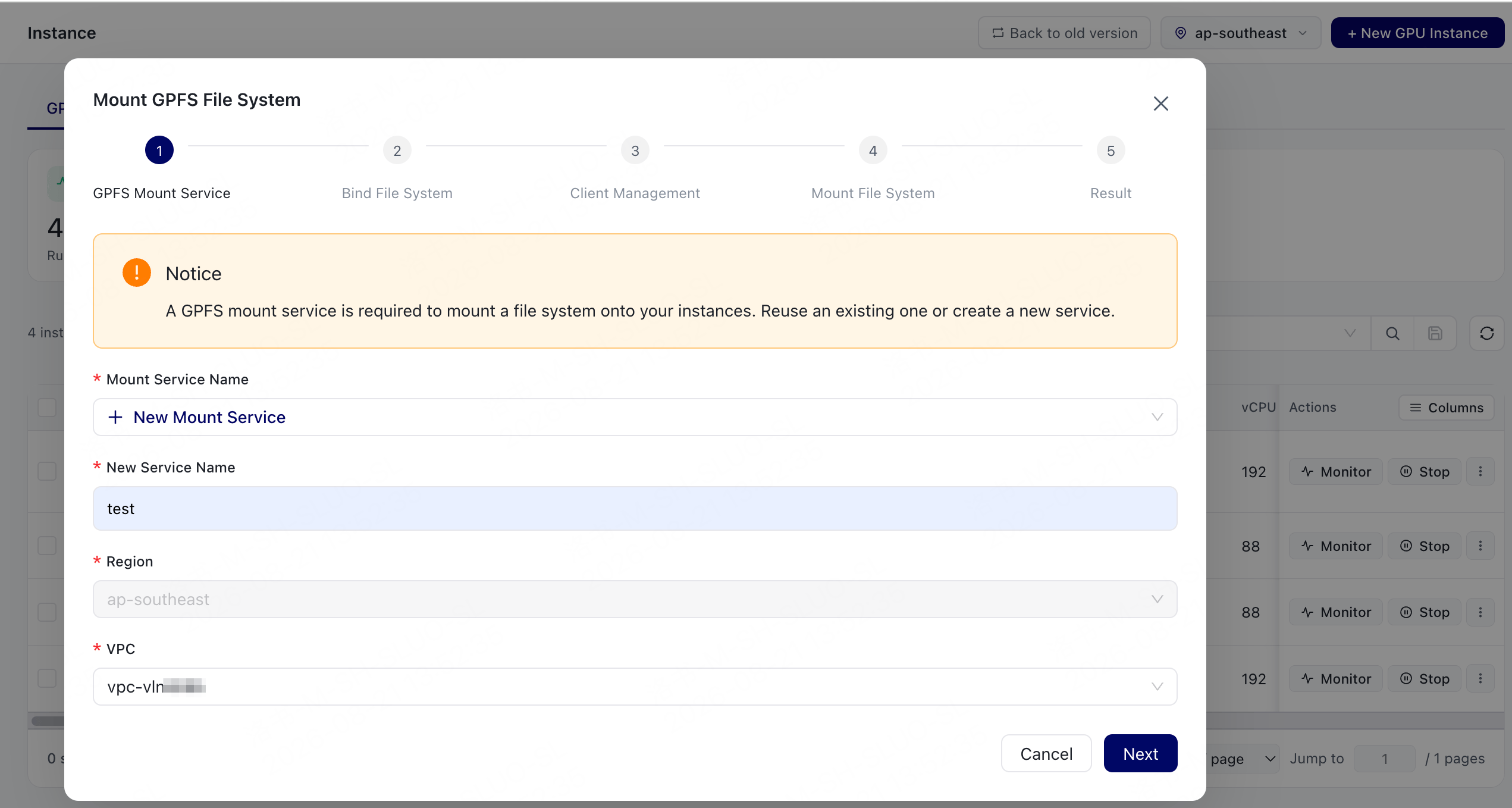 | Configuration item | Description |
| ------------------ | ---------------------------------------------------------------------------------------- |
| GPFS Mount Service | Select the GPFS mount service. |
| Bind File System | If you create a mount service, bind the storage volume to the corresponding file system. |
| Client Management | Select client nodes. |
| Mount File System | Configure the mount path. |
4. Choose **Confirm**, and then check the mount result.
If the mount succeeds, the result is displayed as `success`. If the mount fails, the dialog box displays an error message.
## Mount manually from the command line
If you need to mount the file system manually on a server, use the following command format:
```bash theme={null}
mount.xstor-gpfs -o tenantid= xstor-.-001.aries:/
```
Where:
* `` is the tenant ID.
* `xstor-` is the file system ID.
* `` is the local mount directory.
Example:
```bash theme={null}
mount.xstor-gpfs -o tenantid=sXXXXXXyyyyyy xstor-01b12345.01b12345-001.aries:/ /data
```
## Troubleshooting mount failures
If the mount fails, check the following items first:
| Check item | Description |
| ------------------ | ----------------------------------------------------------------------------------- |
| File system status | The file system must be in the `Running` state. |
| Region | The CES instance or CKS cluster node must be in the same region as the file system. |
| Local mount path | The mount path must not conflict with existing mounts. |
| Remote path | The subdirectory specified by **FS path** must already exist. |
If the issue persists, record the error message and contact support.
| Configuration item | Description |
| ------------------ | ---------------------------------------------------------------------------------------- |
| GPFS Mount Service | Select the GPFS mount service. |
| Bind File System | If you create a mount service, bind the storage volume to the corresponding file system. |
| Client Management | Select client nodes. |
| Mount File System | Configure the mount path. |
4. Choose **Confirm**, and then check the mount result.
If the mount succeeds, the result is displayed as `success`. If the mount fails, the dialog box displays an error message.
## Mount manually from the command line
If you need to mount the file system manually on a server, use the following command format:
```bash theme={null}
mount.xstor-gpfs -o tenantid= xstor-.-001.aries:/
```
Where:
* `` is the tenant ID.
* `xstor-` is the file system ID.
* `` is the local mount directory.
Example:
```bash theme={null}
mount.xstor-gpfs -o tenantid=sXXXXXXyyyyyy xstor-01b12345.01b12345-001.aries:/ /data
```
## Troubleshooting mount failures
If the mount fails, check the following items first:
| Check item | Description |
| ------------------ | ----------------------------------------------------------------------------------- |
| File system status | The file system must be in the `Running` state. |
| Region | The CES instance or CKS cluster node must be in the same region as the file system. |
| Local mount path | The mount path must not conflict with existing mounts. |
| Remote path | The subdirectory specified by **FS path** must already exist. |
If the issue persists, record the error message and contact support.