> ## Documentation Index
> Fetch the complete documentation index at: https://docs.scitix.ai/llms.txt
> Use this file to discover all available pages before exploring further.
# Initialize an Account
ScitiX Cloud supports personal accounts and enterprise accounts. Choose the account type that fits your needs.
## Personal Account
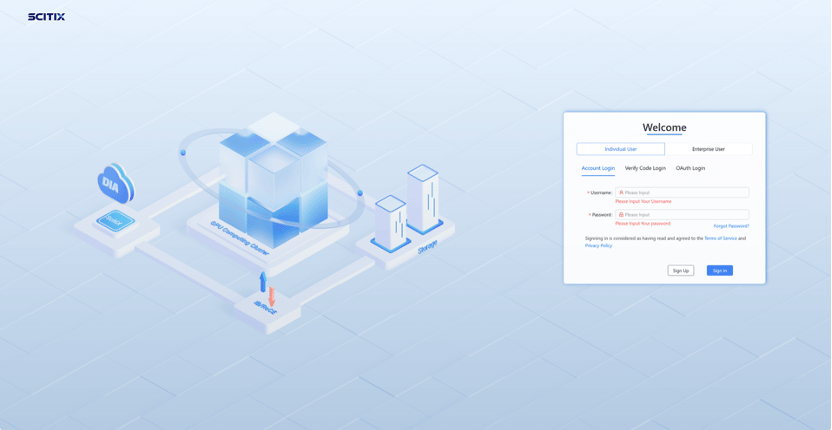
Register online through the [login/registration page](https://console.scitix.ai).
## Enterprise Account
You can create an enterprise account in either of the following ways:
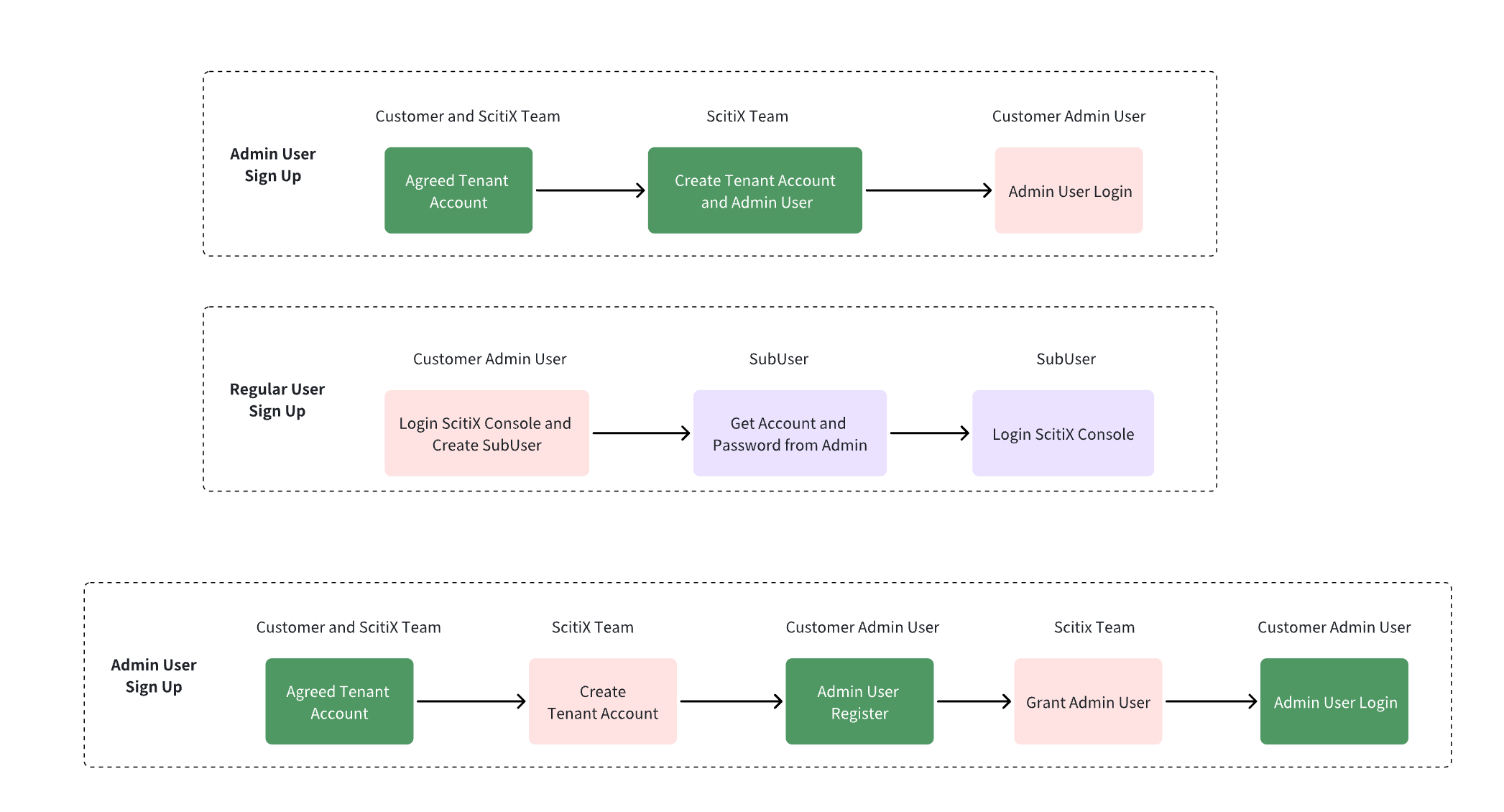
1. Contact the ScitiX support and technical team to initialize your tenant and admin user.
2. Register on the login page yourself, then contact the platform to activate your account.
ScitiX Cloud uses a two-layer organizational structure: tenant and user. You need to determine your tenant name, sub-users, and admin user.
**Tenant naming rules:** The name must start with a letter and can include lowercase letters, underscores, and numbers. A reasonable length is between 3 and 15 characters.
Example: If your tenant name is "company," within the tenant you have three users: user1 (admin), user2, and user3, with user1 being the admin user.
 ## Tenant and Admin Registration
For enterprise accounts, you can register your tenant and admin user in either of the following ways.
### Option 1: Contact the ScitiX Team
Communicate with the ScitiX support and technical team, providing the tenant name and the name of the first admin user. Then, wait for the ScitiX technical team to initialize your account.
Once the account is initialized, the ScitiX technical team will provide you with the TenantName, AdminUserName, and AdminUserPassword. You can then log in to the ScitiX console.
### Option 2: Self-Register on the Login Page
Register on the login page yourself, then contact the platform to complete activation of your account.
URL: [https://console.scitix.ai](https://console.scitix.ai)
## User Management
After the account is reviewed and approved, the admin user (user1) can log in to the ScitiX console.
## Tenant and Admin Registration
For enterprise accounts, you can register your tenant and admin user in either of the following ways.
### Option 1: Contact the ScitiX Team
Communicate with the ScitiX support and technical team, providing the tenant name and the name of the first admin user. Then, wait for the ScitiX technical team to initialize your account.
Once the account is initialized, the ScitiX technical team will provide you with the TenantName, AdminUserName, and AdminUserPassword. You can then log in to the ScitiX console.
### Option 2: Self-Register on the Login Page
Register on the login page yourself, then contact the platform to complete activation of your account.
URL: [https://console.scitix.ai](https://console.scitix.ai)
## User Management
After the account is reviewed and approved, the admin user (user1) can log in to the ScitiX console.
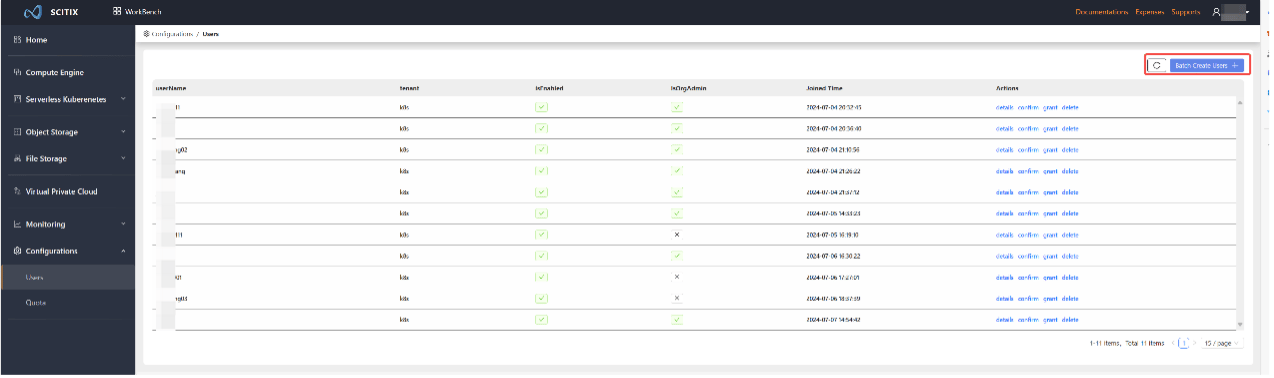
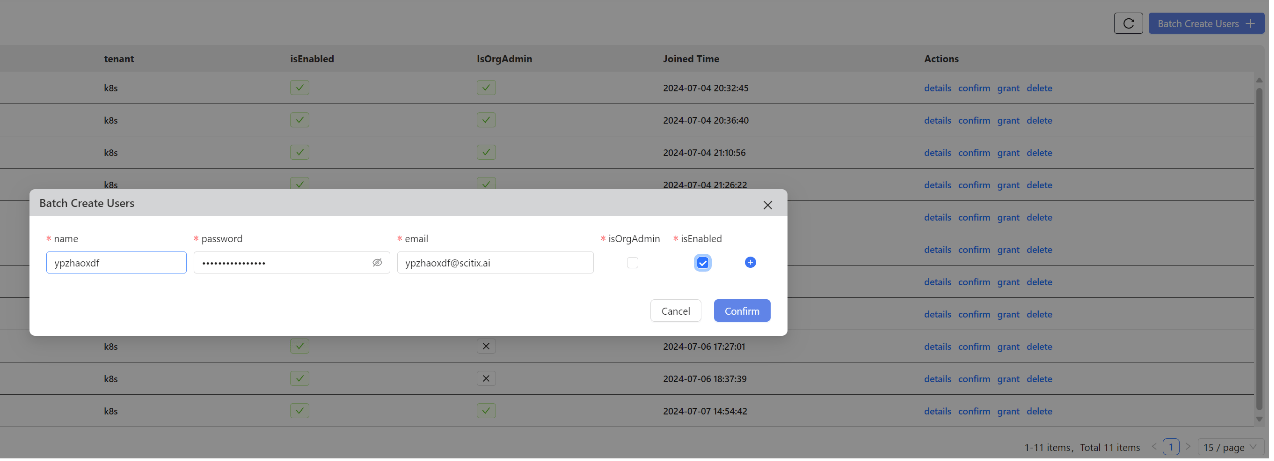
 After logging in, you can create sub-users.